
Weekly schedule
The schedule is where managers build the week’s shifts. Find it under Shift planner in the menu. The page is for managers and shift leads; employees see their own shifts under My shifts (see Roles).
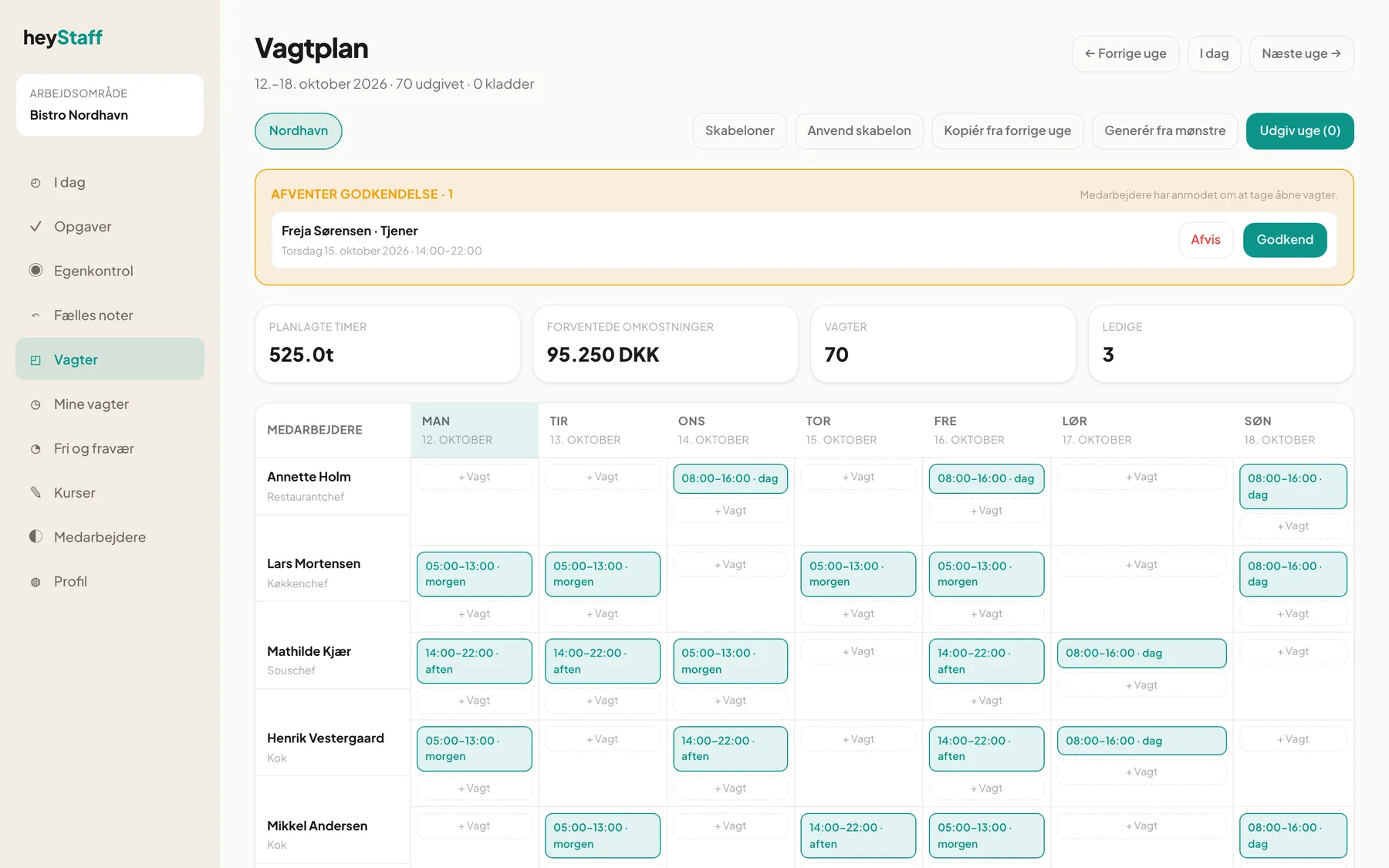
How the page is laid out
Section titled “How the page is laid out”- Heading: The week’s dates, plus how many shifts are published and how many are still drafts.
- Week navigation: ← Previous week, Today and Next week → at the top right.
- Location: With several locations you switch using the buttons on the left. Bistro Nordhavn has just one, Nordhavn.
- Action buttons: Templates, Apply template, Copy from previous week, Generate from patterns and Publish week.
- Four summary tiles:
| Tile | Meaning |
|---|---|
| Planned hours | Total of the week’s shifts minus breaks. Cancelled and no-show shifts are not counted. |
| Projected cost | Hours multiplied by the hourly rate stored on each shift. |
| Shifts | Number of shifts in the week. |
| Open | Shifts with no employee, which others can take. |
- The grid: Employees down the side, the week’s seven days across. Today is highlighted. At the bottom is the Available shifts row (only shown when there are any).
The colour of a shift block shows its status: green is published, yellow is a draft, red is a no-show, grey is cancelled. The text shows time and shift type, for example 08:00–16:00 · dag.
Note: Some texts in the schedule dialogs (for example “Opret kladde”, “Rediger vagt” and “Gem ændringer”) are not yet translated and appear in Danish even when the app is set to English. They are quoted in Danish here, with the meaning in brackets.
Create a shift
Section titled “Create a shift”- Find the employee’s row and the right day, and click + Shift.
- Choose a Vagttype (shift type, for example morgen, dag, aften). Start and end times are filled in automatically but can be edited.
- Check Pause (minutter). The default is 30.
- Add a Note if you like.
- Click Opret kladde (create draft).
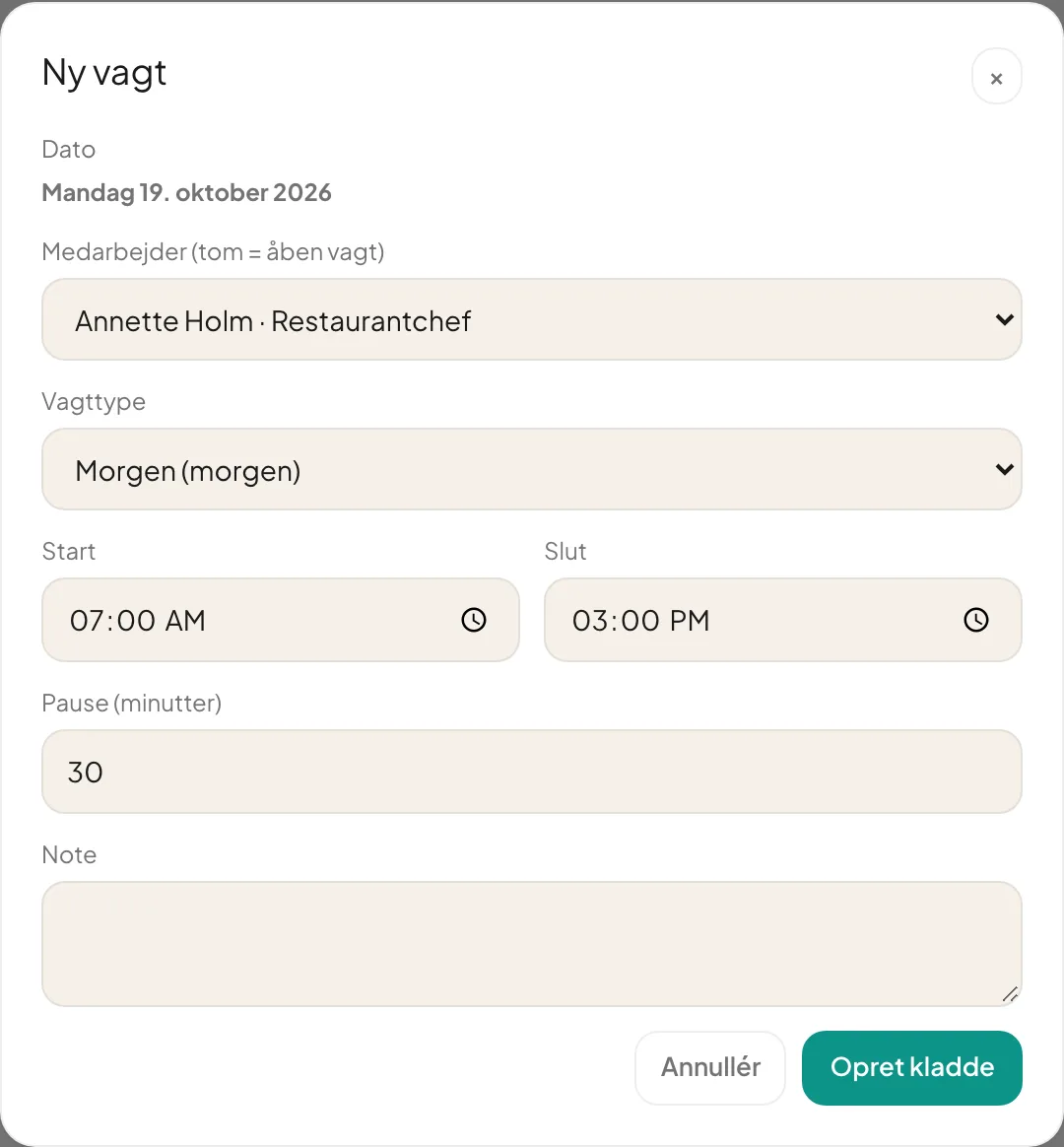
The shift is now a draft. Staff cannot see it until you publish (see Publish the week). If you pick — Ledig vagt — as the employee, it becomes an open shift (see Open shifts).
Edit, move and delete
Section titled “Edit, move and delete”Click a shift block to open Rediger vagt. You can change employee, shift type, times, break and note, then click Gem ændringer.
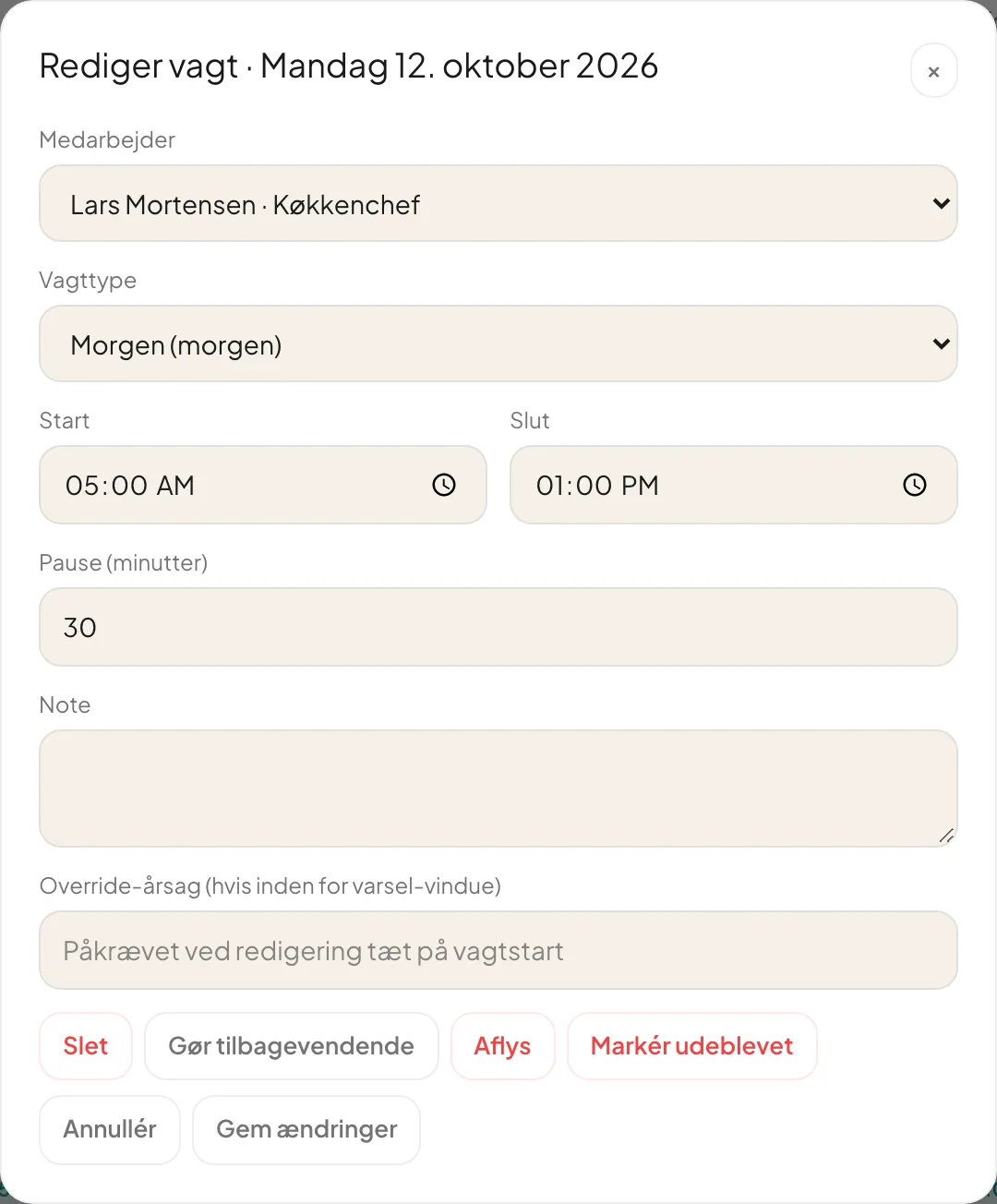
- Drag a shift to another day or employee to move it. The time of day is kept.
- Hold Alt, Ctrl, Cmd or Shift while dropping to make a copy instead of moving it.
- Slet (delete) only works on drafts. For a published shift, use Aflys (cancel).
- Markér udeblevet (mark no-show) is for an employee who did not turn up. It also creates an absence record.
- Gør tilbagevendende (make recurring) builds a repeating pattern from the shift, up to 6 weeks ahead.
Tip: If the same shift is needed on several days, create it once and drag copies with Alt held down.
Why can’t I create a shift for an employee? The employee must have an active employment at the location. If they have a mandatory course that is not completed, the system also refuses the assignment.
Are pay supplements included in the expected cost? No. The figure uses only the base hourly rate stored on the shift. Evening supplements and similar are added in the payroll forecast and export.