
The employee list
The employee list is the starting point for all people work in heyStaff. Here you see everyone employed in your workspace, invite new colleagues and open an individual employment record. Only managers can see the page; staff are sent to the dashboard.
You find it under Medarbejdere (Employees) in the menu on the left.
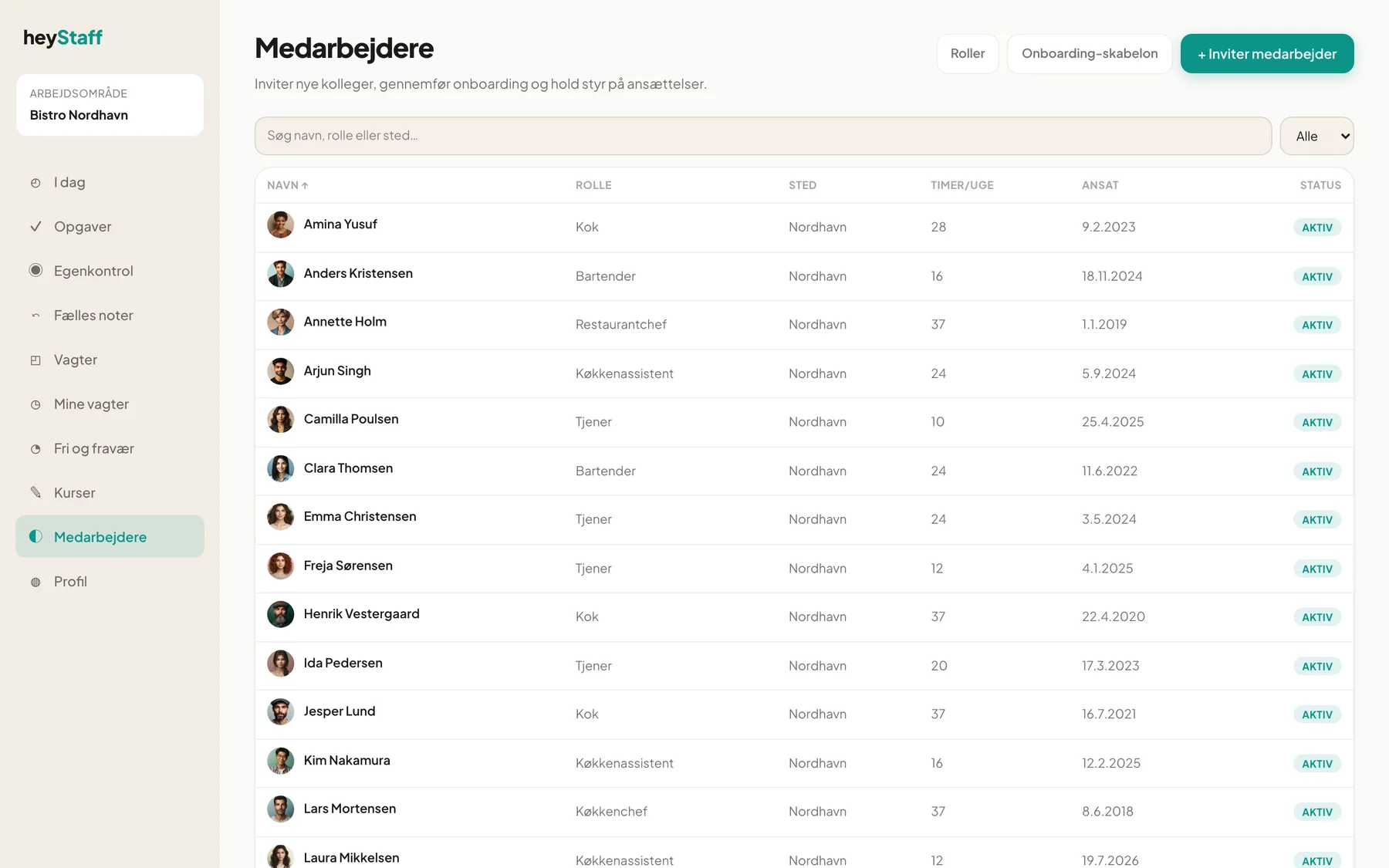
How the list is laid out
Section titled “How the list is laid out”At the top there are three buttons: Roller (Roles), Onboarding-skabelon (Onboarding template) and + Inviter medarbejder (Invite employee). Below them are the search field, a status filter and the table.
| Column | Content |
|---|---|
| Navn (Name) | The employee’s name and avatar. Click to open the employment |
| Rolle (Role) | Job title, e.g. Kok or Tjener |
| Sted (Location) | The location the employee works at |
| Timer/uge (Hours/week) | Contracted hours per week |
| Ansat (Hired) | Hire date |
| Status | Aktiv, Onboarding, Inviteret and so on |
Click a column heading to sort. Click again to reverse the order. Employees with status Afsluttet (Ended) or Arkiveret (Archived) always sit at the bottom.
Search and filter
Section titled “Search and filter”- Type in the field Søg navn, rolle eller sted…. The list narrows as you type and searches name, email, role and location.
- Use the dropdown showing Alle (All) to show one status at a time. It only lists statuses that exist in your workspace.
- If the business has several locations, an extra dropdown with Alle steder (All locations) appears.
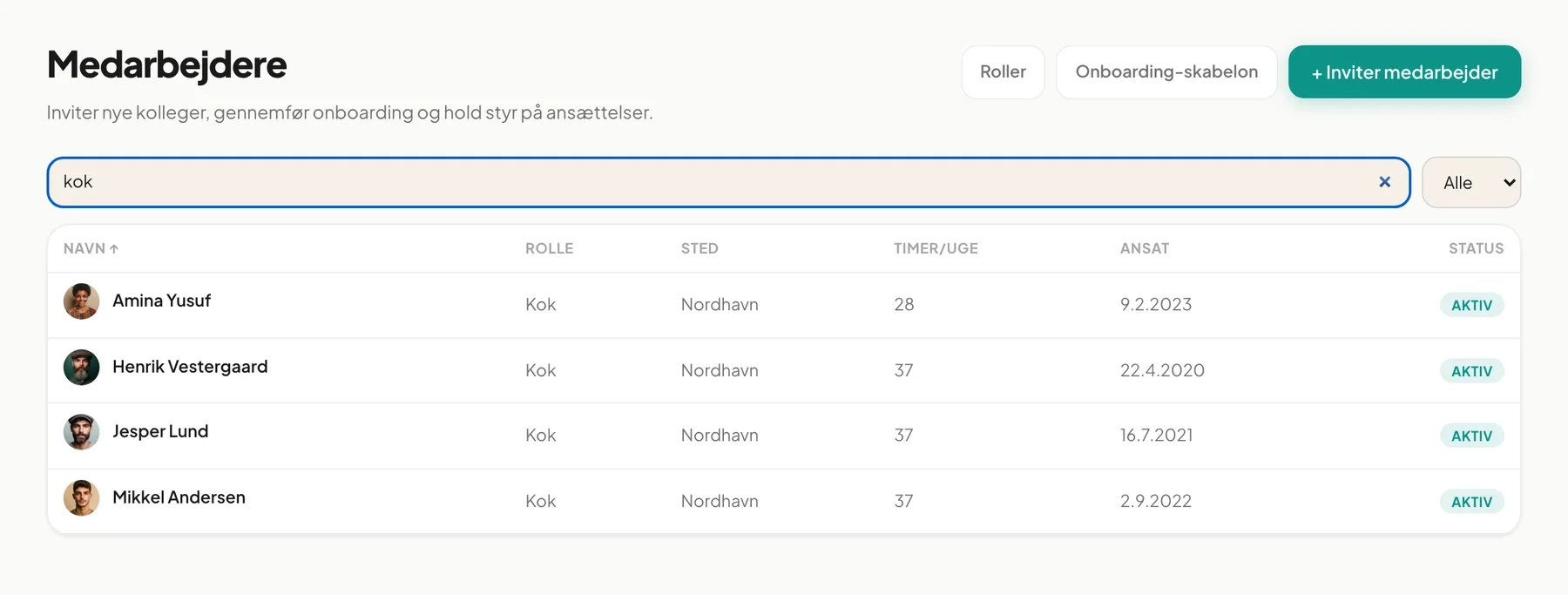
The list shows 25 employees at a time. Use Forrige and Næste (Previous and Next) below the table to page through.
Statuses
Section titled “Statuses”| Status | Meaning |
|---|---|
| Inviteret (Invited) | The invitation has been sent but not accepted |
| Onboarding | The account exists and onboarding is under way |
| Aktiv (Active) | The employee can be given shifts |
| Orlov (On leave) | Temporarily away |
| Suspenderet (Suspended) | Temporarily blocked |
| Afsluttet (Ended) | The employment is over |
| Arkiveret (Archived) | Hidden away, but data and history are kept |
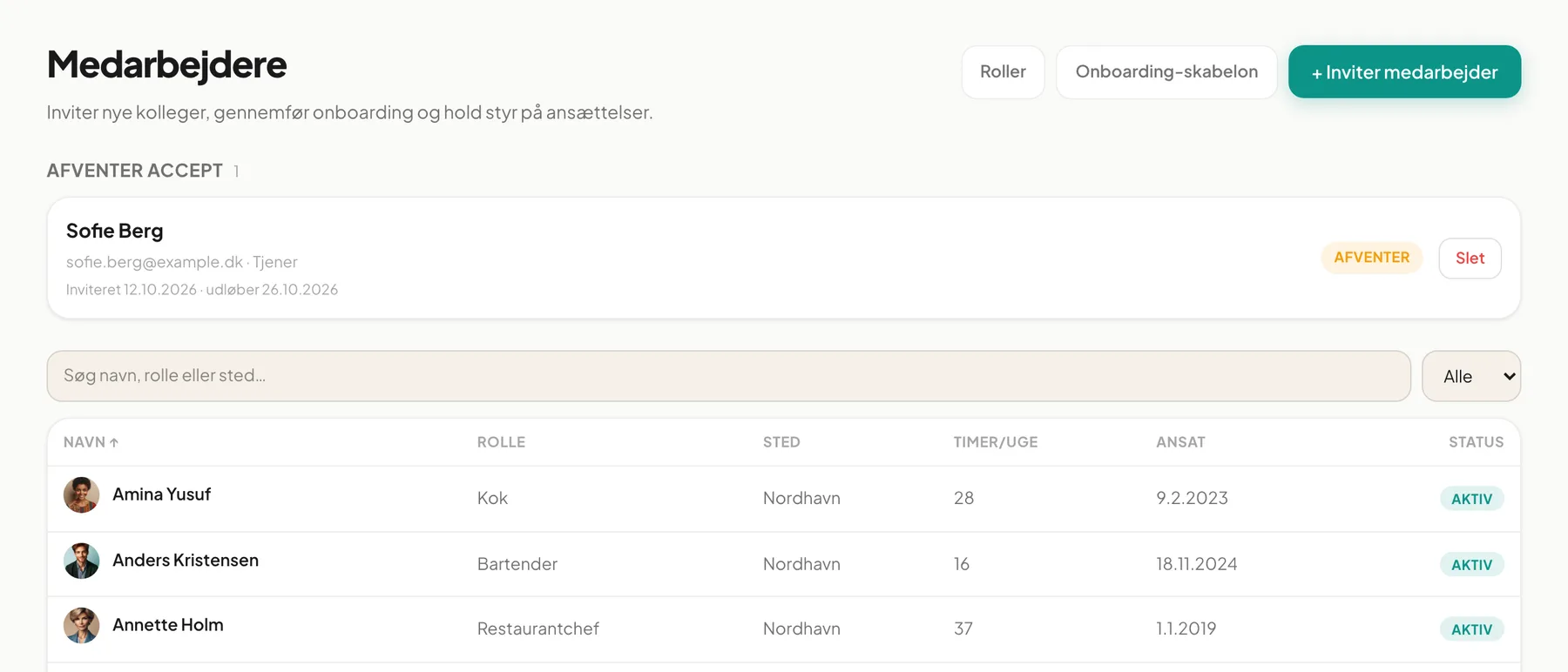
Pending invitations
Section titled “Pending invitations”Invitations that have not yet been accepted appear in a panel at the top headed Afventer accept (Awaiting acceptance). Each shows name, email, role and the sent and expiry dates. Use Slet (Delete) to withdraw an invitation.
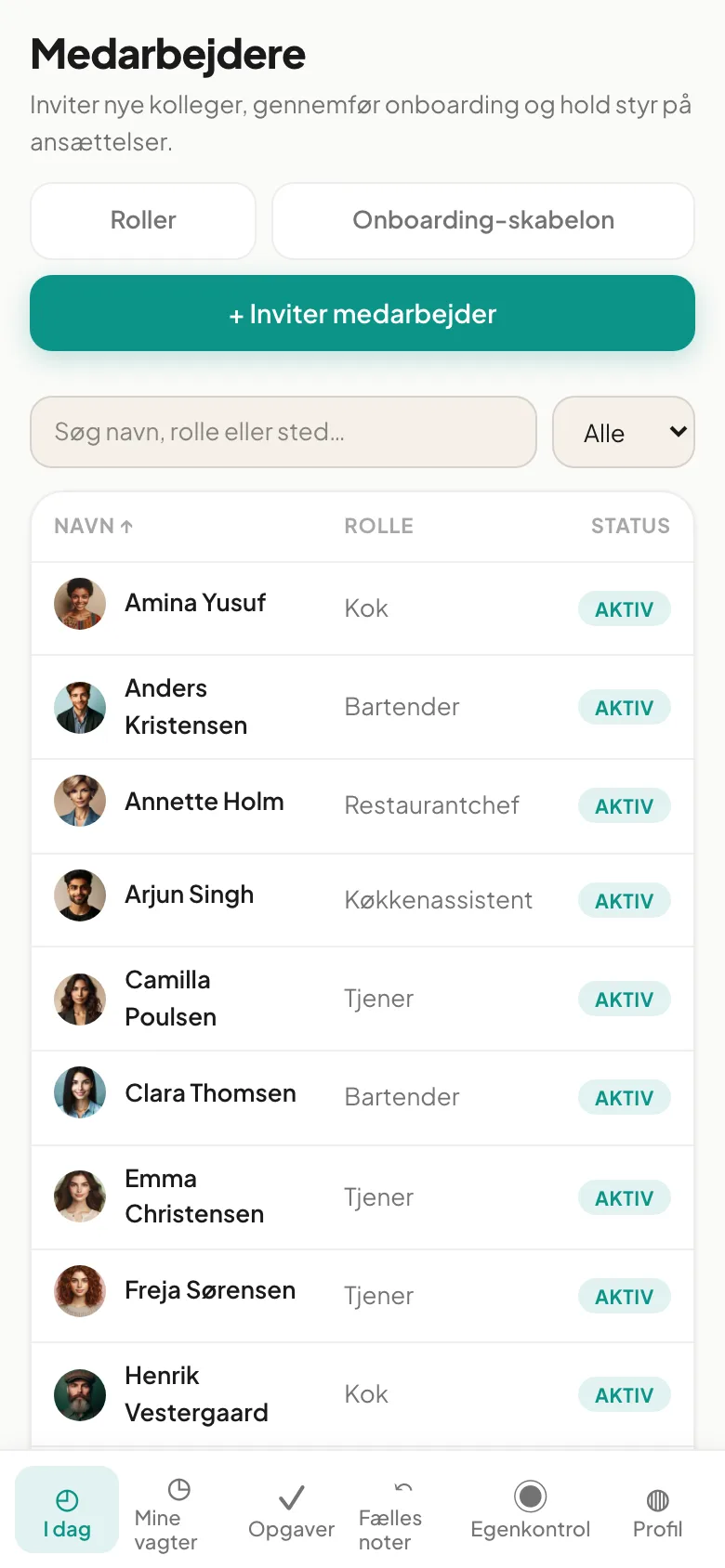
On mobile
Section titled “On mobile”On a phone the columns Sted, Timer/uge and Ansat are hidden, leaving name, role and status.
Tip: Use search instead of scrolling. Search for “bartender”, for example, to see everyone with that role.
Why can’t I see someone I just invited? The person is listed under Afventer accept until the invitation is accepted. Only then do they appear in the table with status Onboarding.
Can an employee see the list? No. The page is for managers only.
Continue with Invite an employee and An employee’s employment.