
Quiz questions and feedback
Quiz questions turn a course into something the employee has to take a stand on. You build them in the slide editor. Managers can do this.
Add a question
Section titled “Add a question”- Open the course draft under the Slides tab.
- Add a slide with the template Text + question, or tap + Question on an existing slide.
- Click the question field to edit it.
Write the question and answers
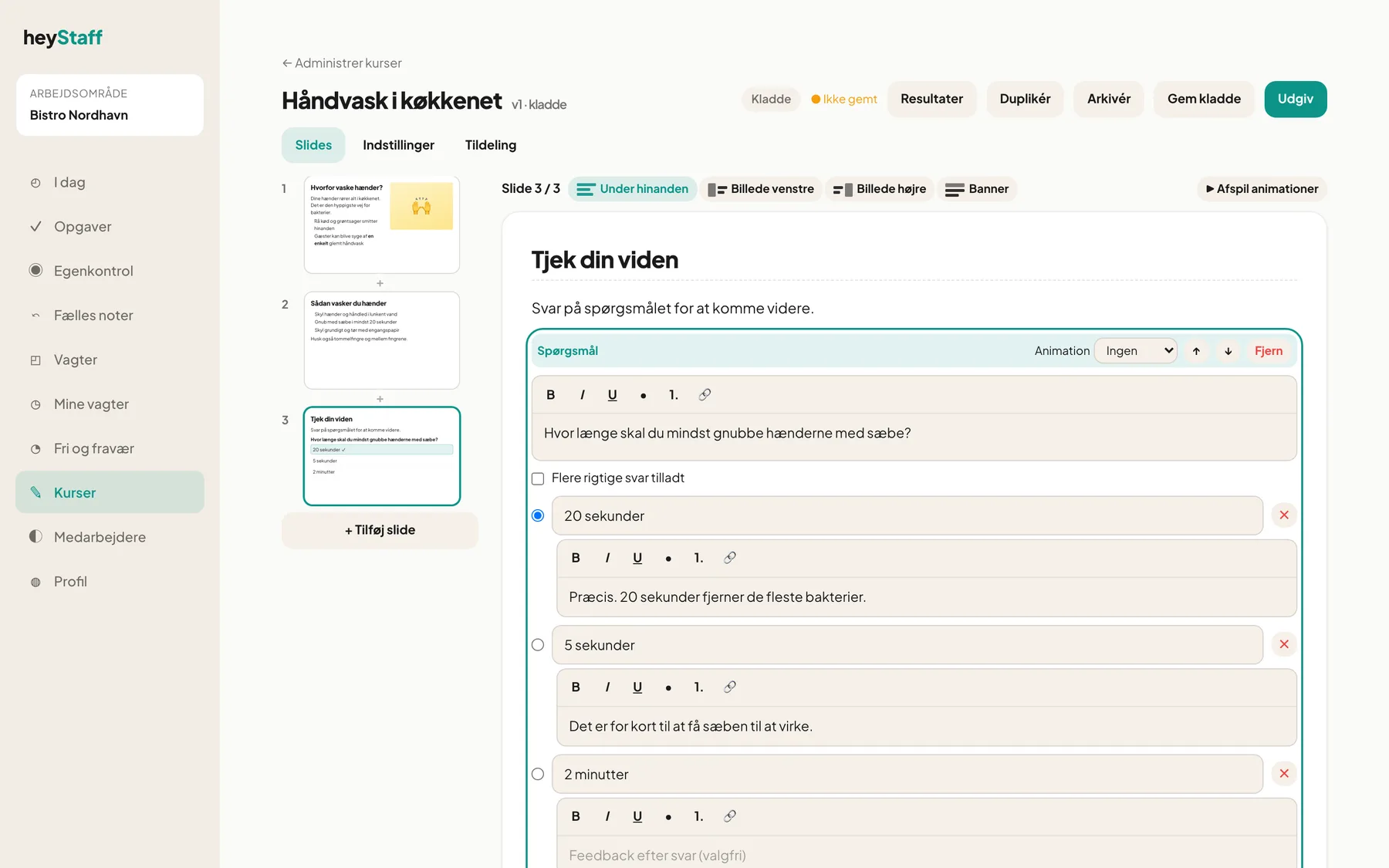
Section titled “Write the question and answers”- Write the question in the top field (max 500 characters).
- Write answer options in the Answer option fields (max 300 characters each).
- Mark the correct answer by selecting the circle to the left of it.
- Use + Add option to get more. There must be at least 2 and at most 8. Use ✕ to remove an option when there are more than two.
Several correct answers
Section titled “Several correct answers”- Tick Multiple correct answers allowed.
- The circles become checkboxes. Mark all the answers that are correct.
- The employee sees Pick all that apply. The answer only counts as correct if exactly the correct ones are chosen.
Important: If you switch back to one correct answer, only the first correct answer is kept.
Feedback after answering
Section titled “Feedback after answering”Under each answer option there is a field, Feedback shown after answering (optional). The text is shown when the employee has chosen exactly that answer and tapped Check answer.
- Write a short explanation: why it is right, or what is wrong.
- Use bold or lists if it helps.
- Leave the field empty if the answer is self-explanatory.
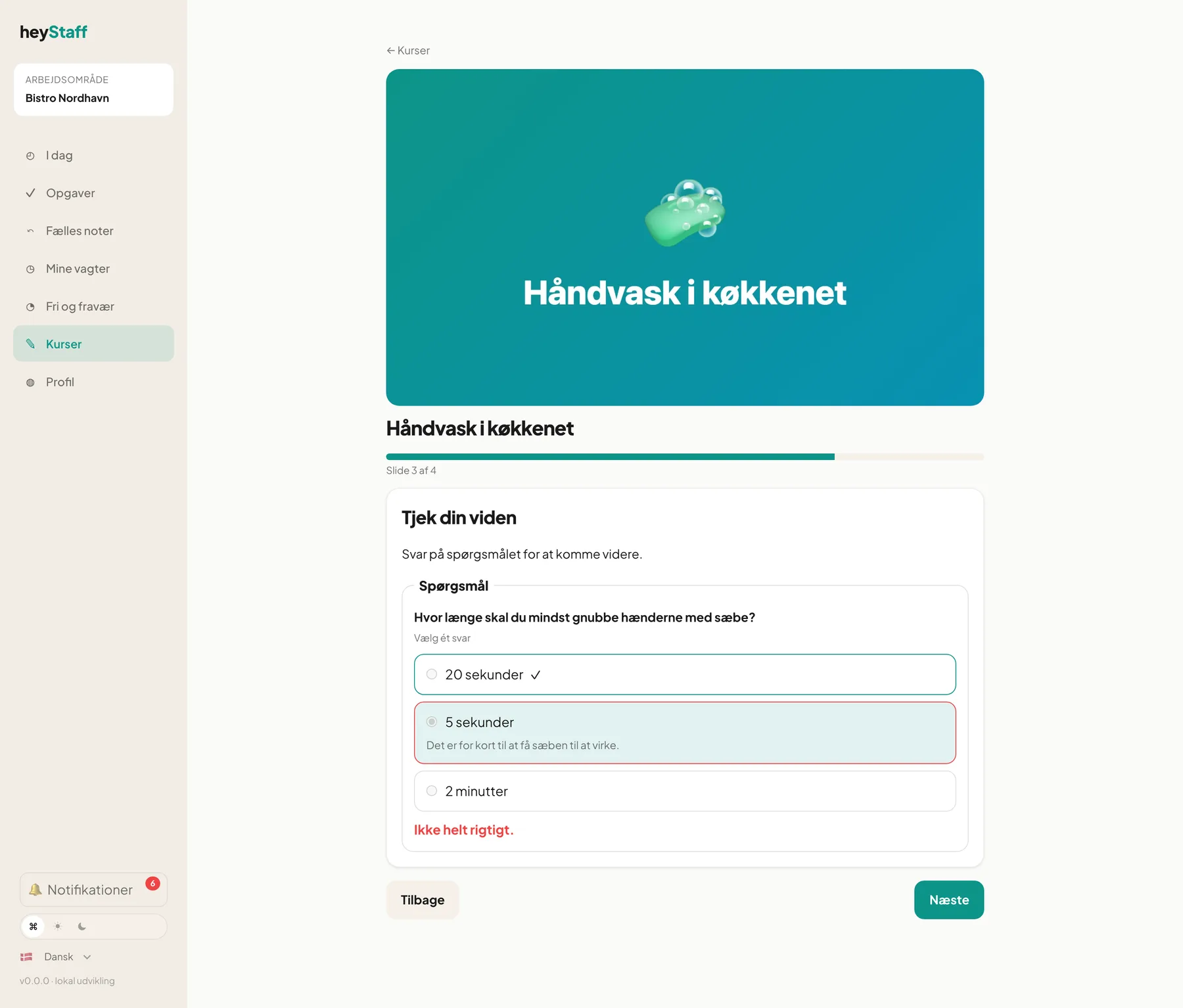
Tip: Write feedback on the wrong answers. That is where employees learn the most. On the right answer a short Exactly, because … is enough.
Pass mark
Section titled “Pass mark”The percentage is set under the Settings tab in the field Pass mark (% correct). Every question counts the same. With 4 questions and 75% three must be correct. See Create a course.
Good questions
Section titled “Good questions”- Test what matters on shift, not trivia.
- Keep the answer options similar in length.
- Avoid “all of the above”.
Can the employee skip a question? No. The Next button only becomes active once all questions on the slide are answered.
Can I have several questions on the same slide? Yes. Add more + Question. The employee must answer them all.
Are there other question types, such as free text? No. Today there are only one or several correct answers.