
Control points, limits and schedules
A control point is something you keep an eye on: a freezer, a cooling process, a delivery. Each control point has critical limits, corrective actions and monitoring schedules. Managers create and change them.
Create a control point
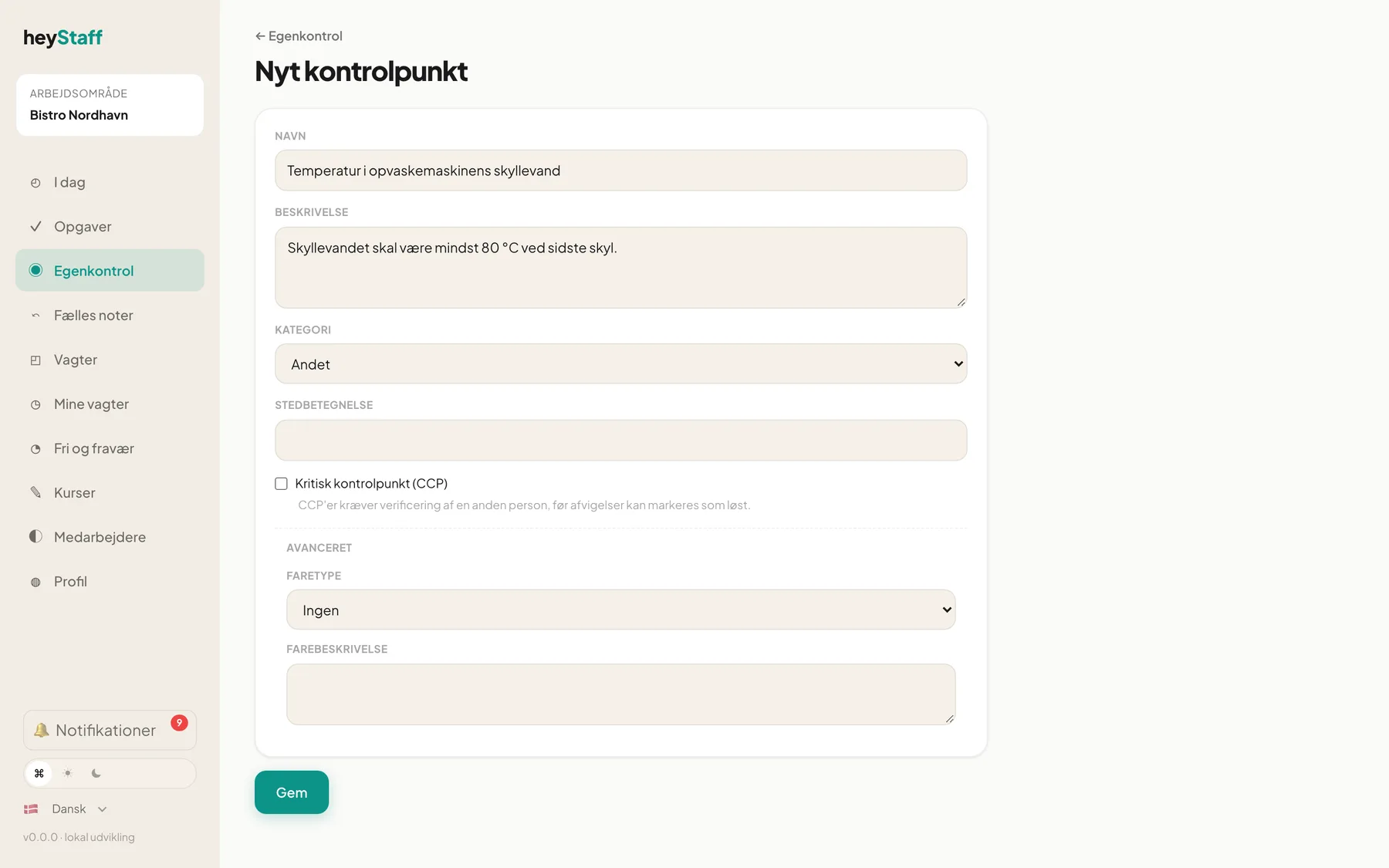
Section titled “Create a control point”Use a standard activity if there is one. Otherwise:
- Click + Add control point on the front page.
- Type a Name and optionally a Description.
- Choose a Category: Storage, Preparation, Cooking, Cooling, Hot holding, Cleaning, Reception, Pest control, Personal hygiene, Allergens or Other.
- Optionally type a Location label.
- Tick Critical control point (CCP) if a failure here is especially dangerous. A deviation on a CCP must be confirmed by a manager before it can be closed.
- Under Avanceret (Advanced) you can set Hazard type (Biological, Chemical, Physical, Allergen) and Hazard description.
- Click Save.
A plan is required to add control points to. Create a draft first if there is none.
The control point page
Section titled “The control point page”The page for a control point has everything in one place.
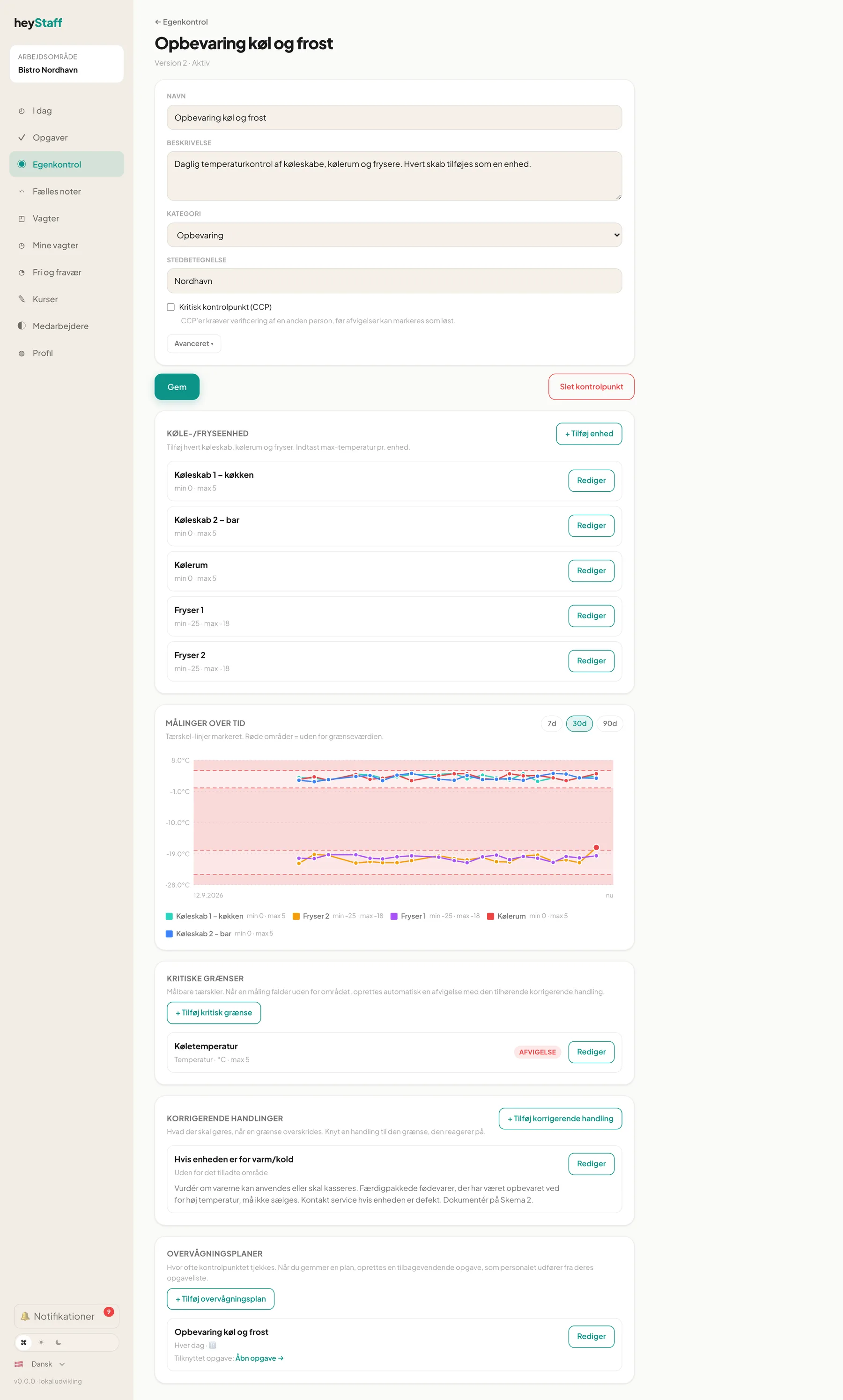
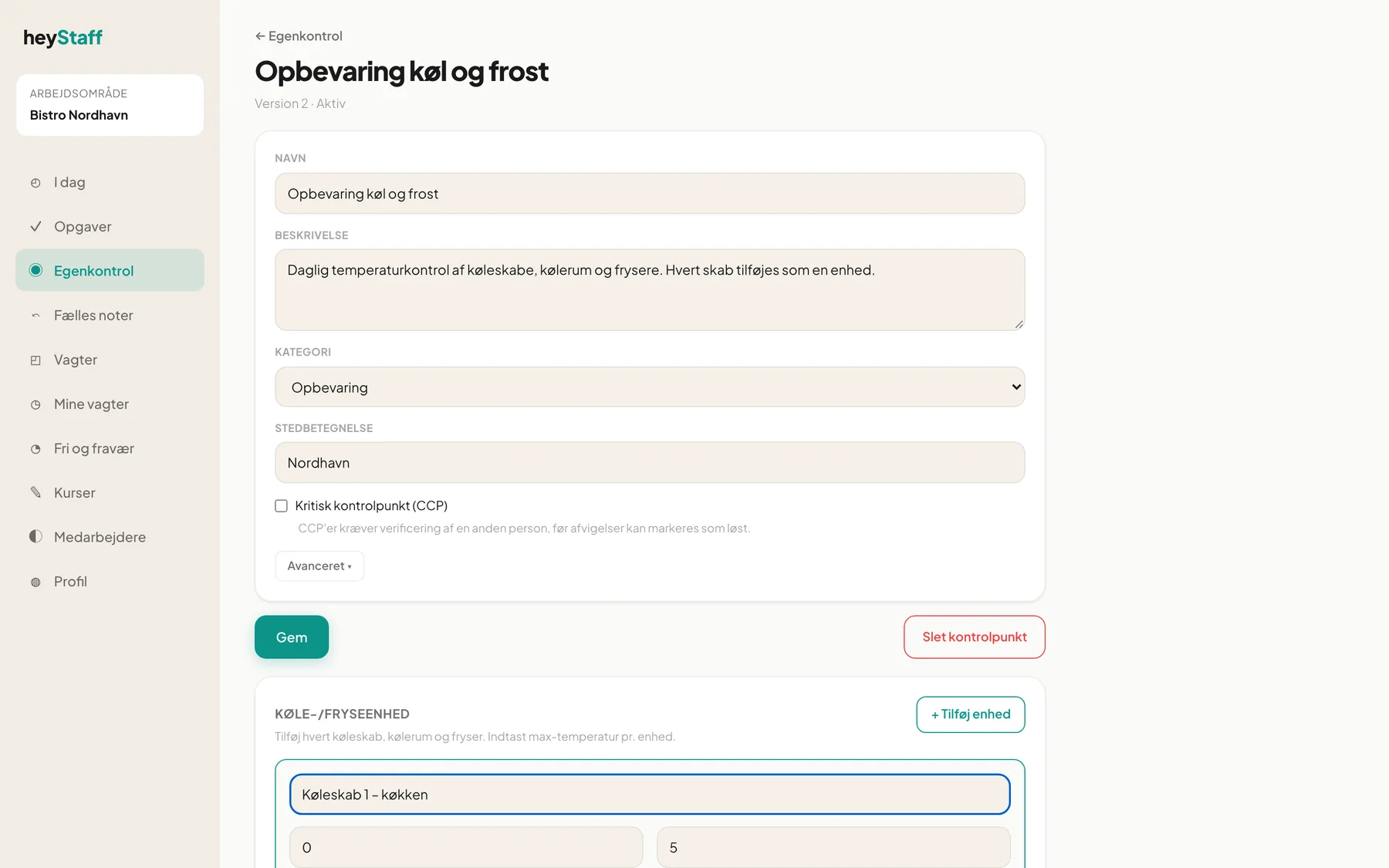
- Cooling/freezing unit: only for storage. Add or Edit units with their min/max (see the image below).
- Measurements over time: chart of the measurements (7d, 30d, 90d) with the limits as dashed lines.
- Critical limits: click + Add critical limit. Fill in Limit name, Measurement type (Temperature, Time, pH, Weight, Count, Visual check, Text, Choice), Unit, Min, Max, Target and Out-of-range severity (Warning, Deviation or Critical).
- Corrective actions: what staff should do on a breach. Choose Linked limit and When (for example “Outside allowed range”).
- Monitoring schedules: how often it is checked. See below.
Monitoring schedules
Section titled “Monitoring schedules”- Click + Add monitoring schedule.
- Type a Schedule name and choose Location.
- Choose the frequency: daily, weekly, monthly, interval, per shift or on demand only.
- Tick the Limits to check. The first ticked limit drives the task’s value range.
- Optionally switch on Require photo and Require a measured value.
- Keep Active ticked, and save.
The schedule creates a recurring task. The Open task link takes you to it.
Important: Without a monitoring schedule, staff will not see the control point on their task list. Without a critical limit, deviations are not detected automatically.
Delete a control point
Section titled “Delete a control point”Delete control point also removes limits, actions and schedules. Earlier measurements remain in the audit log. A control point in an archived plan version cannot be changed.
Frequently asked questions
Section titled “Frequently asked questions”Do changes affect old measurements? No. Completed registrations are not changed.
How do I change a limit for one unit? Press Edit on the unit and adjust min/max.