
Open shifts
An open shift is a shift with no employee assigned. It is used to fill gaps, for example the Saturday closing shift. Employees can bid for it, and the manager chooses.
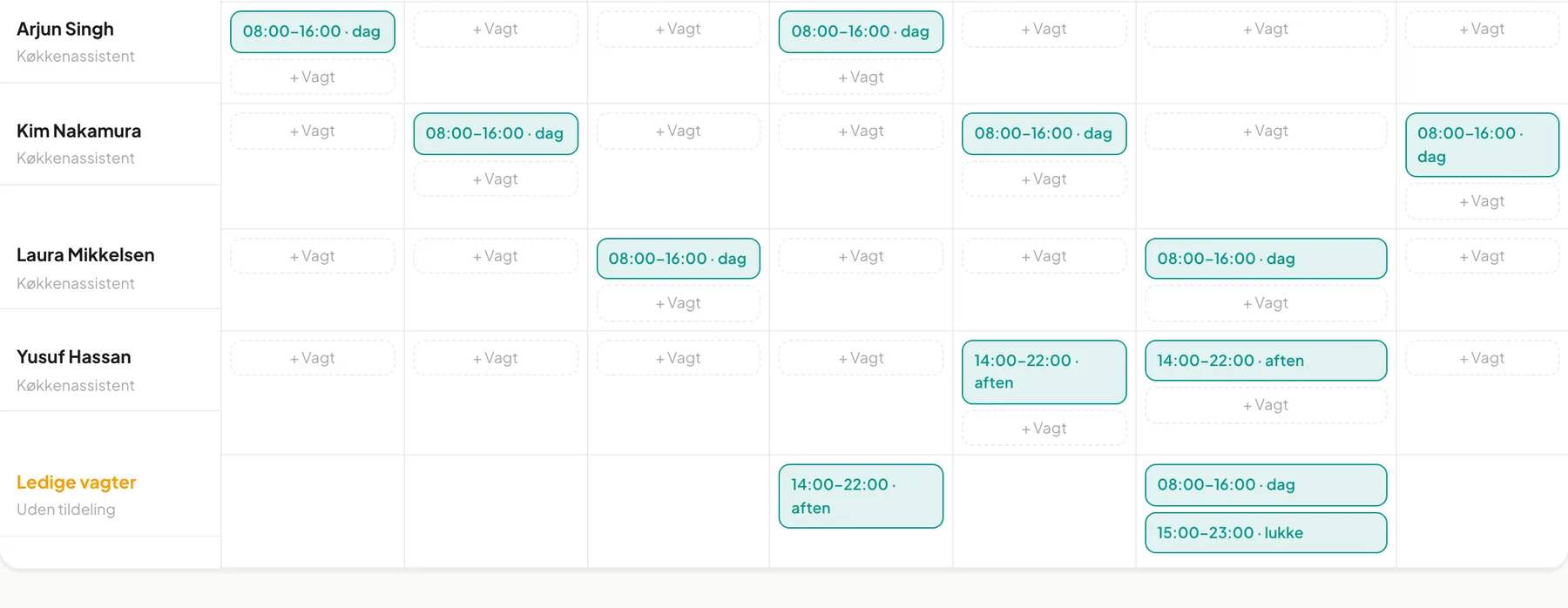
Create an open shift
Section titled “Create an open shift”- Click + Shift on any day, or drag an existing shift to the Available shifts row.
- Choose — Ledig vagt — (open shift) as the employee.
- Choose shift type and times, and click Opret kladde.
- Publish the week so that staff can see the shift.
Open shifts sit in their own row at the bottom, labelled Available shifts with the text Uden tildeling (“unassigned”). The Open tile at the top counts them.
Tip: To assign an open shift directly, open it and choose an employee, or drag it onto the employee’s row.
How employees bid
Section titled “How employees bid”Employees see the shifts under Available shifts on the My shifts page (see My shifts). One click on Tag vagten (“Take the shift”) sends a request; the button changes to Sendt (“Sent”).
The system rejects the request if:
- the employee already has a shift overlapping that time,
- the shift requires a role the employee does not have,
- a mandatory course has not been completed.
Approve or decline
Section titled “Approve or decline”When someone bids, managers get a notification and a yellow box appears at the top of the schedule.
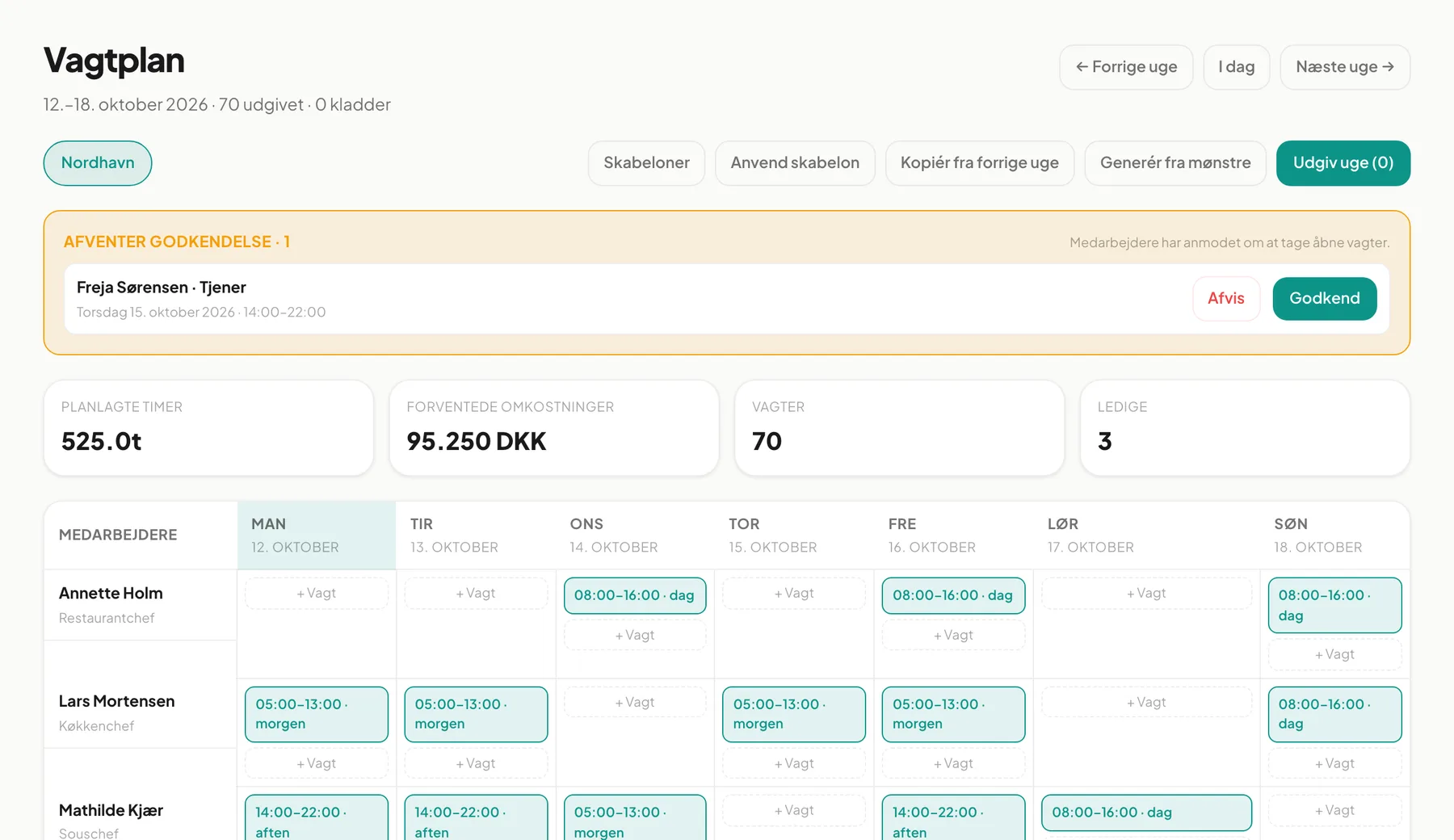
- Read the name, role and the shift’s date and time in the Awaiting approval box.
- Click Godkend (approve) to give the shift to the employee, or Afvis (decline).
- The employee is notified: Du fik vagten (“You got the shift”) or Vagt-claim afvist (“Claim declined”).
When a request is approved the shift is assigned, and any other requests for the same shift are declined automatically.
Can employees take a shift without my approval? No. Every request must be approved by a manager and stays in the box until decided.
What happens when an employee calls in sick? The shift is cancelled and a sick day is recorded under absence. Managers get a notification and can create a new open shift to cover it.