
Start and complete a task
This page takes you through a task from start to finish. Every employee with access to Tasks can do this. The example uses the task Temperatur i opvaskemaskinens skyllevand (dishwasher rinse water temperature) at Bistro Nordhavn.
Complete a task
Section titled “Complete a task”-
Open Tasks in the menu.
-
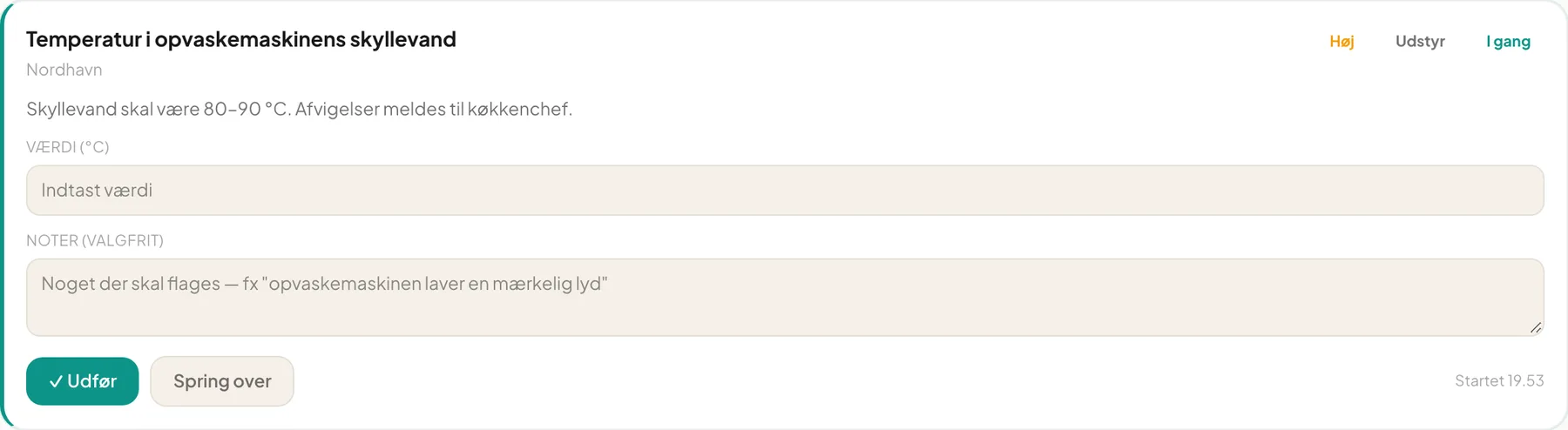
Find the card and press Start task. The card gets a green edge and the In progress label, and the time shows as Started 19:53.

-
Fill in what the card asks for. This can be a Value (for example the temperature in °C), a photo, and a field for Notes (optional).
-
Press Complete.
-
Confirm in the dialog Mark task as done? with Yes, mark as done.
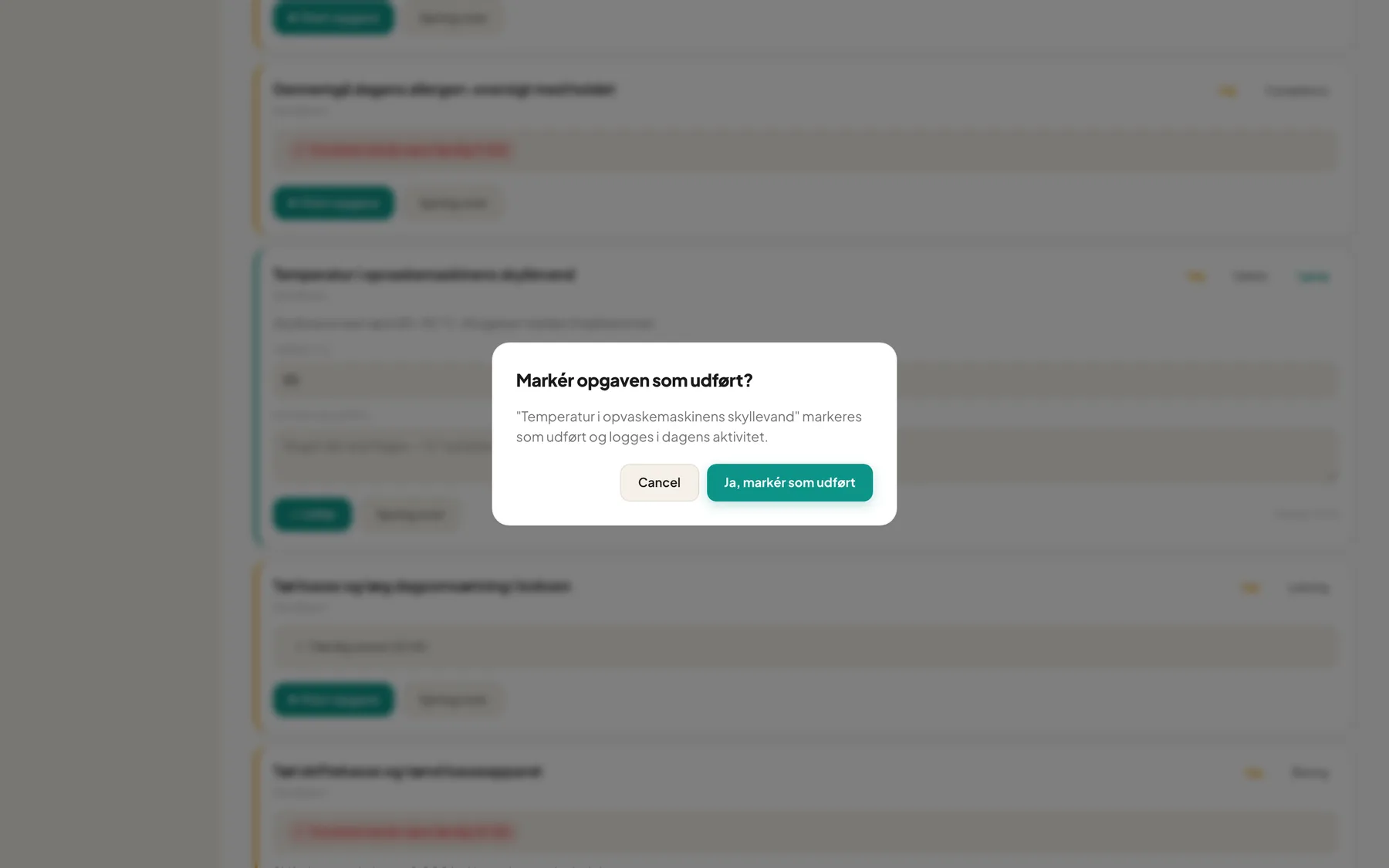
The task now moves down to Done today, and your name appears on the card (Done by …).
Important: A completed task can’t be edited afterwards. Check value and photo before you confirm.
If something is missing
Section titled “If something is missing”The Complete button is always active. If something is missing you get a red message in the card instead of a silent failure:
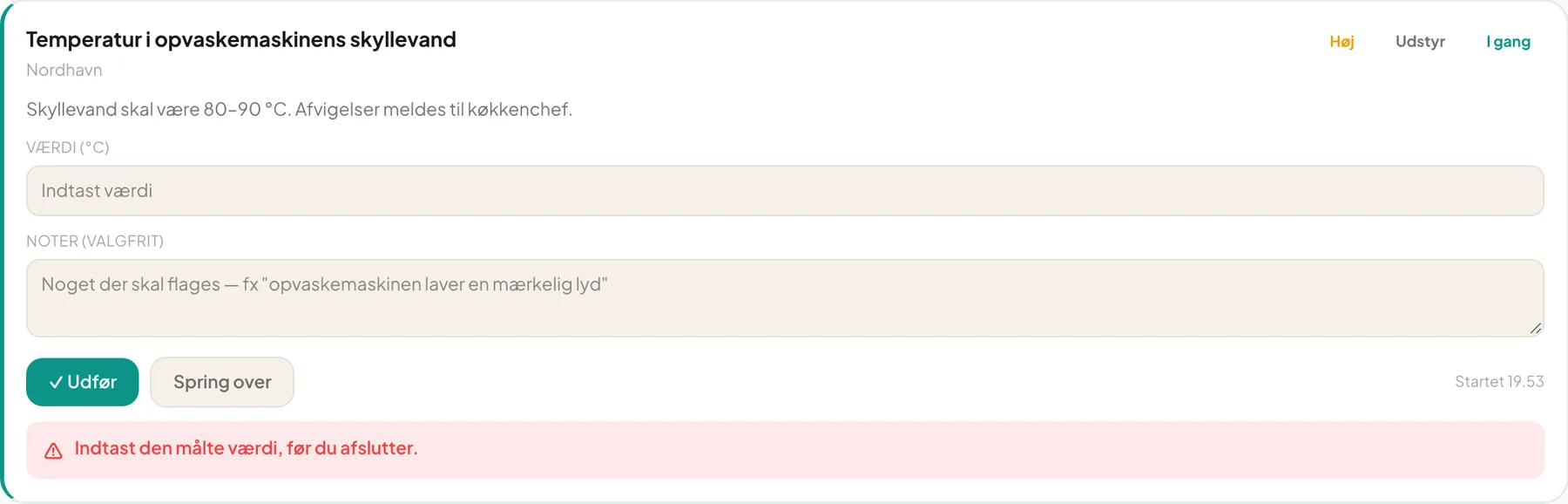
- Please enter the measured value before completing.
- Please add at least one photo before completing.
- Photo is still uploading — wait a moment.
Fix that one thing and press Complete again. You only get one error at a time.
Skip a task
Section titled “Skip a task”If the task can’t be done, for example because the equipment is being serviced:
- Press Skip on the card.
- Write a reason under Why are you skipping this?.
- Press Skip task. If you change your mind, press Cancel.

The task is marked Skipped with name and reason, so the manager can see why it wasn’t done.
Notes and deviations
Section titled “Notes and deviations”Use Notes (optional) for anything the manager should know, for example dishwasher making a weird sound. The text is saved with the task. If a measured value is outside the allowed range you see a warning and it raises a deviation. See the page about photos and measured values.
Troubleshooting
Section titled “Troubleshooting”I can’t press Start task. The task is already in progress or completed. The card shows who took it.
It says “Not assigned to this task”. The task is assigned to others. Contact your manager.
I started a task by mistake. You can still press Skip with a reason, or complete it when it is ready.