
Take a course
This page shows how an employee finds and goes through a course. Everyone can complete the courses they have been assigned.
Find your courses
Section titled “Find your courses”- Choose Learning in the menu.
- Look through the list. Each card shows the title, an optional image, a description and a status: Not started, In progress or Completed.
- If a course is Mandatory, the card also shows when it must be completed, for example Complete before 26 Oct 2026.
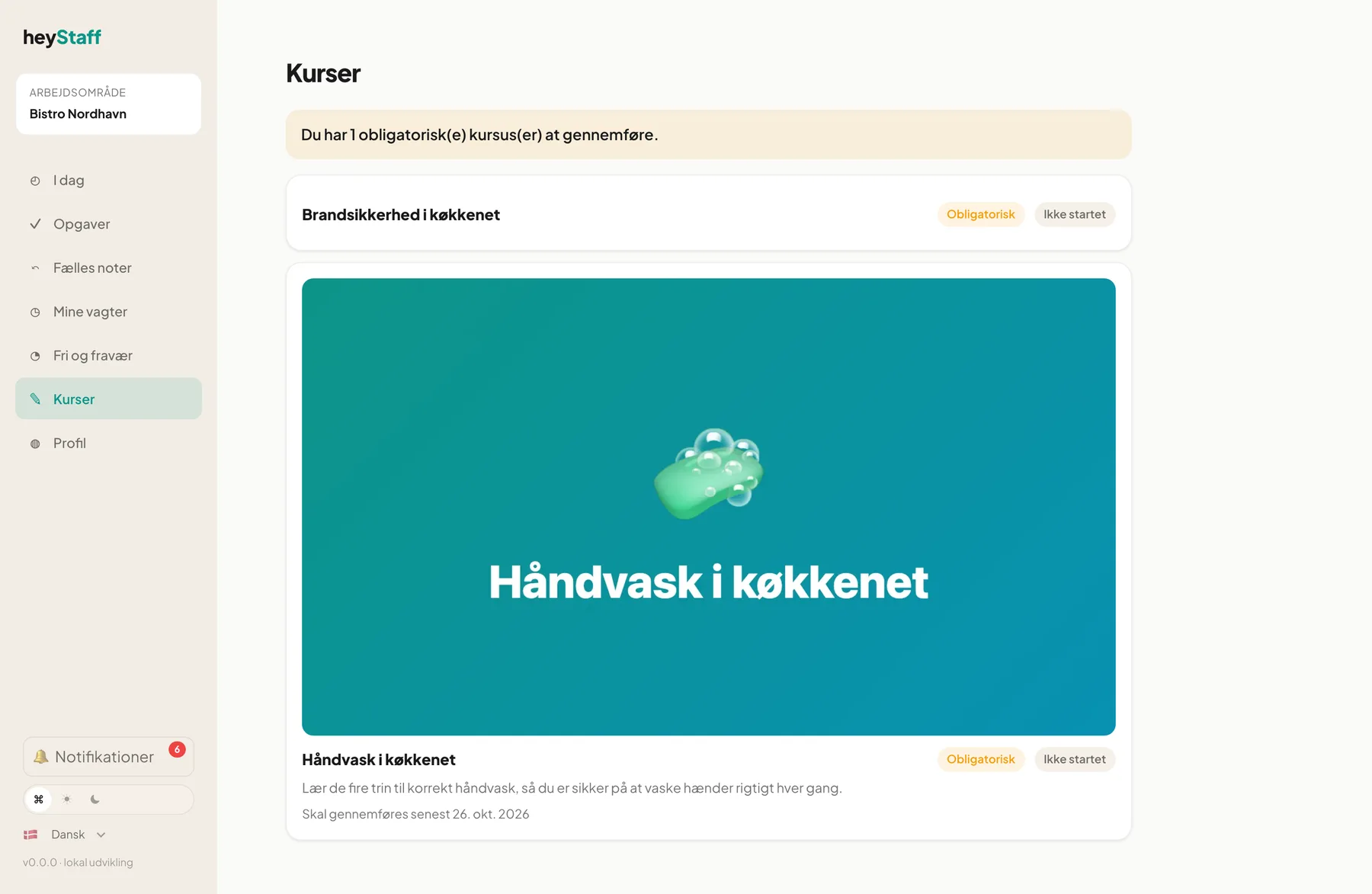
A yellow or red bar can appear at the top. Yellow means you have mandatory courses to take. Red means you cannot be put on a shift until a specific course is completed. Read more in Mandatory courses and shifts.
Start the course
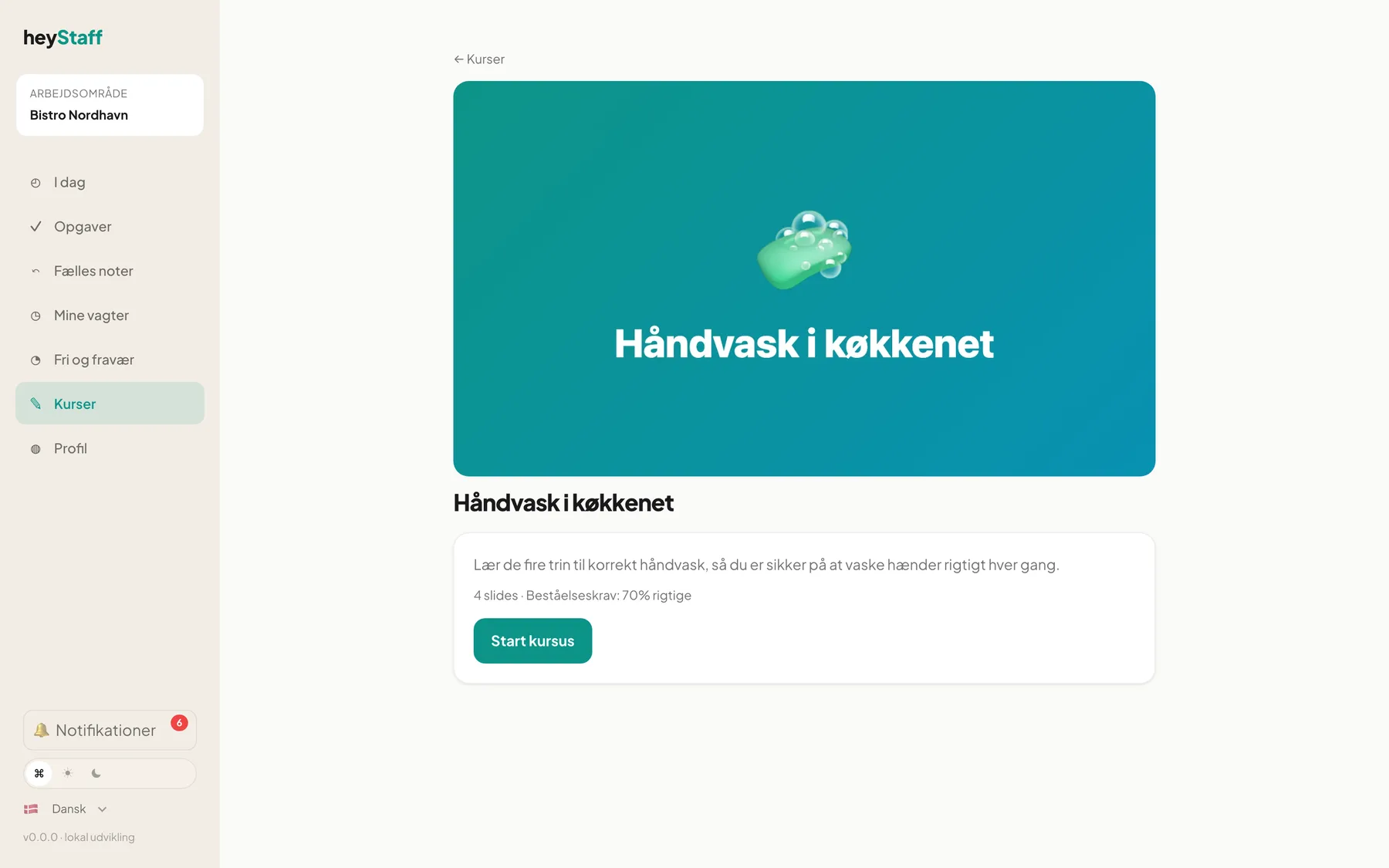
Section titled “Start the course”- Tap the course.
- Read the description. Below it you see the number of slides and, if set, the Pass mark.
- Tap Start course.
Go through the slides
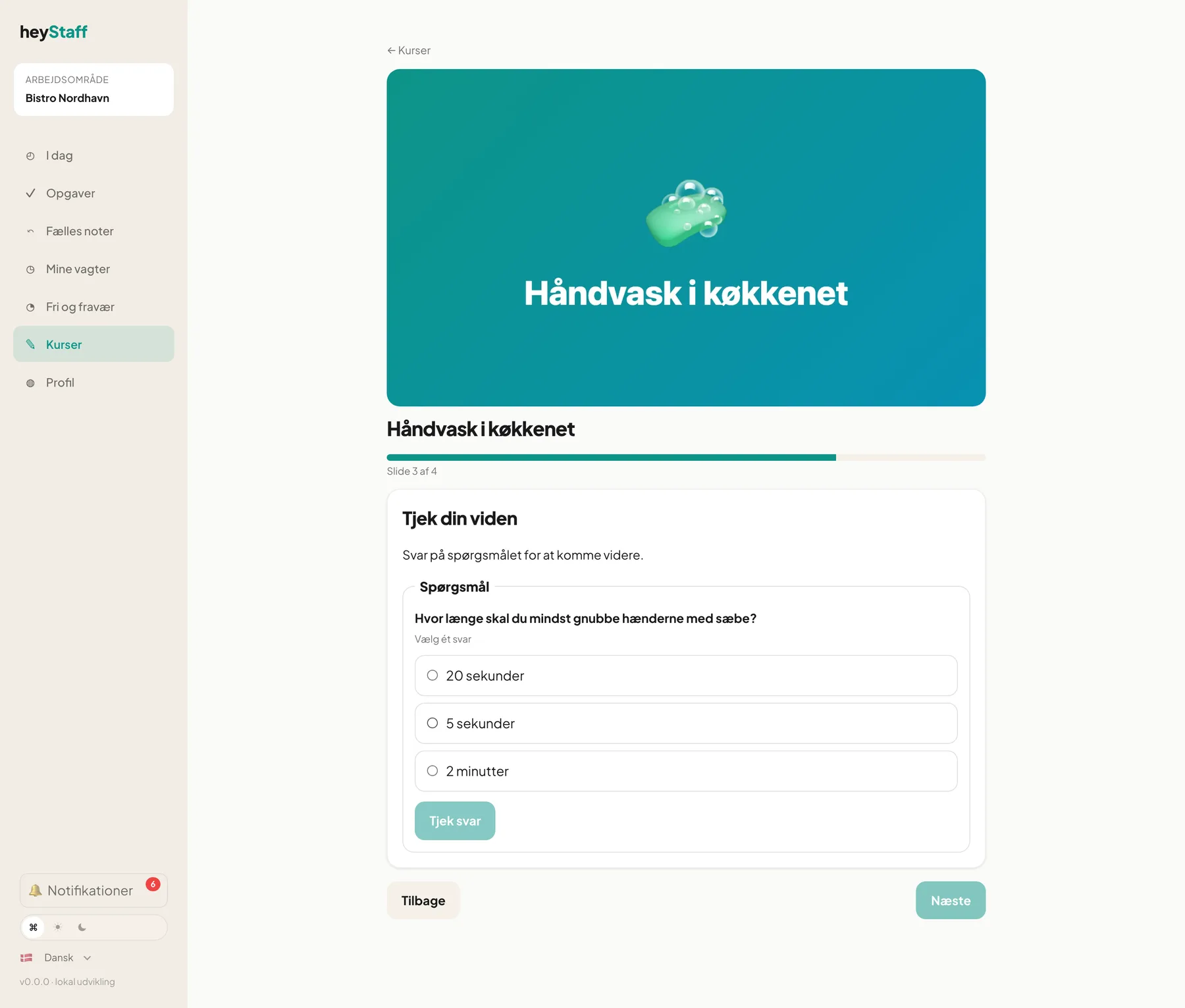
Section titled “Go through the slides”- Read the slide. It can contain text, images, video and questions.
- Tap Next to continue and Back to go one slide back.
- Follow your progress in the bar at the top: Slide 3 of 4.
- On the last slide the button says Finish course instead of Next.
Your place in the course is saved as you go. If you close the page you can continue where you left off; the course card then says Slide 2 of 4.
Important: If a slide has a question you must answer it before Next becomes active. You cannot skip a quiz.
On mobile
Section titled “On mobile”Slides are shown one below the other, and Back and Next sit at the bottom of the screen.
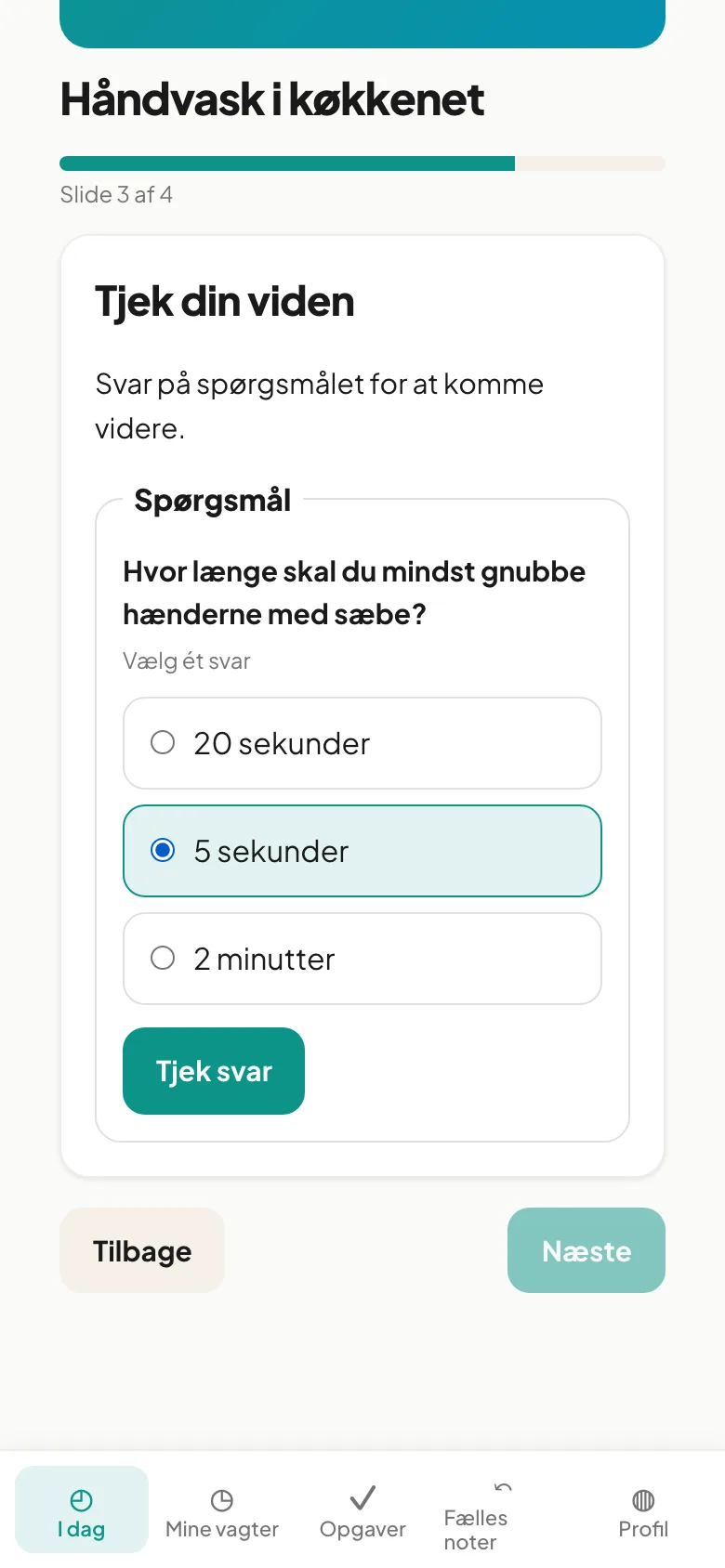
- Read the feedback. The answer explanations are part of the learning.
- You can always return to completed courses and take them again.
Can I take a course in several sittings? Yes. Progress is saved, so you can stop and continue later.
Why is Next greyed out? There is a question on the slide you have not answered yet.
I can’t see a course I’m looking for. Only published courses are shown. Ask your manager whether the course is published.