
Quizzes, passing and trying again
Many courses have small quizzes in the middle or at the end. This page shows how they work and what happens when you pass or do not pass.
Answer a question
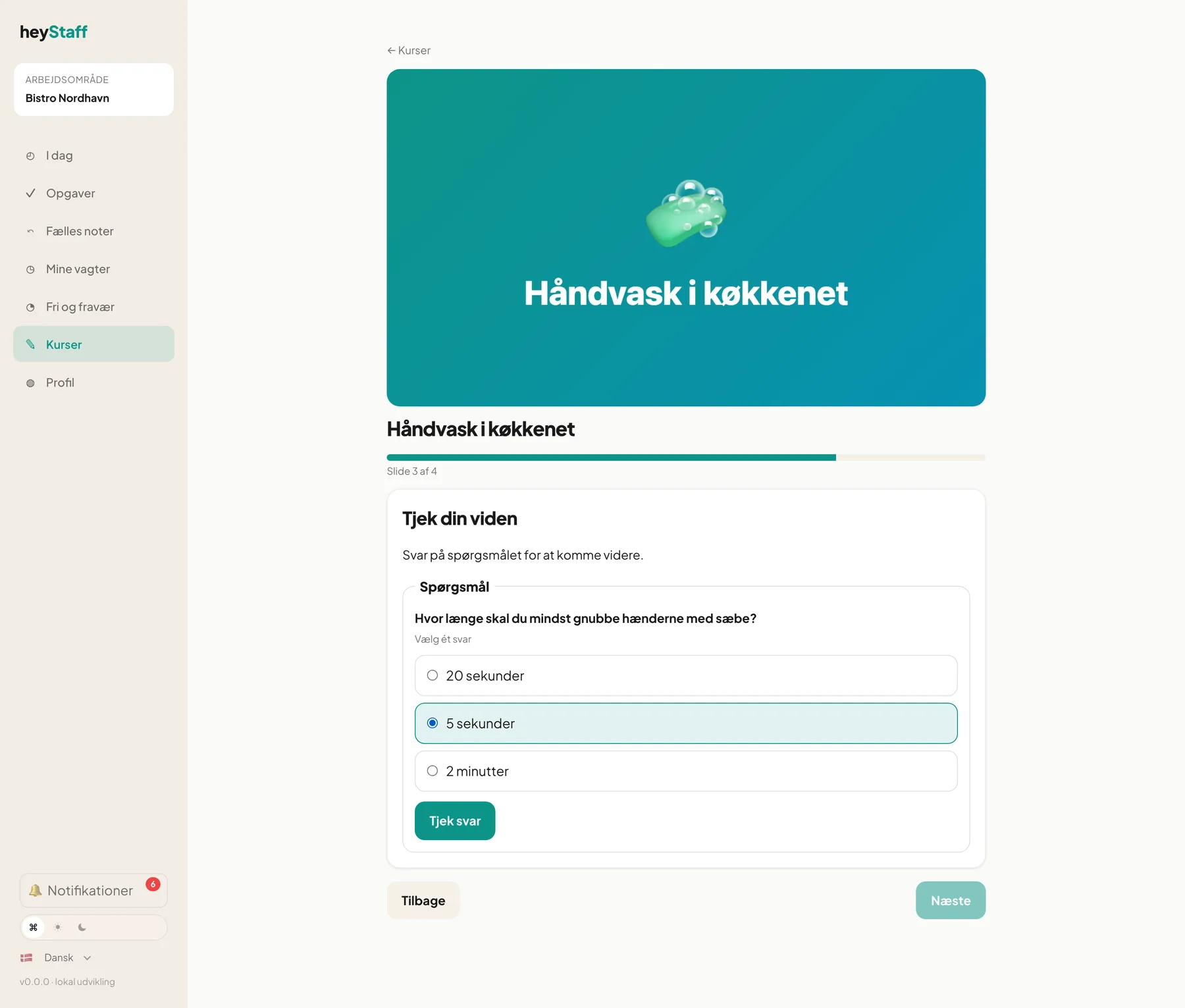
Section titled “Answer a question”- Read the question. Below it says either Pick one answer or Pick all that apply.
- Choose your answer. With one answer you pick one option; with several you can tick more.
- Tap Check answer.
See the feedback
Section titled “See the feedback”After Check answer the page shows right away:
- Correct! or Not quite.
- The correct answer is marked with a green frame and a ✓.
- If your manager wrote an explanation for the answer you chose, it is shown under that answer.
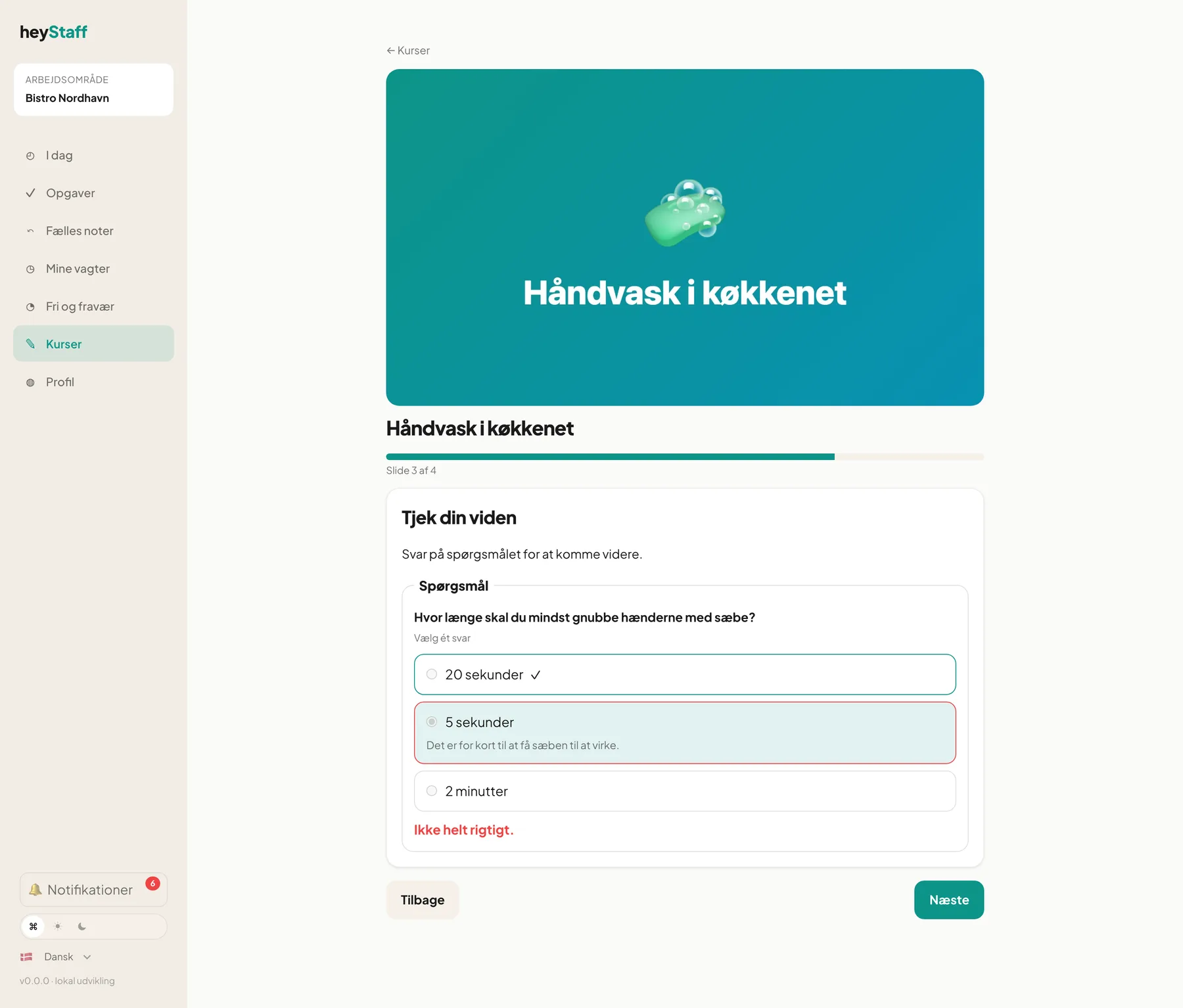
Important: Once you have tapped Check answer the answer cannot be changed. Continue with Next.
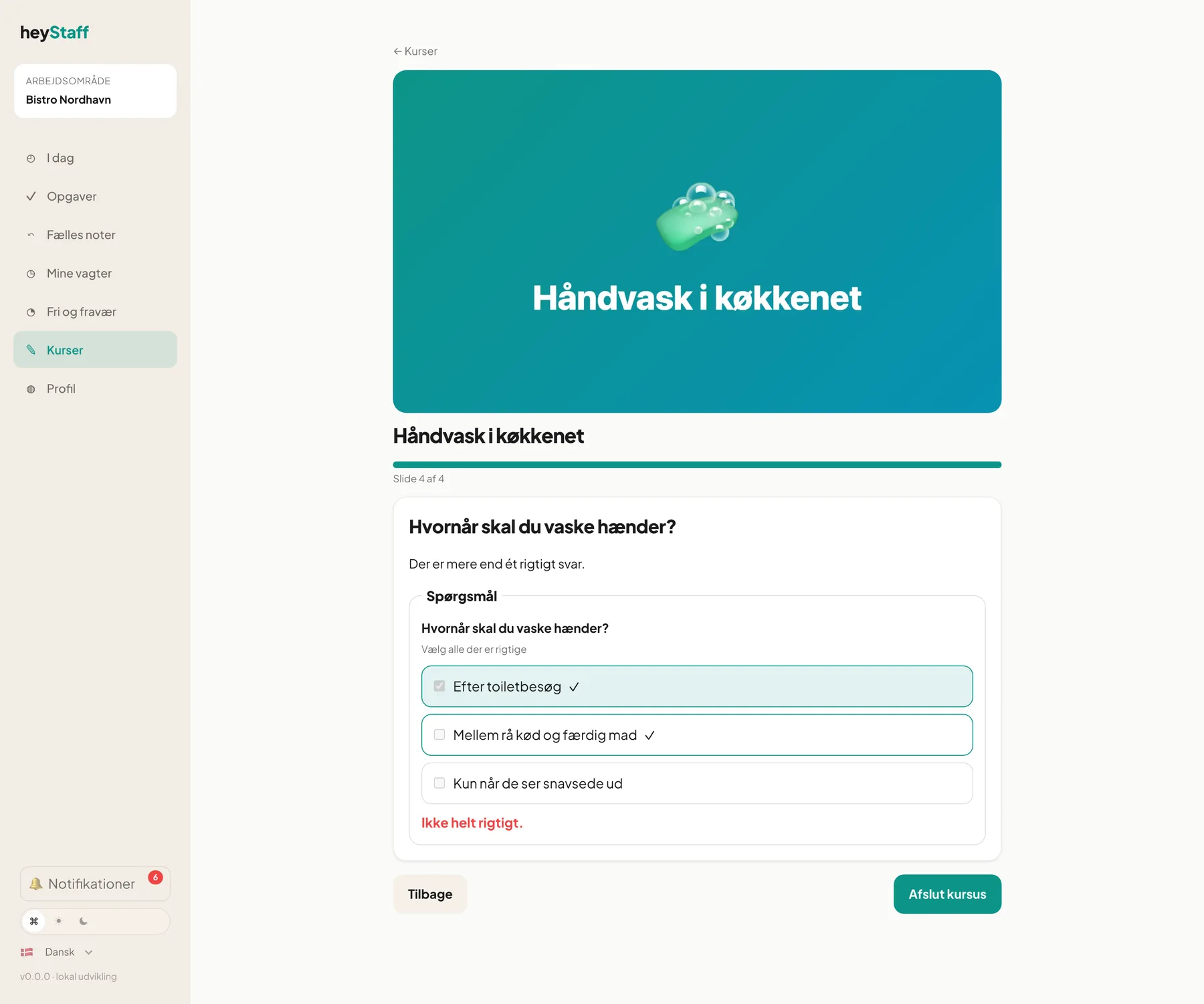
Finish and see the result
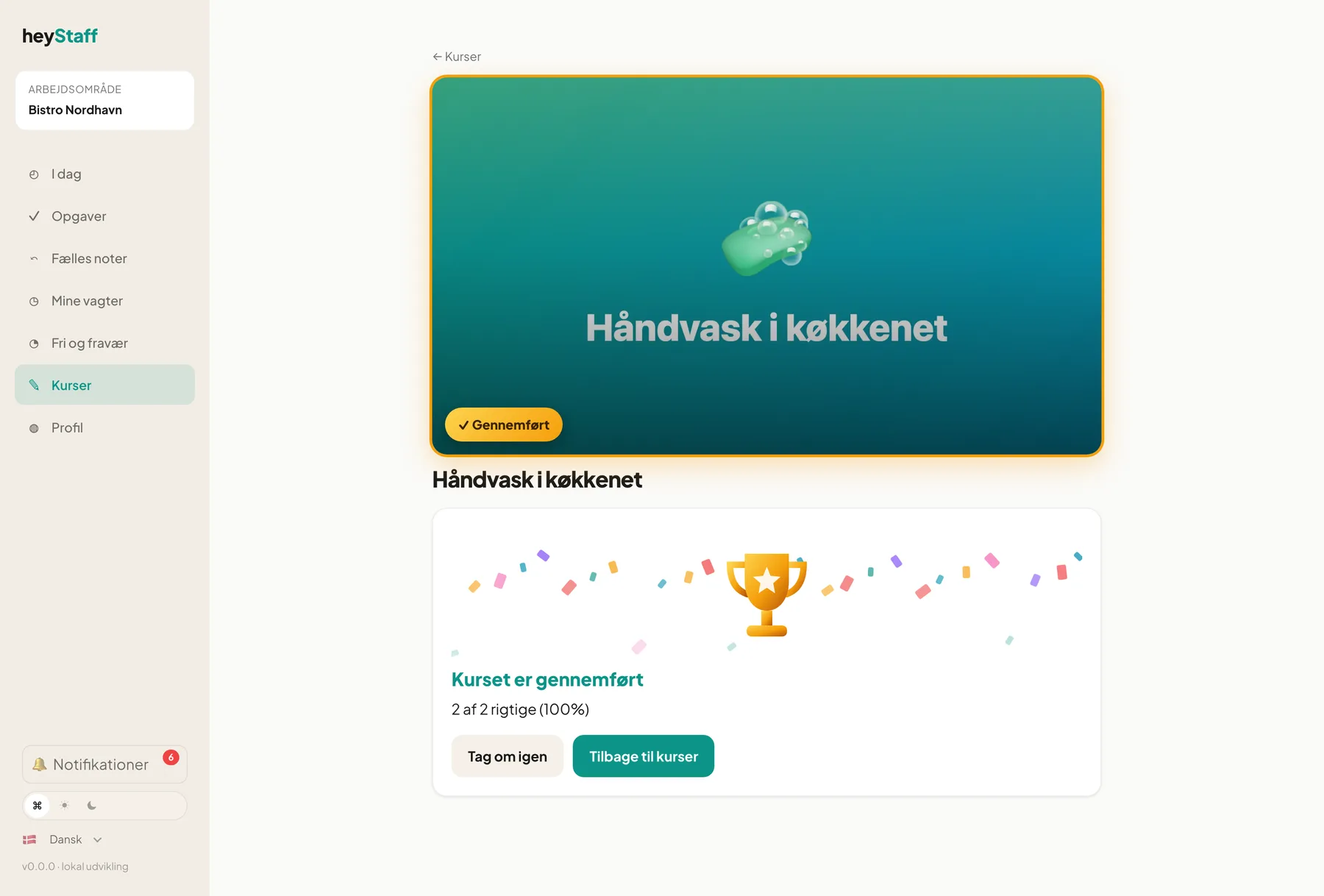
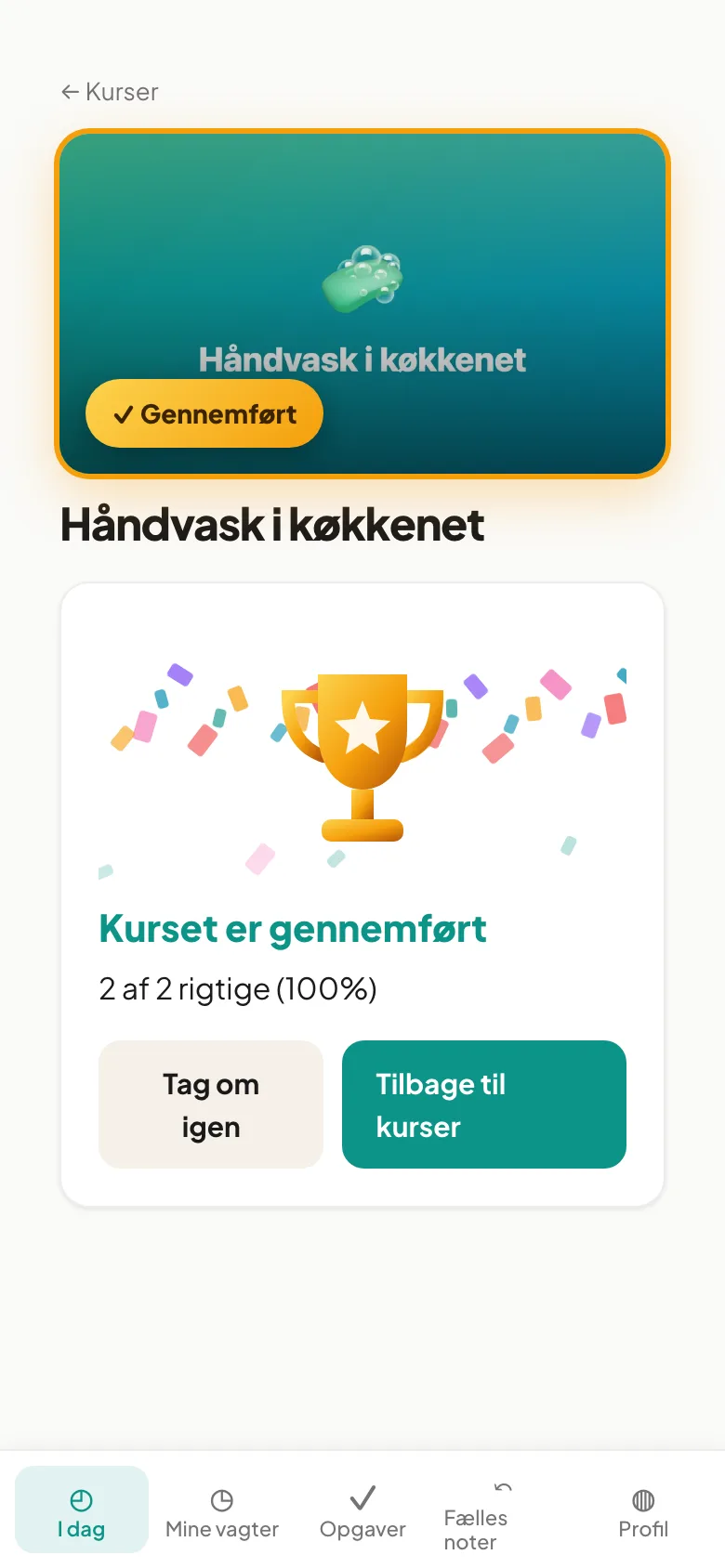
Section titled “Finish and see the result”On the last slide tap Finish course. The result is shown as 2 of 2 correct (100%).
Passed: You see Course completed with a trophy and confetti. The course card gets a golden frame, a ✓ and the date, for example Completed 12 Oct 2026.
Not passed: You see Not passed this time and the requirement, for example You need at least 70% to pass.
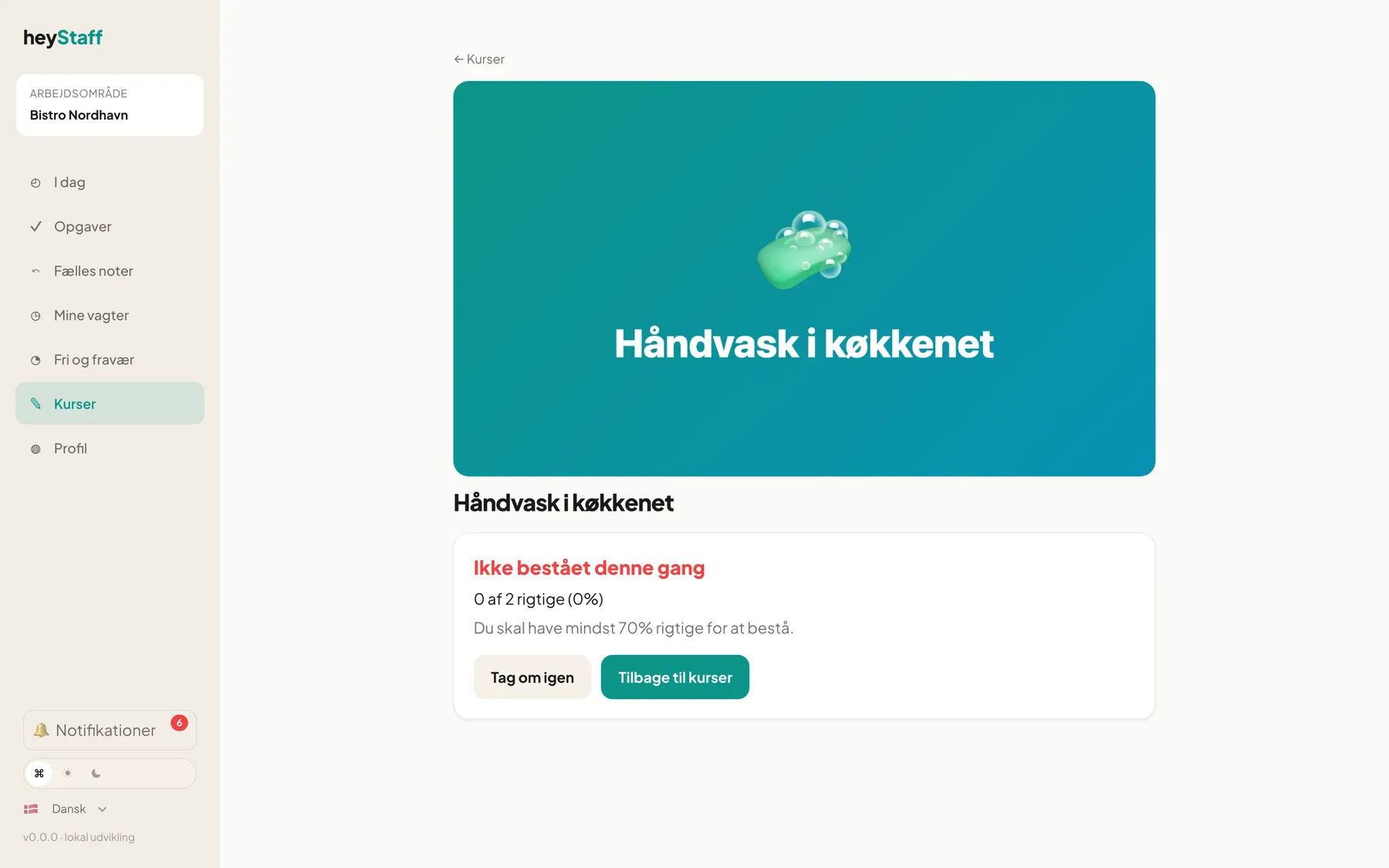
Take the course again
Section titled “Take the course again”- Tap Take again. You start over from the first slide with fresh answers.
- Go through the course and finish.
- You can take a course again as many times as you like, also after passing.
Your manager can see how many attempts you used and your best completion. A passed course counts as completed even if you later take it again.
On mobile
Section titled “On mobile”The quiz works the same way. The trophy and confetti also show on the phone.
What if there is no pass mark? Then you pass when you have finished the course.
Can I see the correct answer without answering? No. Correct answers and explanations only show after you have answered.
Are my earlier attempts deleted if I take it again? No. Your finished attempts are kept and are part of the documentation.