
Create a course
Here you create a course and fill in the basic settings. Managers can do this. You build the slides themselves in the slide editor.
See the course list
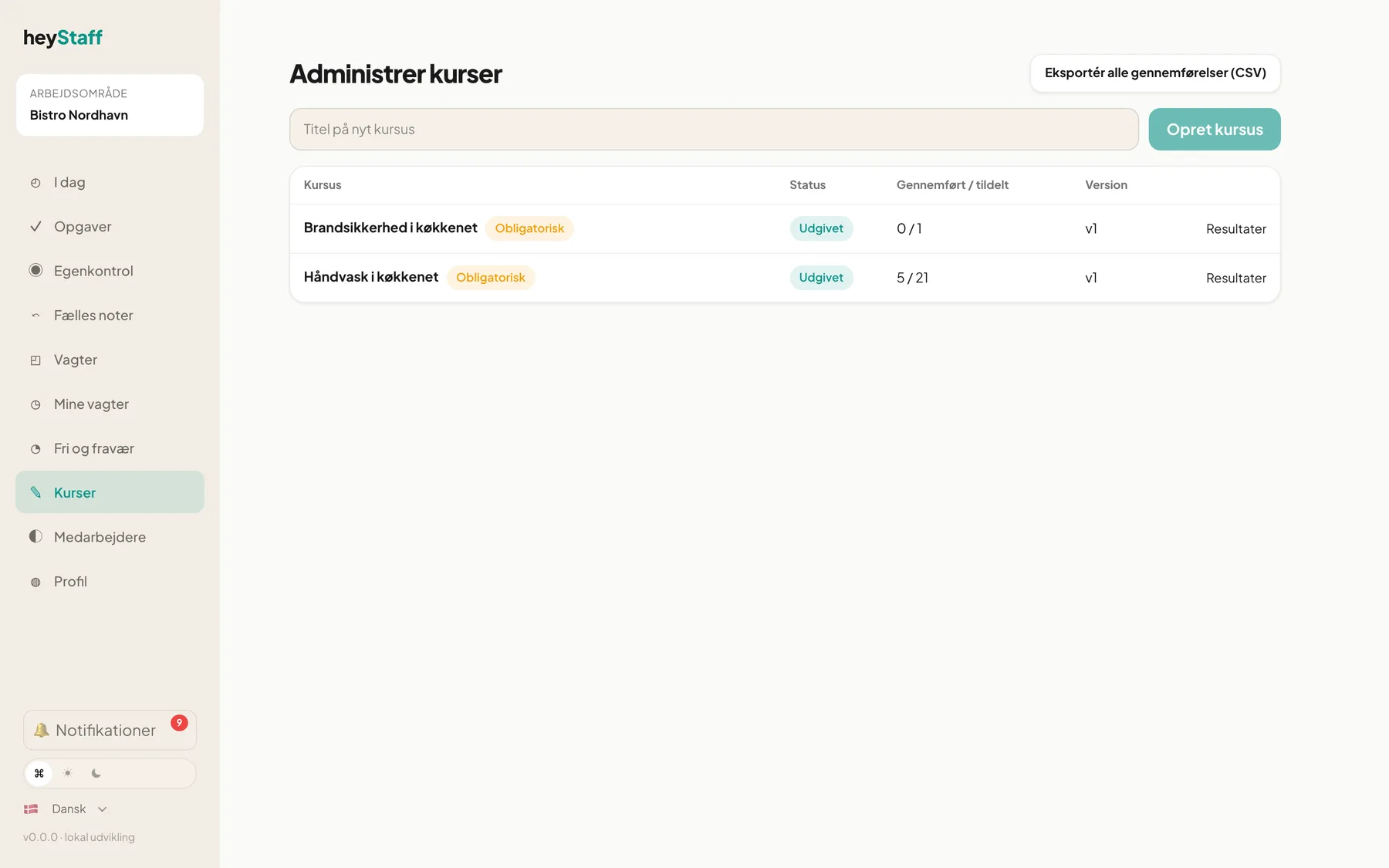
Section titled “See the course list”- Choose Learning in the menu.
- Tap Manage courses at the top right.
- The list shows Course, Status, Completed / assigned and Version. Tap a title to edit, or Results.
Create the course
Section titled “Create the course”- Type a title in the field Title of a new course, for example Hand washing in the kitchen.
- Tap Create course.
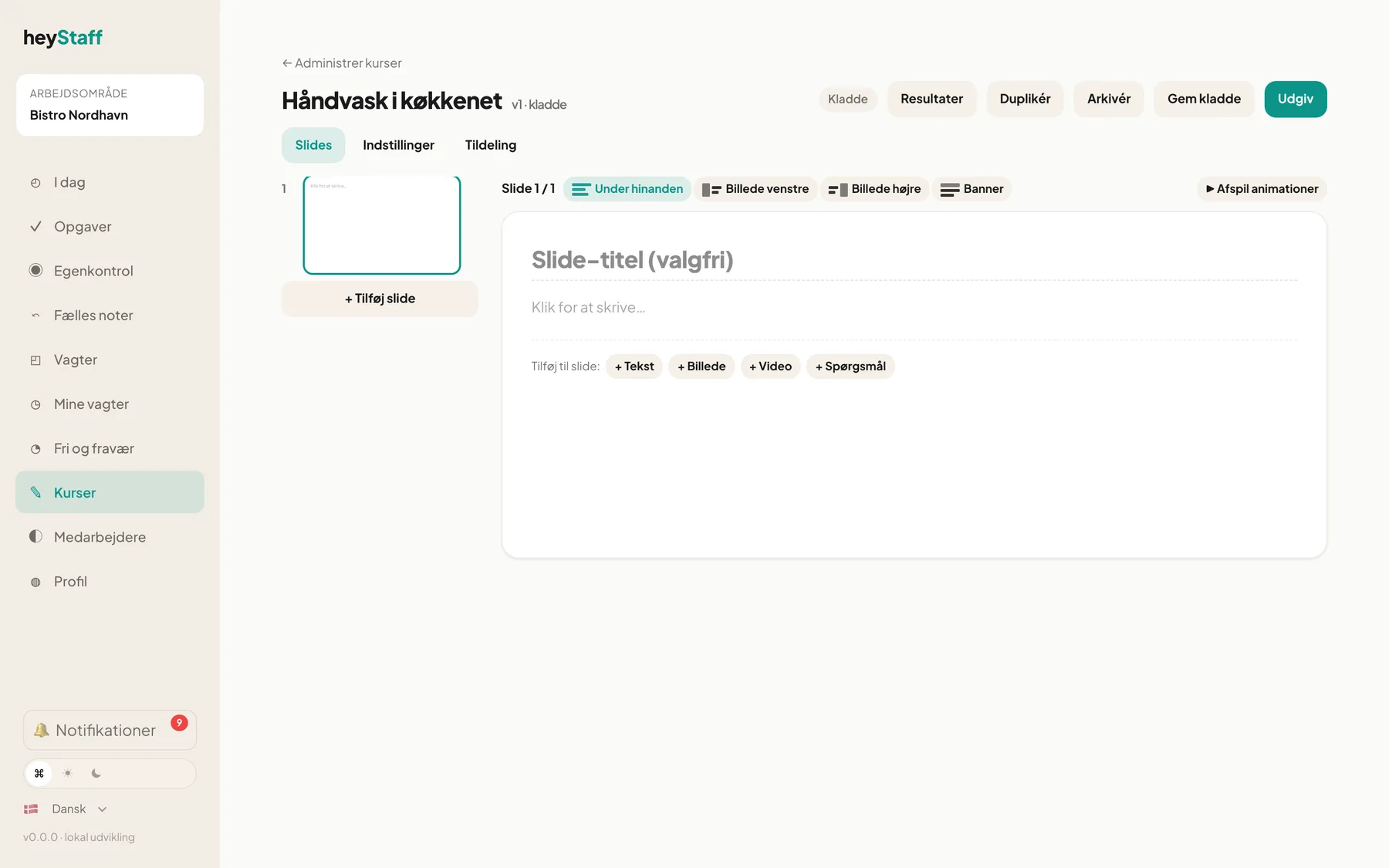
- You land directly in the editor. The course is a draft and has one empty slide.
Fill in the settings
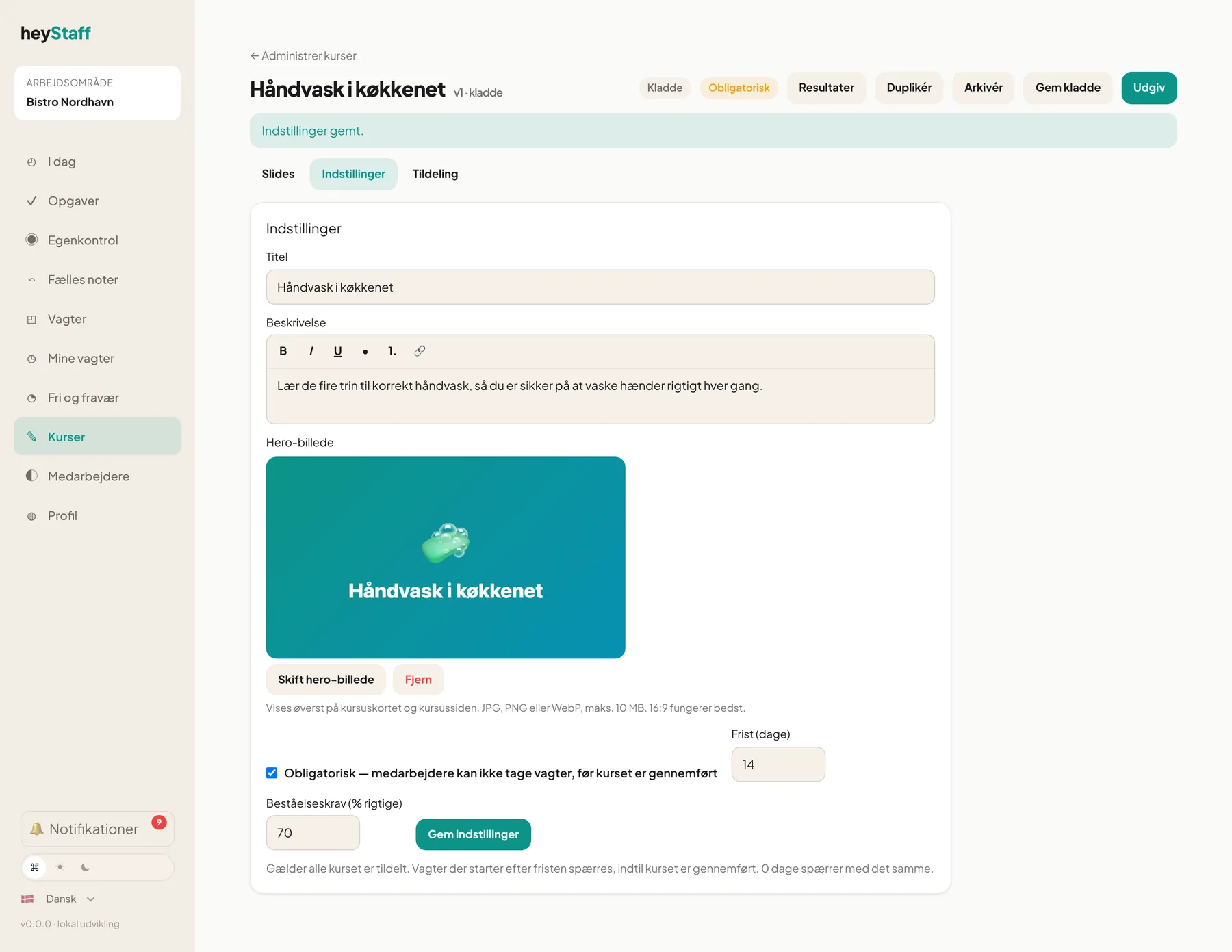
Section titled “Fill in the settings”Open the Settings tab.
- Title: Edit the name if you like.
- Description: Write 1-2 sentences. The text shows on the course card and the course page. You can use bold, italics and lists.
- Hero image: Tap Upload hero image and choose a JPG, PNG or WebP up to 10 MB. 16:9 works best. Use Replace hero image or Remove later.
- Pass mark (% correct): Enter for example 70. If you leave it empty, finishing the course counts as passing.
- Tap Save settings. You get the message Settings saved.
The hero image is shown at the top of the course card and course page for employees. Once the course is passed, the image gets a golden frame and a trophy.
Important: Settings are saved separately with Save settings. They are not part of the course version and apply immediately, also for a published course. Slides are saved with Save draft.
Copy a course
Section titled “Copy a course”Tap Duplicate at the top of the editor. A new draft is created with the same content and the title (kopi). It is a quick way to a similar course.
- Write the title the way staff say it: Hand washing, not Hygiene module 1.
- Use a clean, bright hero image with little text. It looks good on both phone and computer.
- Set the pass mark realistically. 70-80% is usually reasonable for short quizzes.
Can employees see the draft? No. Only once you have published the course.
How many slides can a course have? Up to 100. Most courses work best with 5-15.
Can I change the title later? Yes. Edit it under Settings and tap Save settings.