
Registrations in the task list
Staff do not need to open the Self-checks page. Everything they have to do is in Tasks, also on the phone. The monitoring schedules control what appears.
Two kinds of self-check in the task list
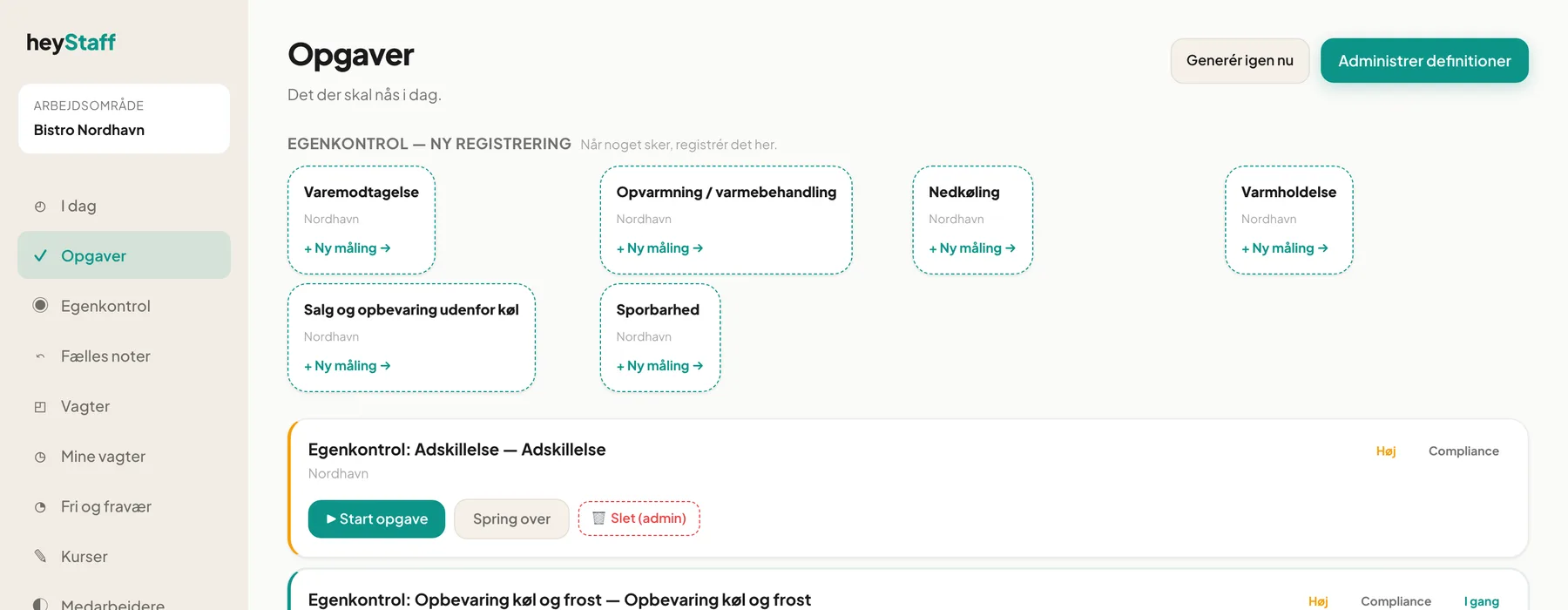
Section titled “Two kinds of self-check in the task list”1. Scheduled tasks. Control points with a daily, weekly or monthly schedule become tasks titled Egenkontrol: [name]. They have the category Compliance and priority High. Examples from Bistro Nordhavn: Separation, Storage chill and freeze, Personal hygiene and Cleaning.
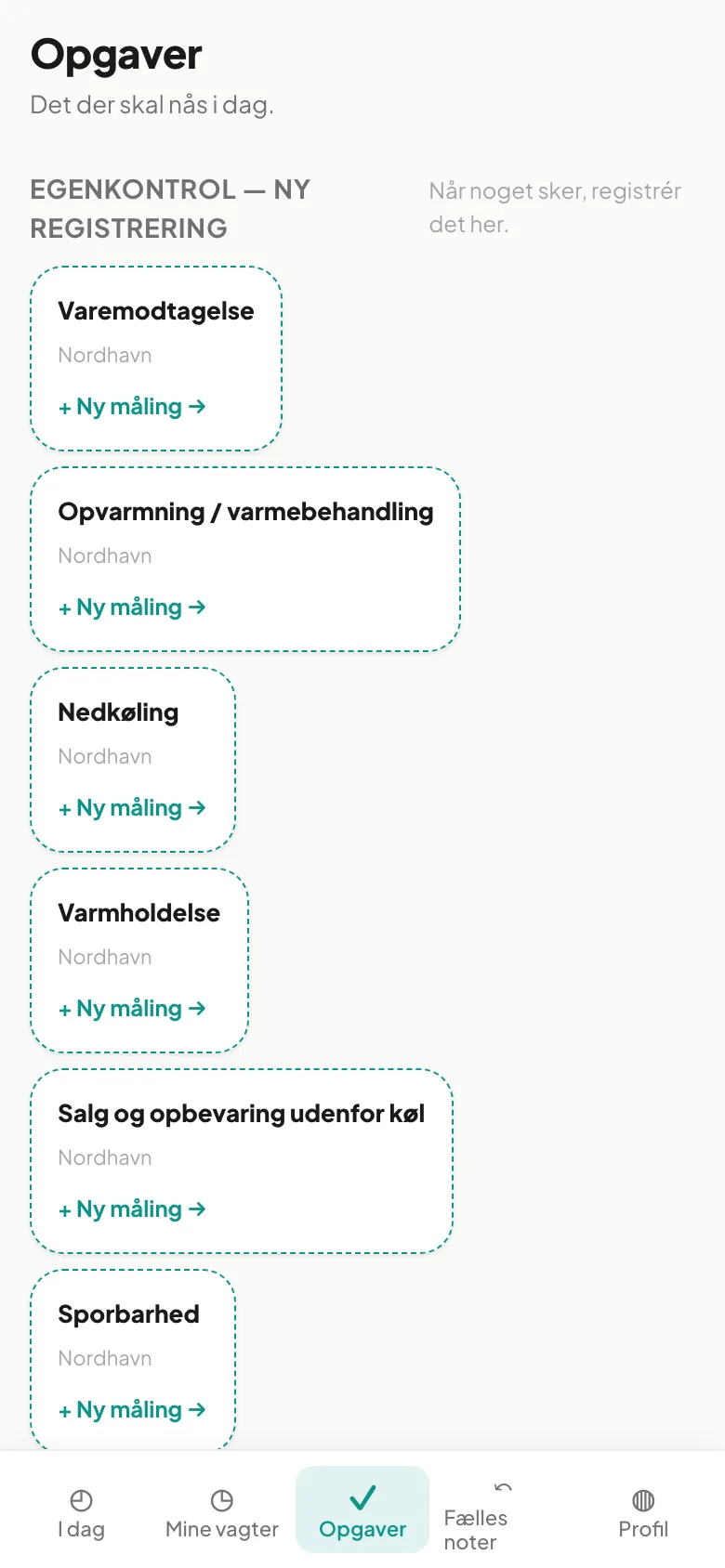
2. Registrations per event. At the top of the page is Self-checks — new registration (“Register here when something happens”). There is a tile for each activity that is only carried out when something happens: Goods receiving, Heating / heat treatment, Cooling, Hot holding, Sale and storage outside refrigeration and Traceability.
Carry out a scheduled task
Section titled “Carry out a scheduled task”- Click Start task.
- Fill in the form.
- Click Save.
- Confirm in the dialog Mark task as done? with Yes, mark as done.
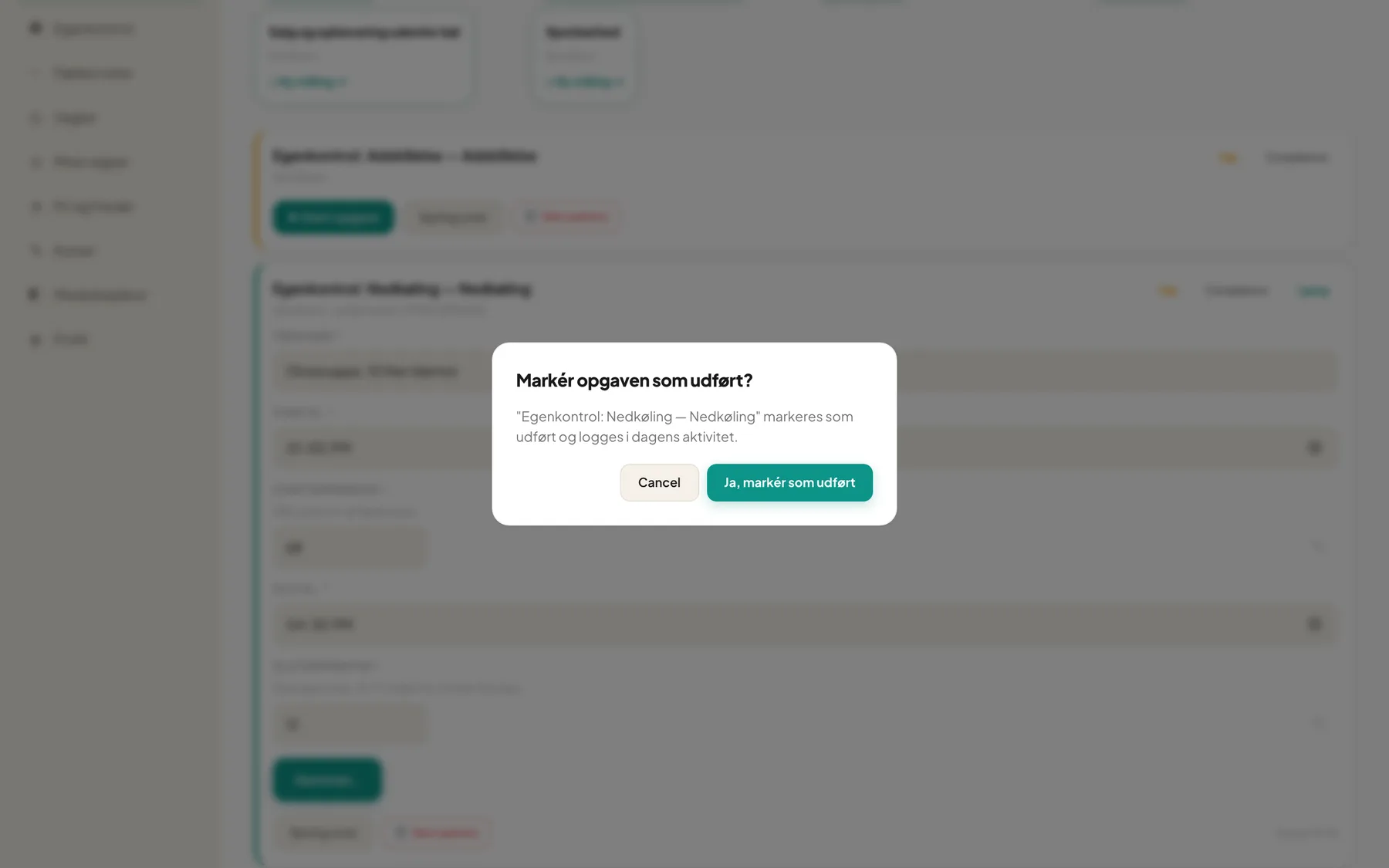
Note: In the Danish interface the Cancel button in this dialog is currently shown in English.
Make a per-event registration
Section titled “Make a per-event registration”- Find the activity under Self-checks — new registration.
- Click + New measurement →. A new task is created with the status In progress.
- Fill in and save as above.
You can make as many registrations as you need, for example one per delivery.
On the phone
Section titled “On the phone”Tasks and forms work on mobile. Photo fields open the camera.
Who sees what?
Section titled “Who sees what?”- Employees see and carry out the tasks.
- Managers can also skip and delete a task (the Delete (admin) button).
- Deviations and the plan are for managers only.
Tip: Tasks are generated from the monitoring schedules. If an employee does not see an expected task, check that the schedule is Active.
Frequently asked questions
Section titled “Frequently asked questions”Can I skip a self-check? Yes, with Skip. It is recorded as skipped, not as completed.
My registration produced a deviation. Do I have to do anything? Follow the corrective action and tell your manager. The manager documents the resolution under Deviations.