
The slide editor
The slide editor is where the course itself is built. It sits under the Slides tab when you edit a draft. Managers can use it.
Overview of the editor
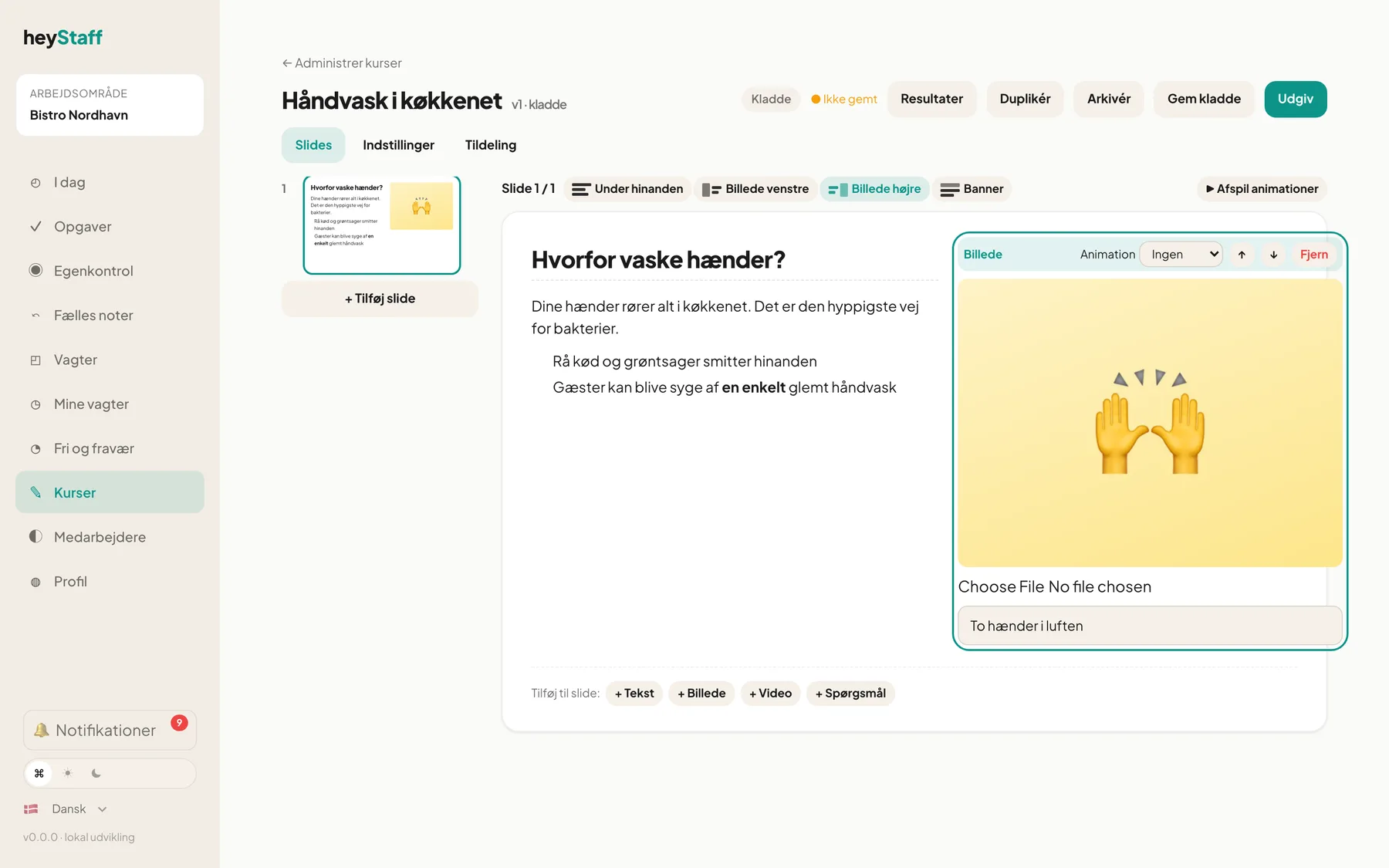
Section titled “Overview of the editor”- The slide rail on the left shows all slides as small thumbnails with their number.
- The canvas on the right shows the selected slide exactly as the employee sees it.
- Layout buttons above the canvas: Stacked, Media left, Media right and Banner.
Add a slide
Section titled “Add a slide”- Tap + Add slide at the bottom of the slide rail. Or tap the small + between two slides to insert in the middle of the course.
- Choose a template: Text, Text + image right, Image left + text, Banner image + text or Text + question.
- The slide is created with the right fields and layout.

Edit, move and delete slides
Section titled “Edit, move and delete slides”- Give the slide a title in the field Slide title (optional).
- Drag a slide in the rail to change the order.
- Hover over a slide for Duplicate slide (⧉) or Delete slide (✕). The last remaining slide cannot be deleted.
Add content to a slide
Section titled “Add content to a slide”At the bottom of the canvas it says Add to slide: with four buttons.
- + Text: Click the field and write. Use the toolbar: bold (B), italic (I), underline (U), heading (H), bullet list, numbered list, quote and link.
- + Image: Choose a file and write a short Description of the image for screen readers.
- + Video: Choose a video file.
- + Question: See Quiz questions and feedback.
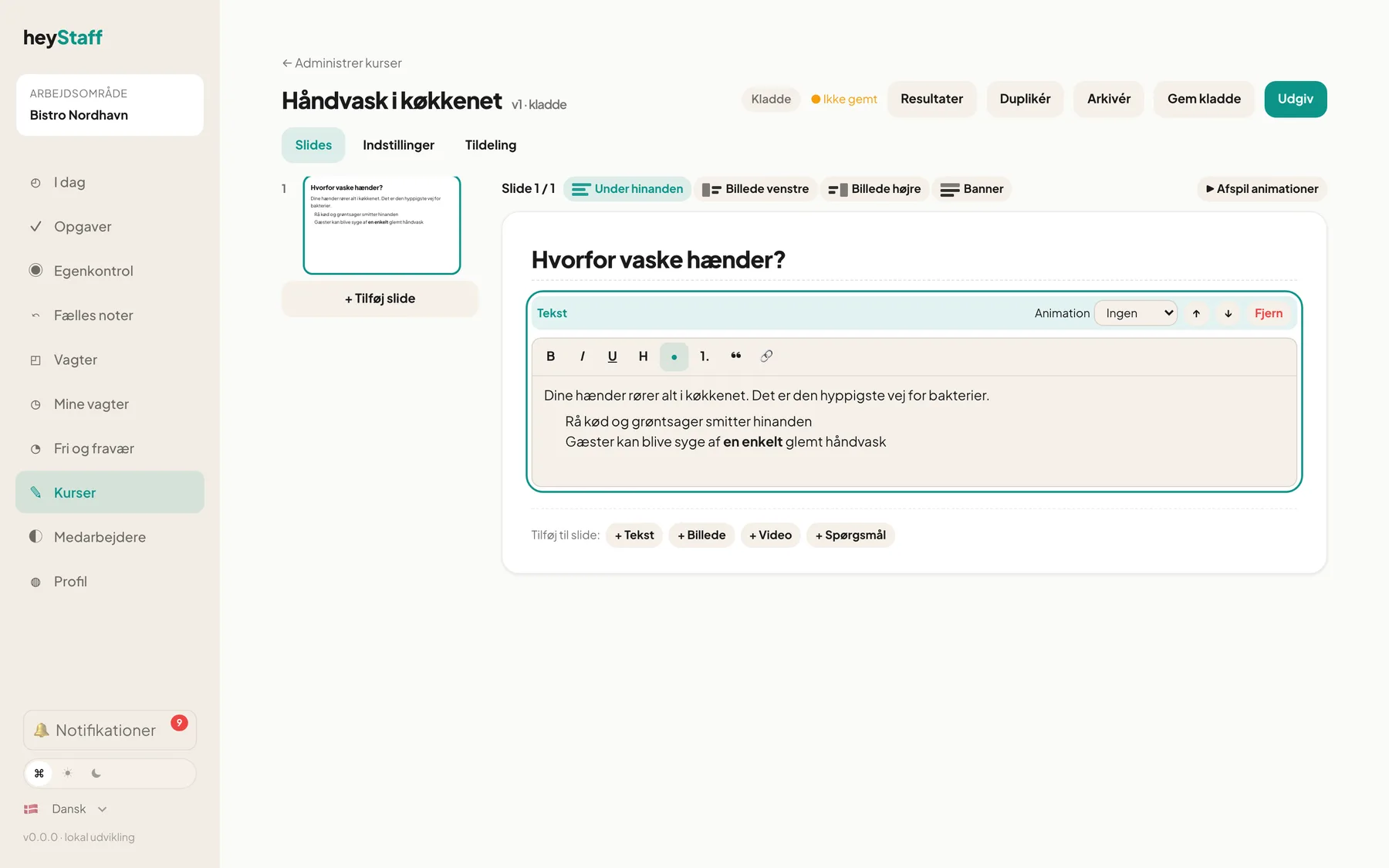
Click a content field to select it. In its top bar you can move it up or down with the arrows or remove it with Remove.
Animations
Section titled “Animations”- Click a content field.
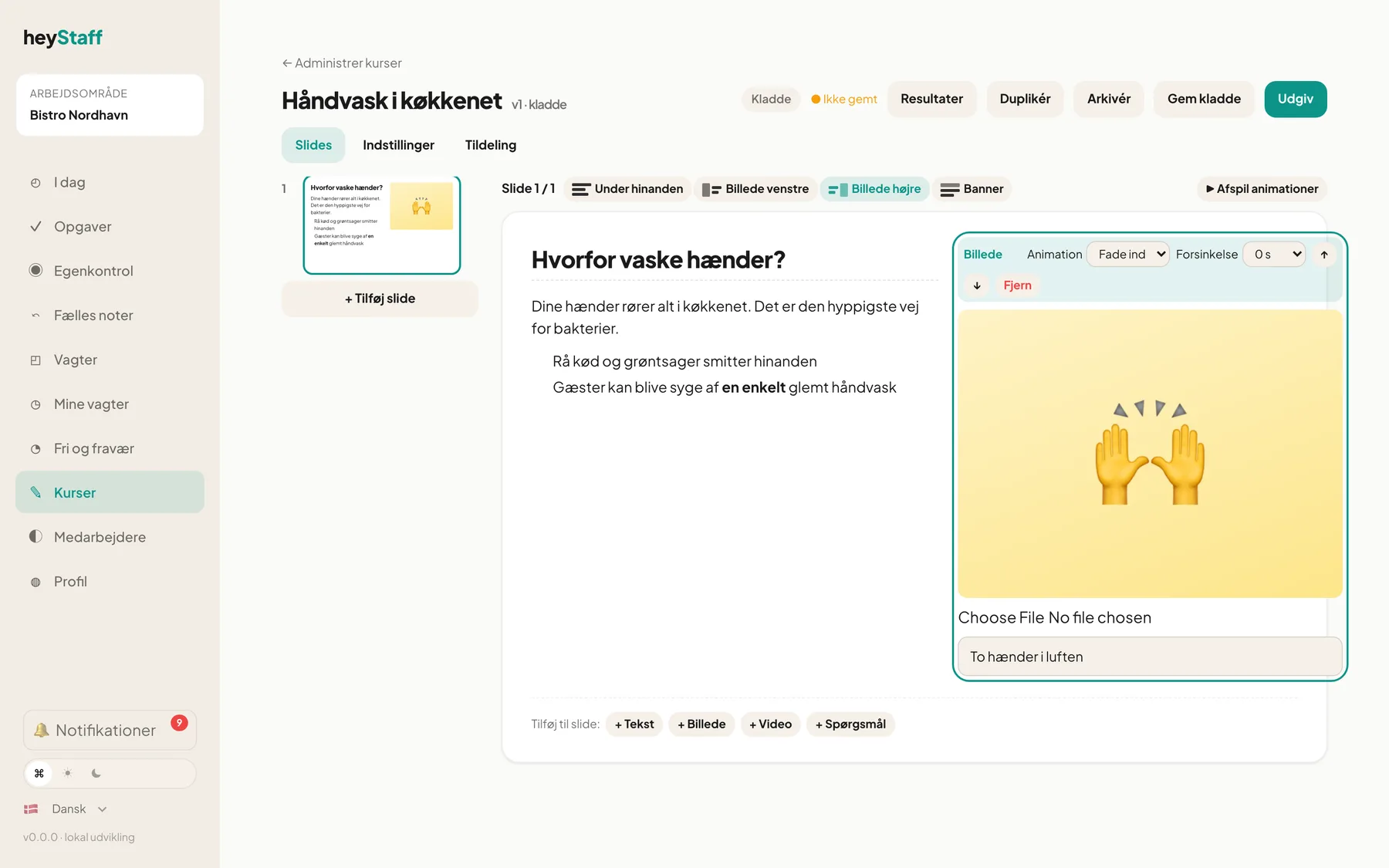
- Choose an Animation: None, Fade in, Slide up, Slide in or Zoom.
- Optionally choose a Delay so fields come in one after another.
- Tap Play animations above the canvas to see the effect. Stop preview stops it.
Changes are marked Unsaved changes. Tap Save draft to save. If you close the page with unsaved changes the browser warns you.
Tip: Keep each slide to one idea. Short slides with an image are easier to remember than long blocks of text.
Can I edit a published course? Not directly. Tap Edit (new draft); see Publishing and new versions.
Can I have several images on one slide? Yes. Add more + Image. Up to 30 fields per slide.
Why can’t I change anything? The course is published. Start a new draft to edit.