
Ending an employment
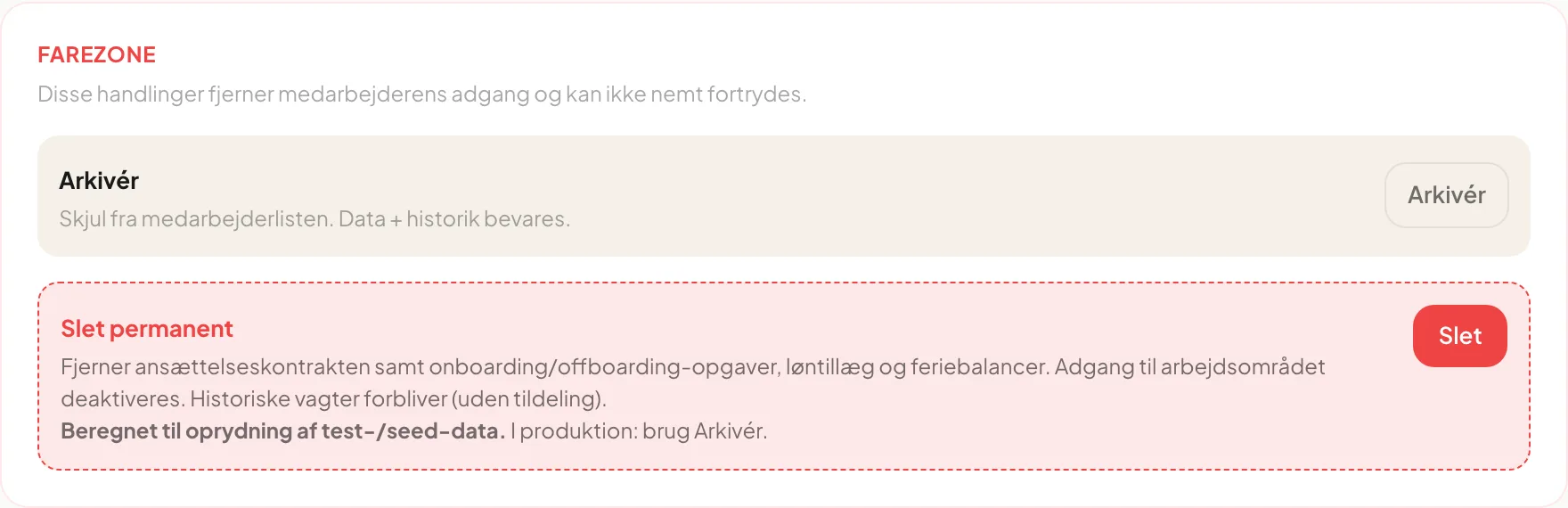
When an employee leaves they should no longer be given shifts, but history must be kept. You do this in the Farezone (Danger zone) box at the bottom of the employee’s page. Only managers can see it.
Archive
Section titled “Archive”Used when an employment has ended. The employee gets status Arkiveret and data and history are kept.
- Open the employee and scroll to Farezone.
- Click Arkivér next to Skjul fra medarbejderlisten. Data + historik bevares. (Hide from the employee list. Data and history are kept.)
- Click Bekræft arkivering (Confirm archiving), or Annullér to cancel.
The page then shows Allerede arkiveret (Already archived). Archived employees sit at the bottom of the employee list, where you can filter on the status Arkiveret.
Delete permanently
Section titled “Delete permanently”Meant for cleaning up test and demo data, not for ordinary departures. In day-to-day use, use Archive.
- Click Slet under Slet permanent.
- Type the employee’s full name in the field to confirm.
- Click Slet permanent. The button is only active when the name matches exactly.
Deleting removes the employment, onboarding tasks, pay supplements and holiday balances, and the employee loses access to the workspace. Historical shifts remain, but are no longer assigned to a person.
Important: Deletion cannot be undone. If in doubt, archive.
What about personal data?
Section titled “What about personal data?”Every change to and reading of an employee’s information is written to an internal access log, so there is a trail of who has seen or edited what. You do not edit the log and it is not shown in the interface today. If you need an employee’s data handed out or erased, contact support.
Does the employee lose access immediately when I archive? Archiving changes the status of the employment. Contact support if the account must also be blocked right away.
Can I bring an archived employee back? There is no button to reactivate today. Contact support.