
My shifts
My shifts is the employee’s own overview of the next 4 weeks. The page works on computer and on a phone in the browser, and every employee has it.
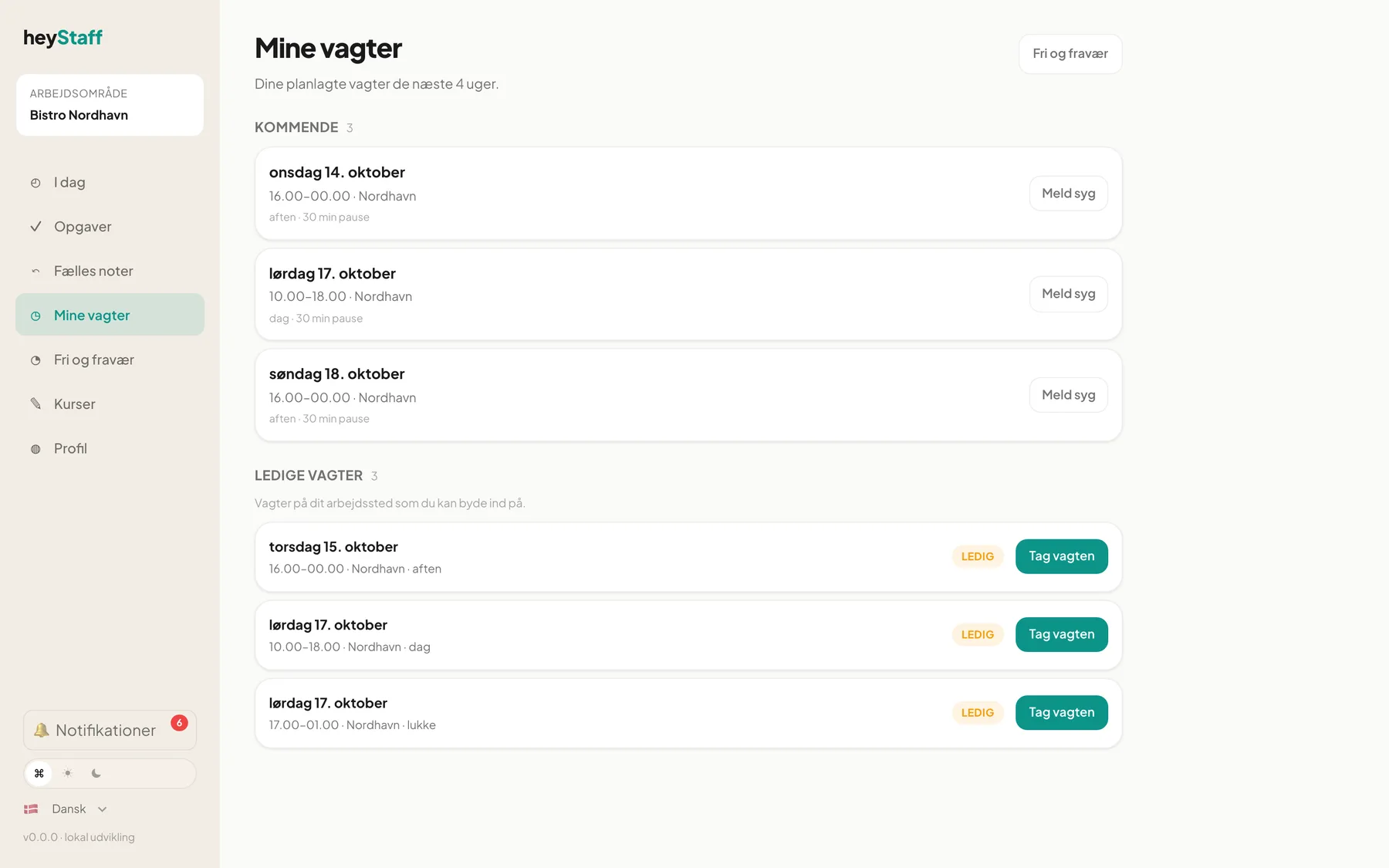
What you can see
Section titled “What you can see”- Today: Today’s shift, marked with a green edge.
- Upcoming: All your published shifts for the next 4 weeks, sorted by date.
- Available shifts: Shifts at your location that you can claim.
Each card shows day, time, location, shift type (for example aften, evening), break and any note from the manager. Cancelled and no-show shifts are not shown.
Important: You only see published shifts. If new shifts have not appeared, the manager has probably not published the next week yet. You get a notification when a new shift arrives.
Call in sick
Section titled “Call in sick”- Find the shift you cannot work and click Meld syg (report sick).
- Optionally write a short note.
- Click Bekræft sygemelding (confirm).
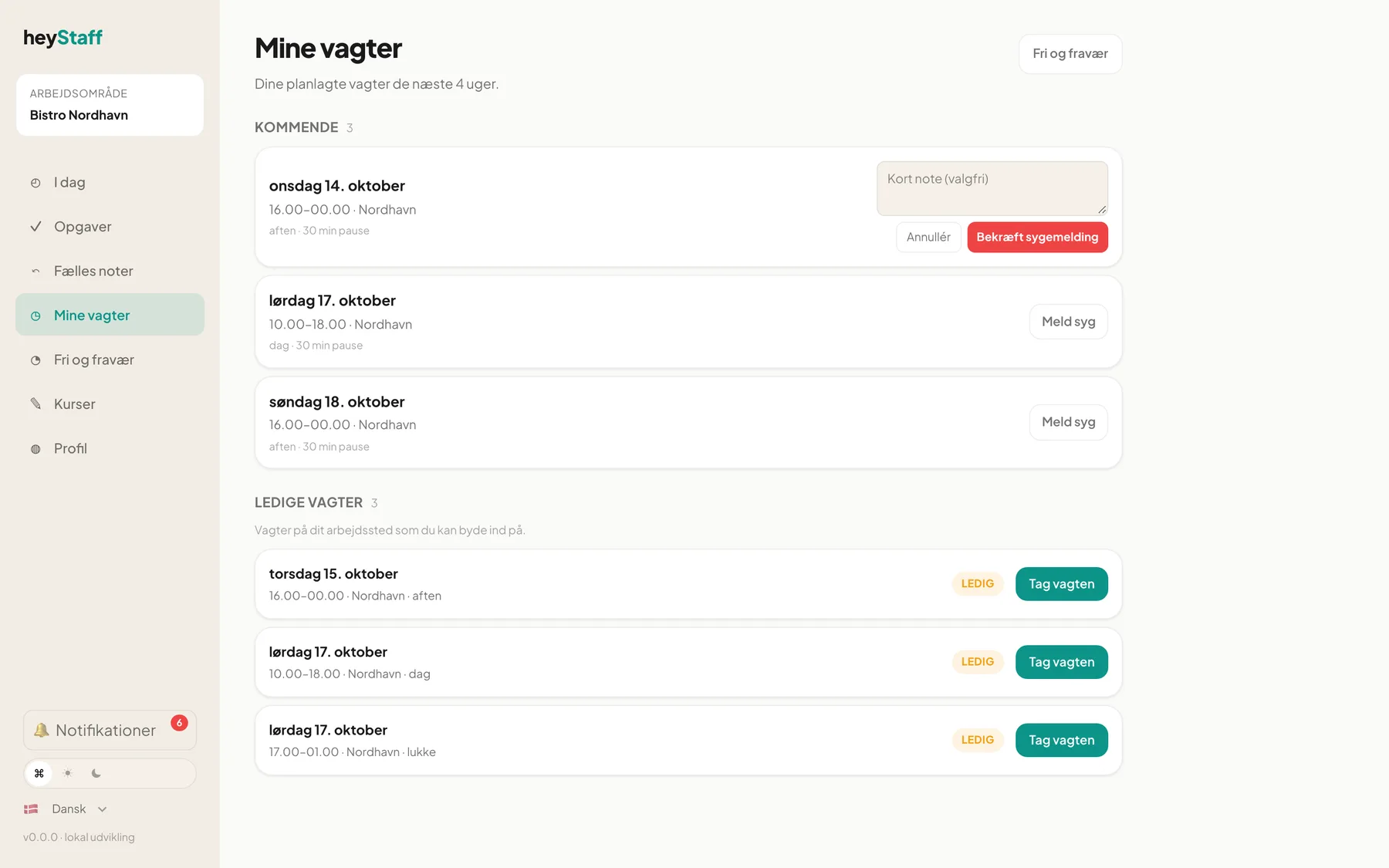
The shift is cancelled, a sick day is recorded under your absence, and managers are notified. This is final, so check that you picked the right shift.
Take an open shift
Section titled “Take an open shift”- See the Available shifts list. Each has a yellow Open badge.
- Click Tag vagten (“Take the shift”). The button changes to Sendt (“Sent”).
- Wait for the manager’s answer. You are notified: Du fik vagten or Vagt-claim afvist.
The system rejects the request if you already have a shift at that time, lack the required role, or are missing a mandatory course. The reason appears under the button.
On the phone
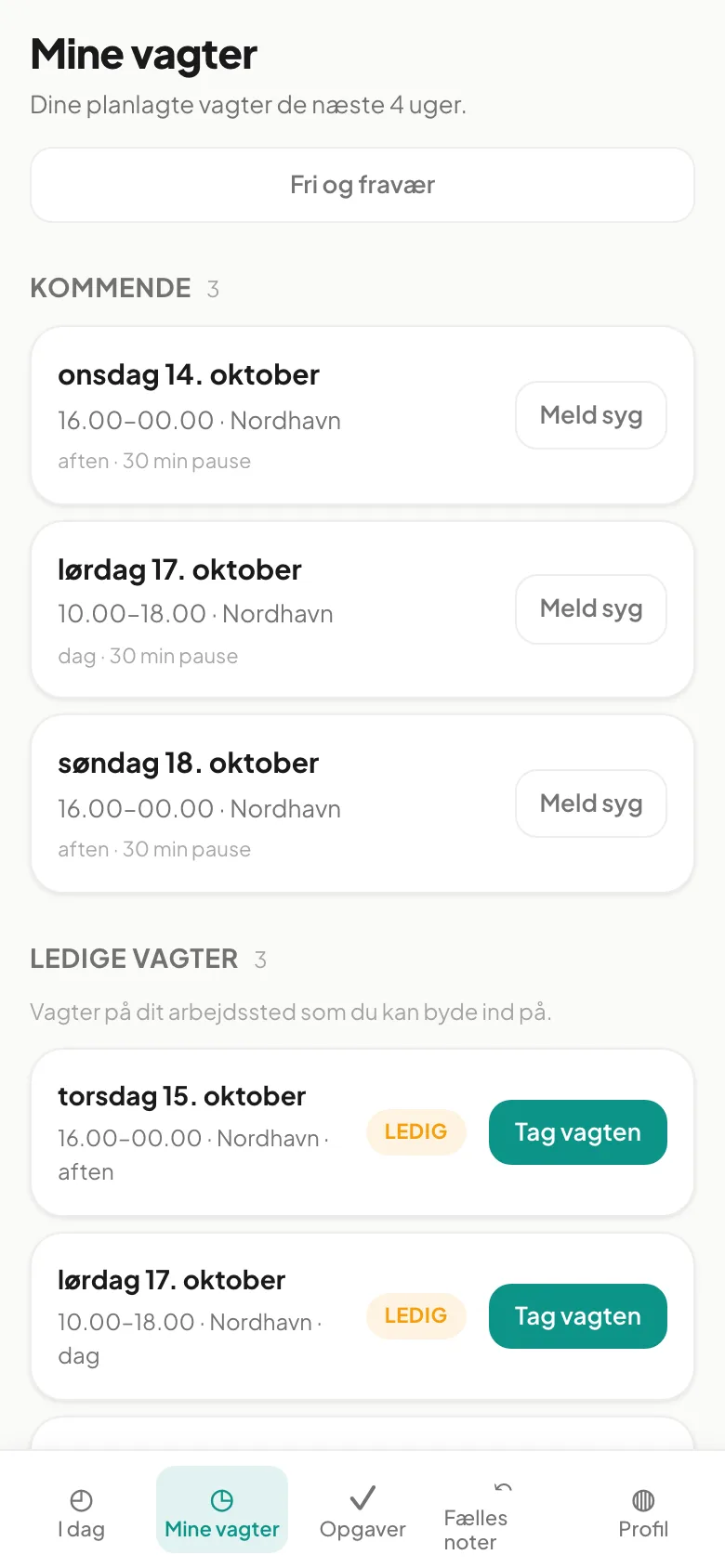
Section titled “On the phone”The page uses the full screen width and the menu sits at the bottom. Find My shifts in the bottom menu.
Can I clock in and out? Not on this page. My shifts shows scheduled shifts.
Can I swap a shift with a colleague? There is no swap button on the page yet. Agree it with your manager, who can move the shift in the schedule.
How do I apply for time off? Click Time off at the top of the page. See Time off and absence.