
Manage categories
Categories give notes a colour and icon, so you can quickly tell a kitchen note from an allergen warning. Only managers can change categories.
Open the categories
Section titled “Open the categories”- Go to Shift handover.
- Press Categories at the top right. The button is only shown to managers.
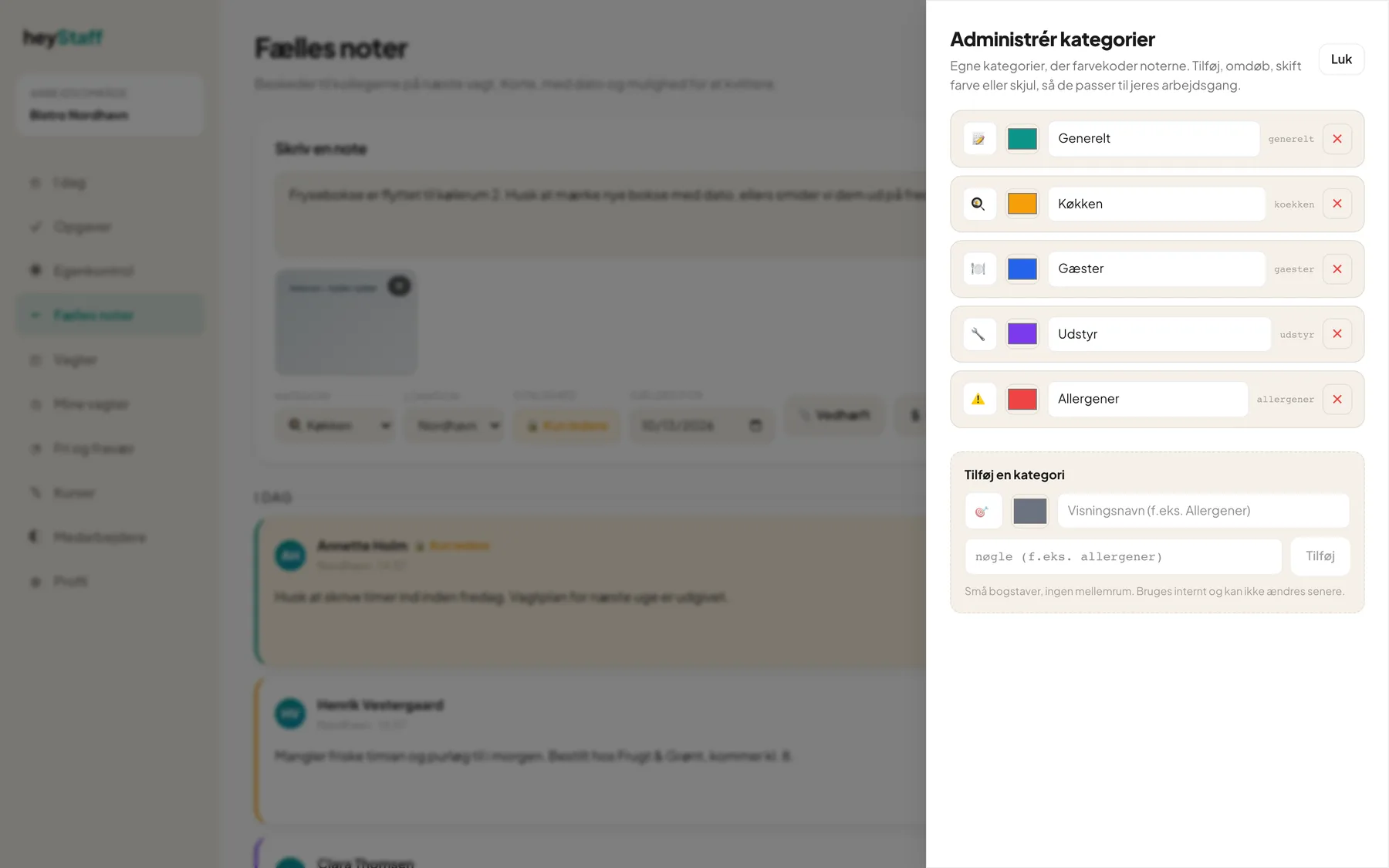
- The Manage categories panel opens from the right.
What does it show?
Section titled “What does it show?”For each category you see, from left to right: icon, colour, display name and the internal key (for example koekken). Bistro Nordhavn uses General, Kitchen, Guests, Equipment and Allergens.
Edit a category
Section titled “Edit a category”- Type a new display name, or choose another colour or icon.
- Press Save, which appears on the row once you have changed something.
The key can’t be changed. Old notes follow along and keep their category.
Add a category
Section titled “Add a category”- Find the box Add a category.
- Choose an icon and a colour.
- Write the Display name, for example Allergens.
- Write a key: lowercase letters and no spaces, for example allergens. Used internally; you can’t change it later.
- Press Add.
The category can be used in the form right away.
Hide and restore
Section titled “Hide and restore”Press the red ✕ next to a category and confirm Hide “…”?. The category can’t be chosen in new notes, but earlier notes keep their colour. Hidden categories appear at the bottom of the panel with a Restore button.
Tip: Keep the number low, four to six categories is plenty. Then employees pick the right one without thinking.
Press Close. The page refreshes so the new colours show on the notes.
Questions
Section titled “Questions”I can’t see the Categories button. You aren’t a manager.
Why can’t I delete a category? It is hidden instead, so old notes can still be shown correctly.