
Publish the week and rules
Shifts are created as drafts. Only when you publish them can employees see them, and only then is the hourly rate fixed on the shift. Managers and shift leads publish.
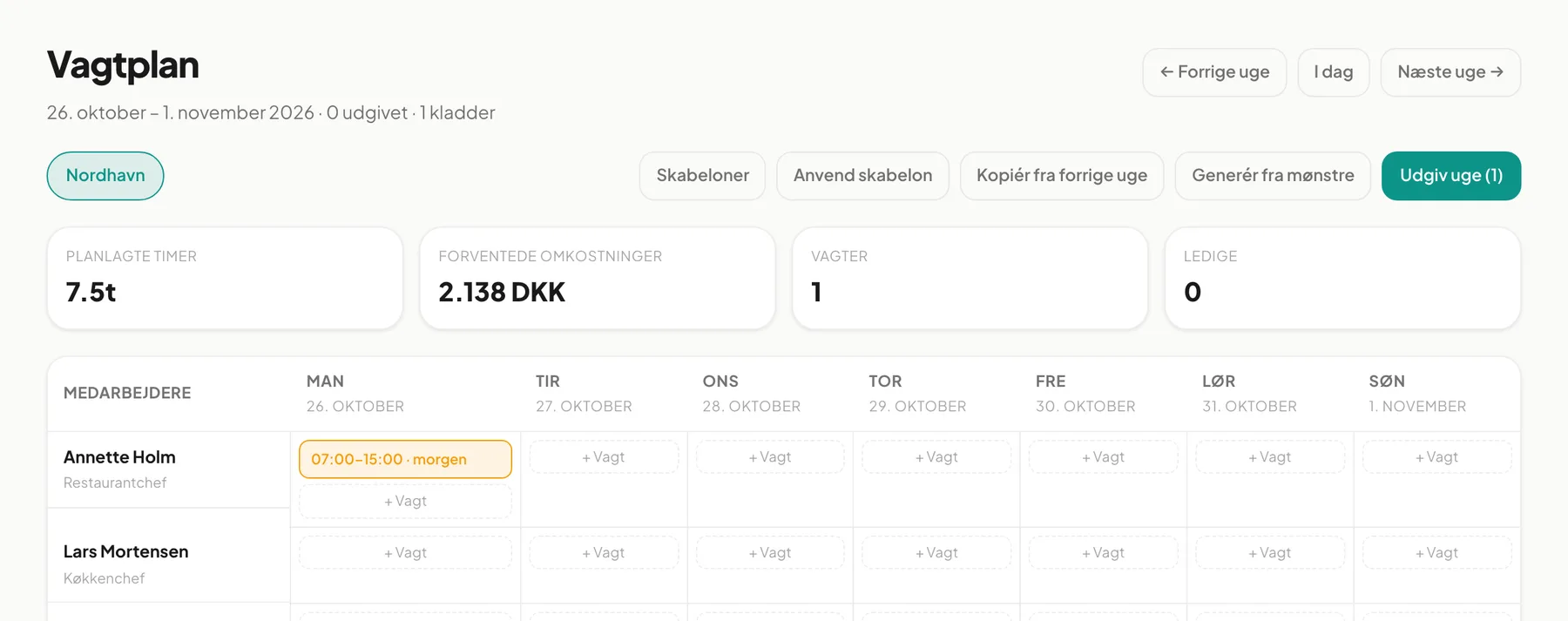
The heading shows one draft, and the button shows the count: Publish week (1) (in the app: “Udgiv uge (1)”).
Publish the whole week
Section titled “Publish the whole week”- Go to the week in the schedule and check that all shifts are in place. Drafts are yellow.
- Check the tiles at the top: Planned hours and Projected cost.
- Click Publish week (N), where N is the number of drafts.
- The shifts turn green, and the heading shows more published and fewer drafts.
The button is disabled when there are no drafts. If none of the drafts can be published you get the message Ingen kladder blev udgivet (“no drafts were published”), typically because an employee is missing a mandatory course.
Publish a single shift
Section titled “Publish a single shift”Open the shift and click Udgiv (publish) at the bottom of the dialog. Useful if you only want to send out one shift.
What does the employee get?
Section titled “What does the employee get?”- A notification titled Ny vagt på din plan (“New shift on your schedule”) with the shift’s date and time.
- The shift appears under My shifts.
- If you Aflys (cancel) it, the employee gets a Vagt aflyst notification.
Open shifts (with no employee) are published the same way and show for everyone under Available shifts on the employee side.
Changes after publishing
Section titled “Changes after publishing”A published shift cannot be deleted, only cancelled. If you edit a published shift close to its start, the system requires a reason:
- Open the shift and change times or employee.
- Enter a reason in Override-årsag (hvis inden for varsel-vindue) (override reason, if inside the notice window).
- Click Gem ændringer (save changes).
The default is 14 days’ notice. If the shift is closer than that, the field must be filled in or the change is rejected. You can change the notice length under Compliance & arbejdstid in settings.
Important: The reason is saved in the audit trail so it can be reviewed later. Write something concrete, for example “Colleague sick, swapped with Mathilde”.
Working-time rules
Section titled “Working-time rules”The Compliance & arbejdstid settings page stores your thresholds: maximum hours per week, minimum rest between shifts (default 11 hours), consecutive days and the 4-month average.
Important: Today the schedule does not yet show automatic warnings or blocks for hour limits or rest periods while you build the week. Keep an eye on rest and weekly hours yourself, for example by checking the Planned hours tile and each employee’s row.
What the system does check automatically when you assign a shift:
- The employee has an active employment at the location.
- The employee has completed mandatory courses.
- Shifts do not overlap when an employee claims an open shift.
Can I undo a publication? No. You can cancel the shift, and the employee is notified.
Does the hourly rate change if the contract changes after publishing? No. The rate is stored on the shift at publication, so historical costs stay stable.