
Your profile
Under Profile you edit your own details. All roles – staff and managers – can open the page. The page is titled Your profile.
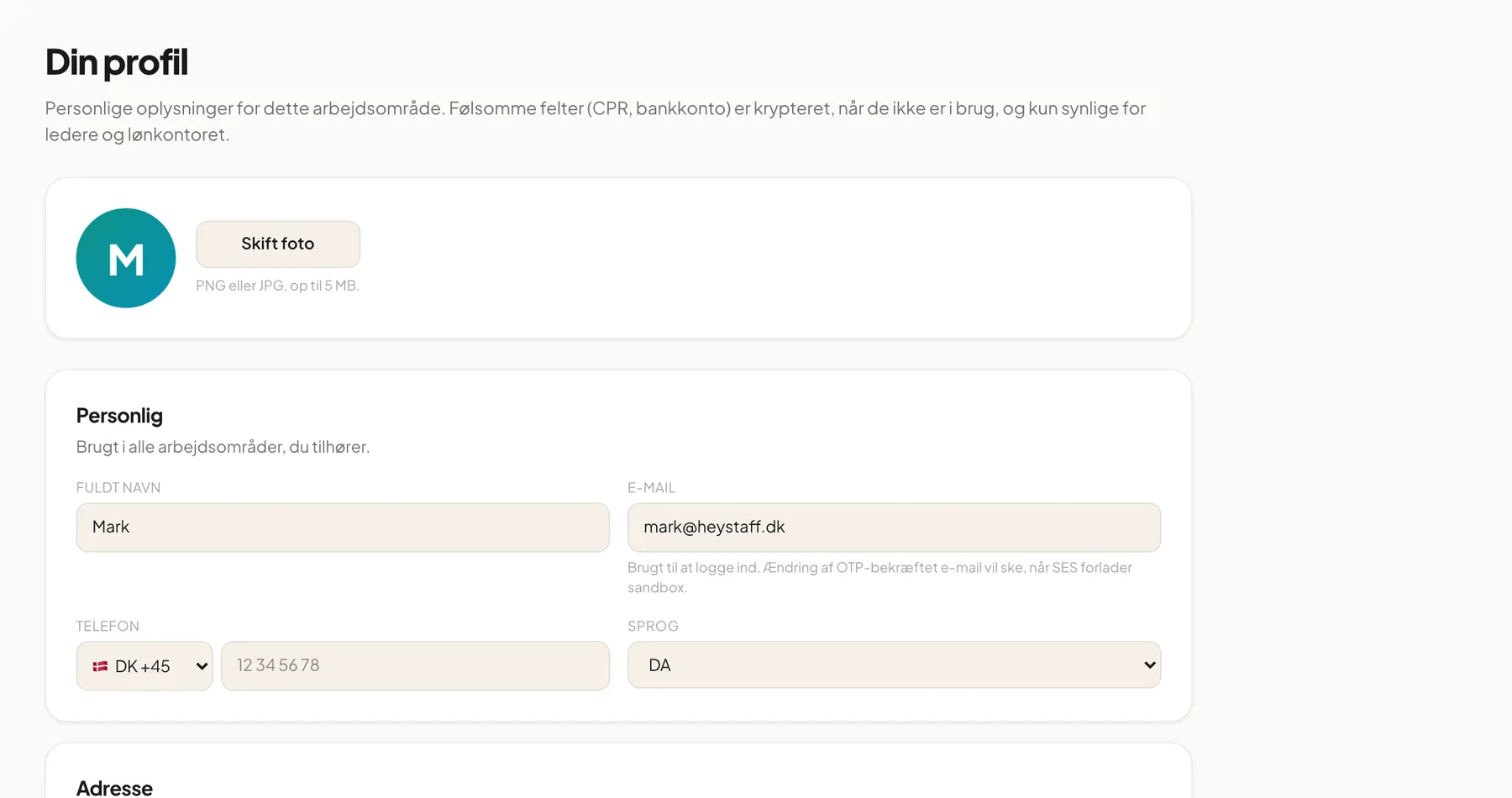
Change your profile photo
Section titled “Change your profile photo”- Click Change photo.
- Choose an image (PNG or JPG, up to 5 MB).
- In the Crop your photo window, drag to move the image and use the Zoom slider.
- Click Save. The image is uploaded.
Without a photo, your initials are shown in a green circle.
Personal details
Section titled “Personal details”The Personal card is used in all workspaces you belong to.
| Field | Note |
|---|---|
| Full name | Shown on the dashboard and in lists |
| Used to sign in | |
| Phone | Choose a country code (for example DK +45) and enter the number |
| Language | Workspace default, DA or EN |
The Address card (street, postal code, city, country) is only used by this workspace, for example for contracts and mail.
Payroll
Section titled “Payroll”The Payroll card (with a lock icon) holds sensitive information: Date of birth, Tax ID (CPR number in Denmark), IBAN, SWIFT / BIC and Bank name. They are stored encrypted and are only visible to managers and the payroll office.
Important: Only fill in the payroll fields if your manager has asked you to.
Save your changes
Section titled “Save your changes”Click Save profile at the bottom. When it succeeds, a green confirmation appears next to the button. All cards are saved together.
Language
Section titled “Language”- Open Profile.
- Choose a language under Language. Workspace default uses the language your company has chosen.
- Click Save profile.
You can also switch quickly with the language selector at the bottom of the sidebar. Language only affects system buttons and text; task names and notes are shown as they were written.
Theme: light and dark
Section titled “Theme: light and dark”At the bottom of the sidebar (computer) you choose between:
- System – follows your computer’s setting
- Light
- Dark
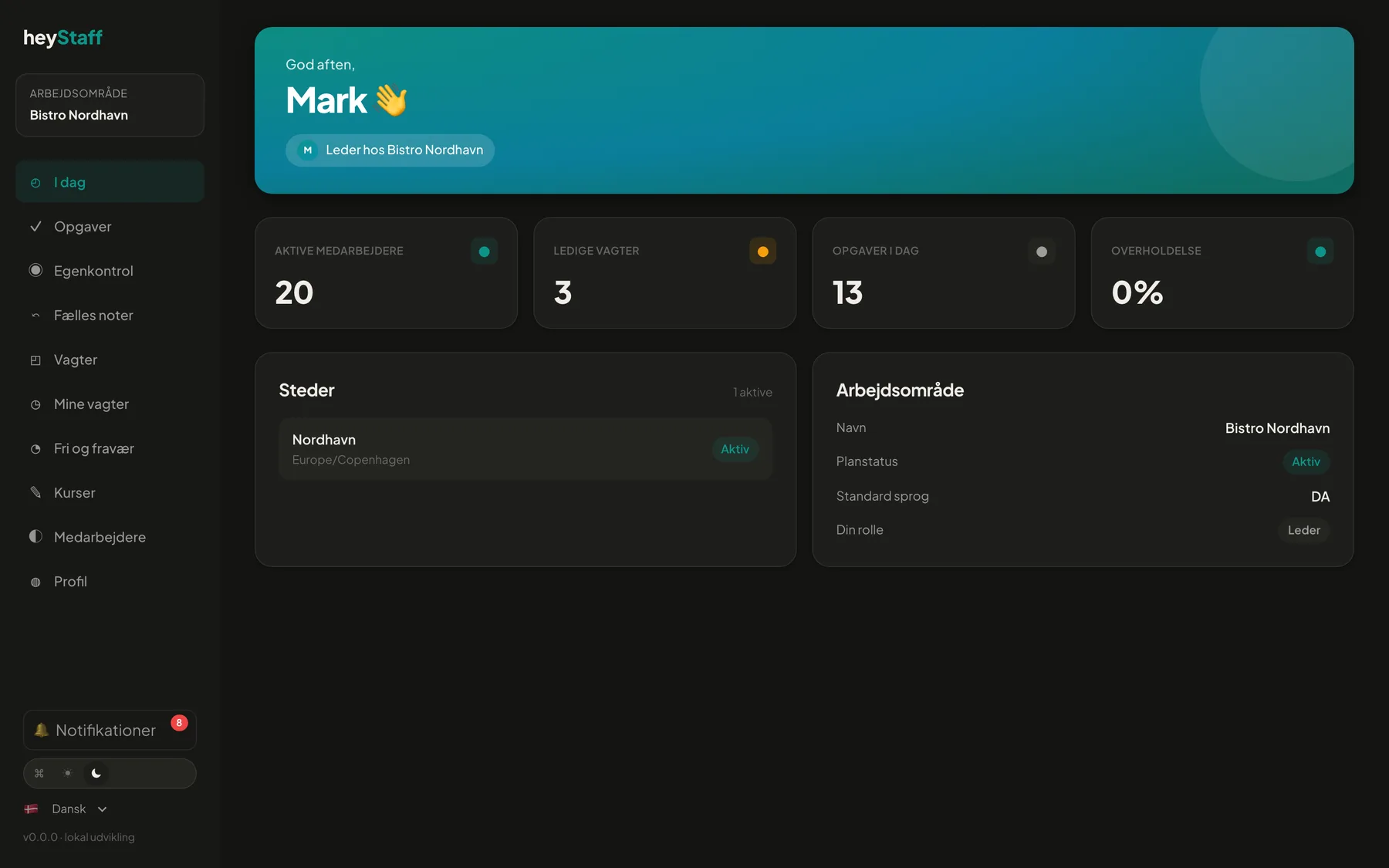 Dark theme.
The choice is stored in your browser and only applies on that device.
Download your data
Section titled “Download your data”At the bottom of the profile page under My data you can click Download my data (GDPR). You get a JSON file with your profile, employments, documents (links) and absence records.
Note: The My data section and its button are currently shown in Danish only.
Questions and answers
Section titled “Questions and answers”Can I change my email? Yes, enter the new address and click Save profile. It is the address you sign in with.
My photo is rejected. The file must be an image and at most 5 MB.
I want my role or pay corrected. Only a manager can do that. Contact your manager.