
Shift templates and quick planning
Avoid creating the same shifts every week. heyStaff has three shortcuts: templates, copy from previous week and recurring patterns. All require manager rights.
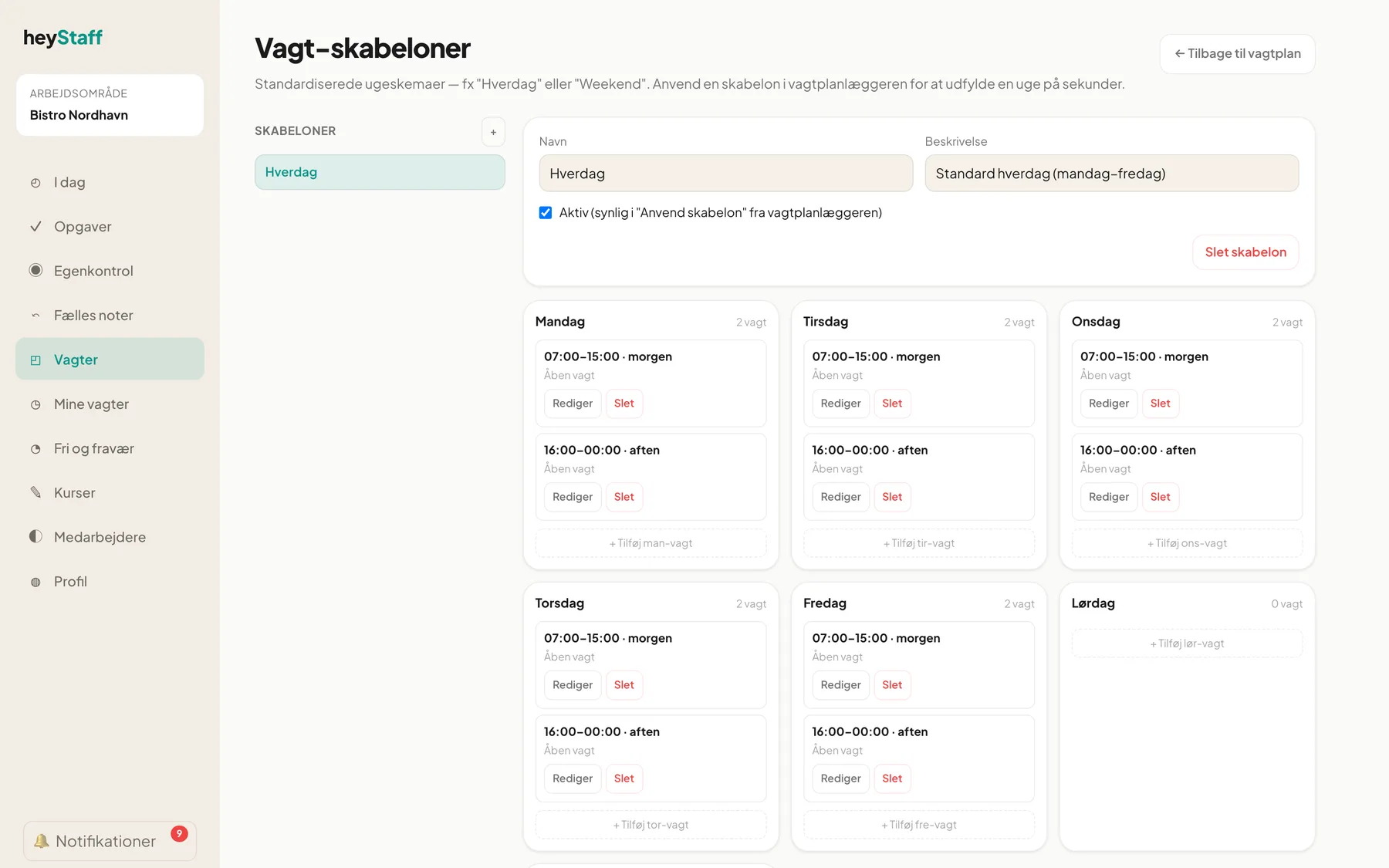
Create a template
Section titled “Create a template”- Click Skabeloner (templates) in the schedule, or go to Vagt-skabeloner.
- Click + next to the Skabeloner list, type a name, for example Hverdag (weekday), and click Opret (create).
- Fill in the Beskrivelse (description) if you like.
- Under each weekday click + Tilføj man-vagt (add Monday shift; tir, ons …).
- Choose a shift type. Times are filled in from the type but can be edited.
- Optionally choose a role requirement and a fixed employee. If it is left at — Åben vagt (ingen tildelt) — the shift becomes open.
- Click Tilføj (add).
Edit or delete a line with Rediger and Slet. Remove a whole template with Slet skabelon and confirm.
Tip: Untick Aktiv to keep a template without it being offered when you apply one.
Apply a template to a week
Section titled “Apply a template to a week”- Go to the week you want to fill.
- Click Apply template.
- Pick the template and click Anvend (apply).
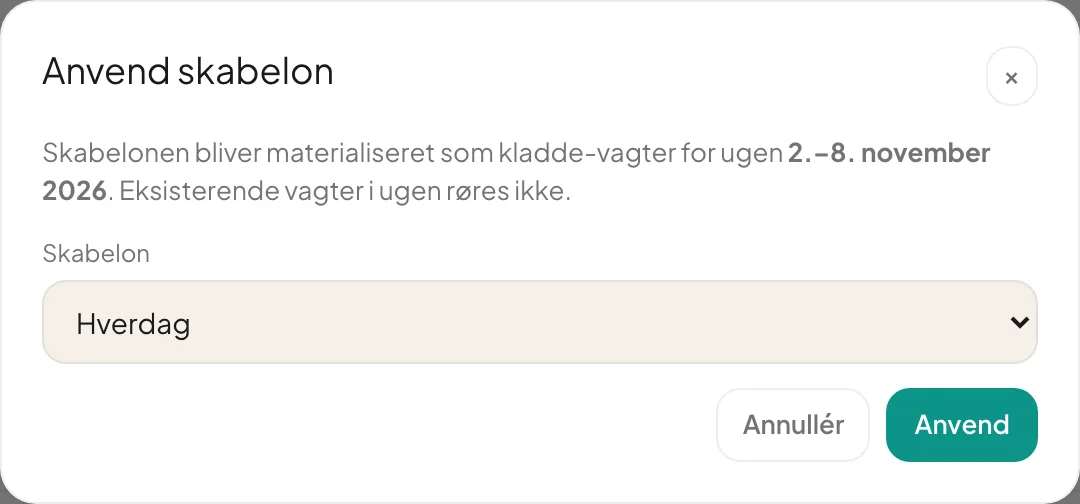
The template is created as drafts. Existing shifts in the week are left alone. Shifts with a fixed employee are assigned to them; the rest become open. Remember to publish the week afterwards.
The button is disabled if there are no active templates.
Copy from previous week
Section titled “Copy from previous week”Click Copy from previous week to place last week’s shifts in the chosen week as drafts.
- If an employee has approved time off that day, the shift becomes open instead of being assigned.
- The same applies if the employee is missing a mandatory course.
Recurring patterns
Section titled “Recurring patterns”Open a shift and click Gør tilbagevendende (make recurring). Choose weekdays and click Opret mønster (create pattern); shifts are generated automatically up to 6 weeks ahead.
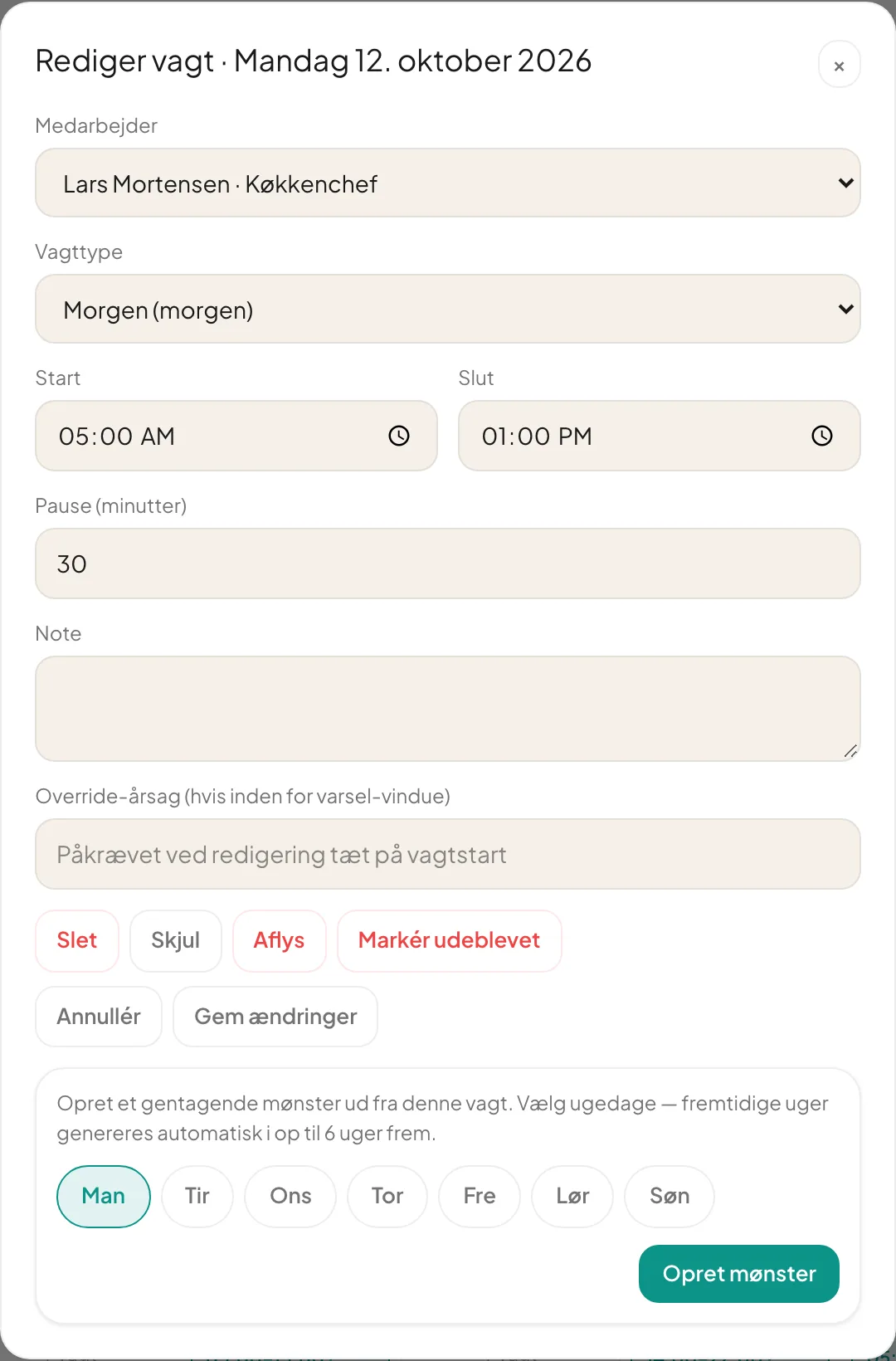
The Generate from patterns button in the schedule fills upcoming weeks from the patterns you have created.
Does a template or a copy overwrite anything? No, only new drafts are added.
Why are my shifts open after copying? The employee had approved time off or was missing a course that day. Assign the shift manually or leave it as an open shift.