
Signing in and invitations
Everyone signs in with email and password. You get an account by being invited by a manager – you cannot create a restaurant or account on your own.
Sign in
Section titled “Sign in”- Go to your restaurant’s heyStaff address, for example app.heystaff.dk. If you are not signed in you are sent to the sign-in page automatically.
- Enter your Email and Password.
- Click Sign in.
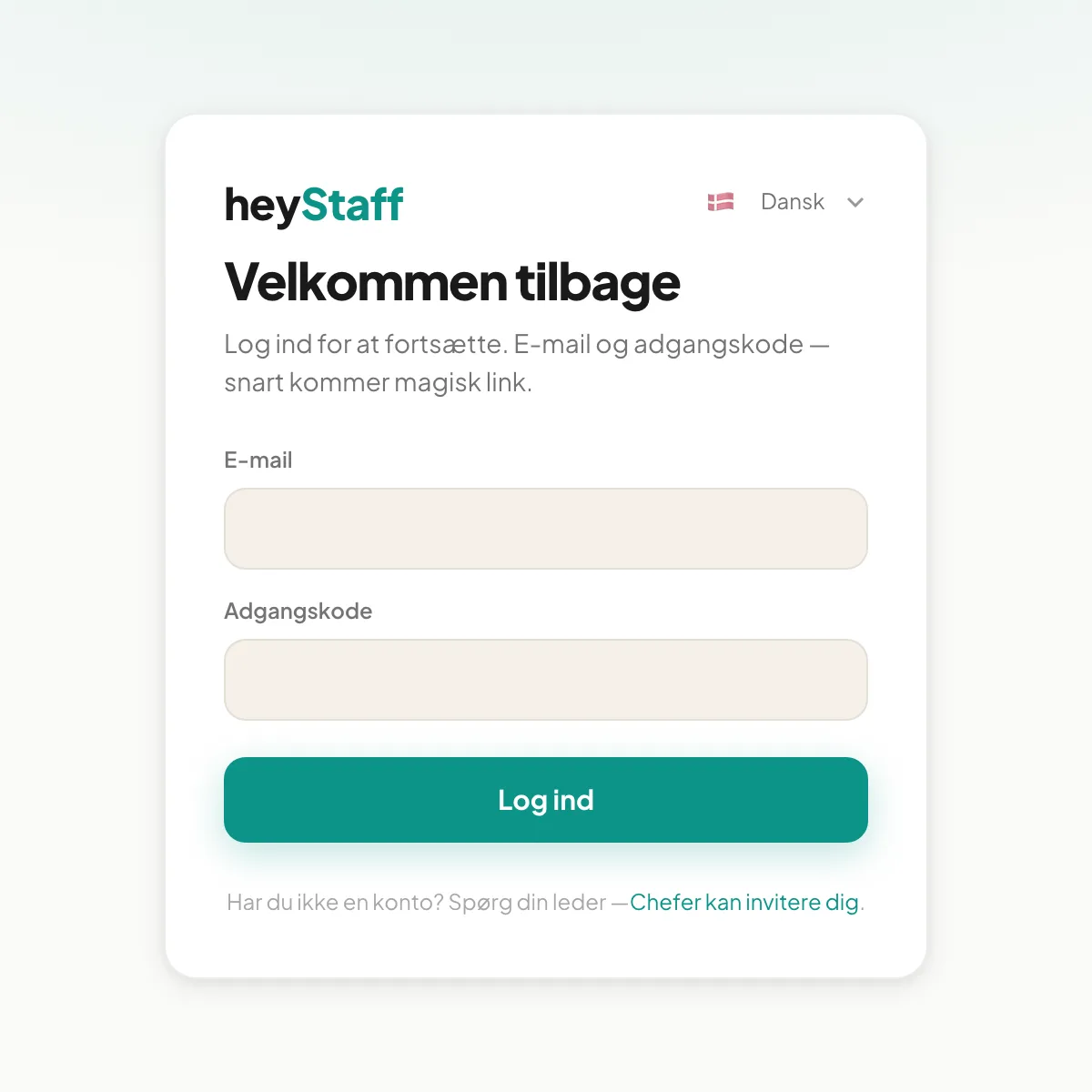 The “Welcome back” sign-in page.
After signing in you land on Today. You can change the language at the top right of the sign-in page.
If it goes wrong
Section titled “If it goes wrong”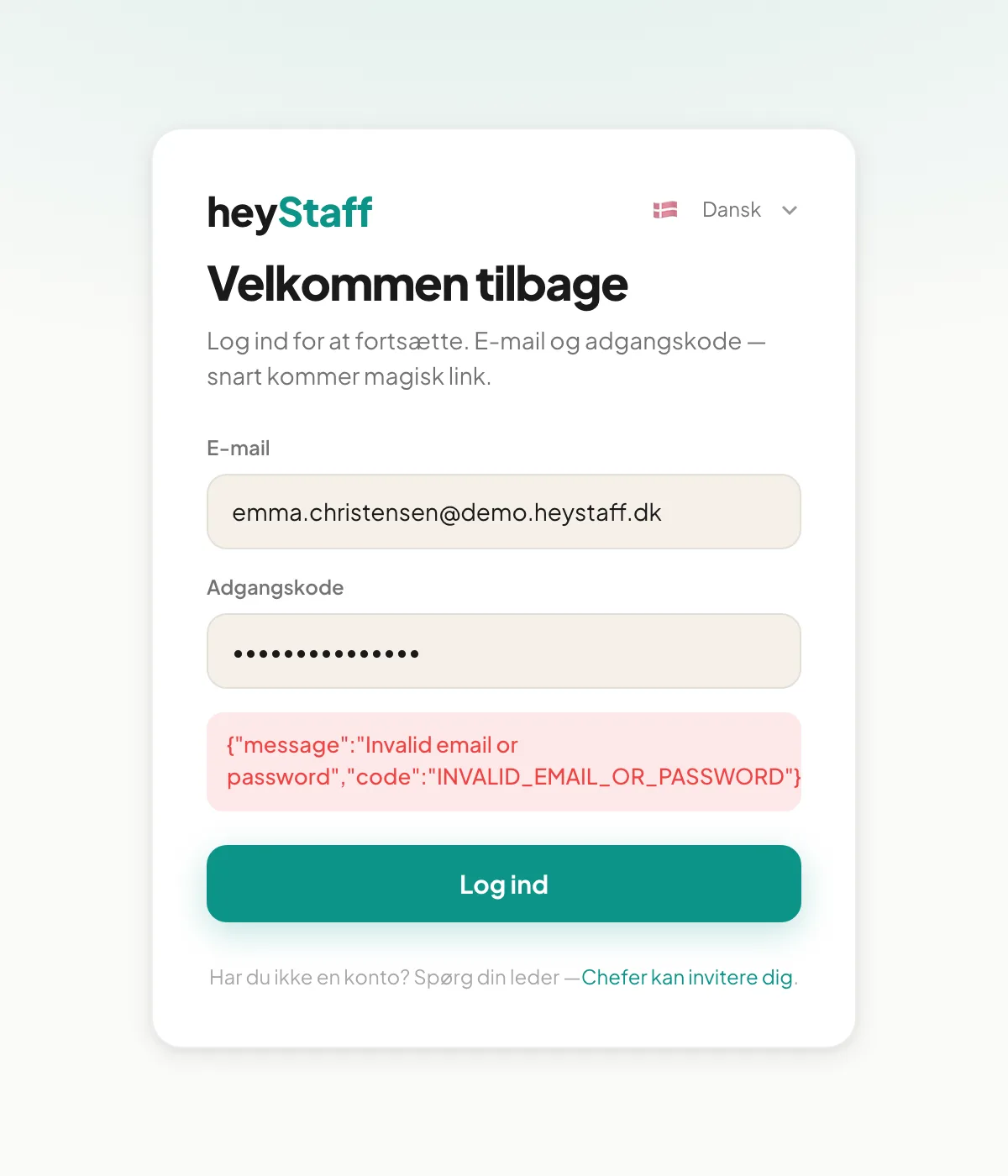 A red message appears above the button if the email or password is wrong.
- “Invalid email or password” – check the spelling of your email and password. Passwords are case sensitive.
- You forgot your password – contact your manager. There is no “forgot password” function on the sign-in page yet.
- The error persists – contact your manager and check that your invitation has been accepted.
Find your workspace
Section titled “Find your workspace”A workspace is your company in heyStaff, for example Bistro Nordhavn. If you cannot remember the address you can look it up:
- Open /find-workspace on the app address.
- Enter the company Slug (for example
bistro-nordhavn) and click Go to login (Danish: Gå til login). - Or enter your email under Or send me an email and click Send me an email. You receive a message with links to the workspaces you belong to.
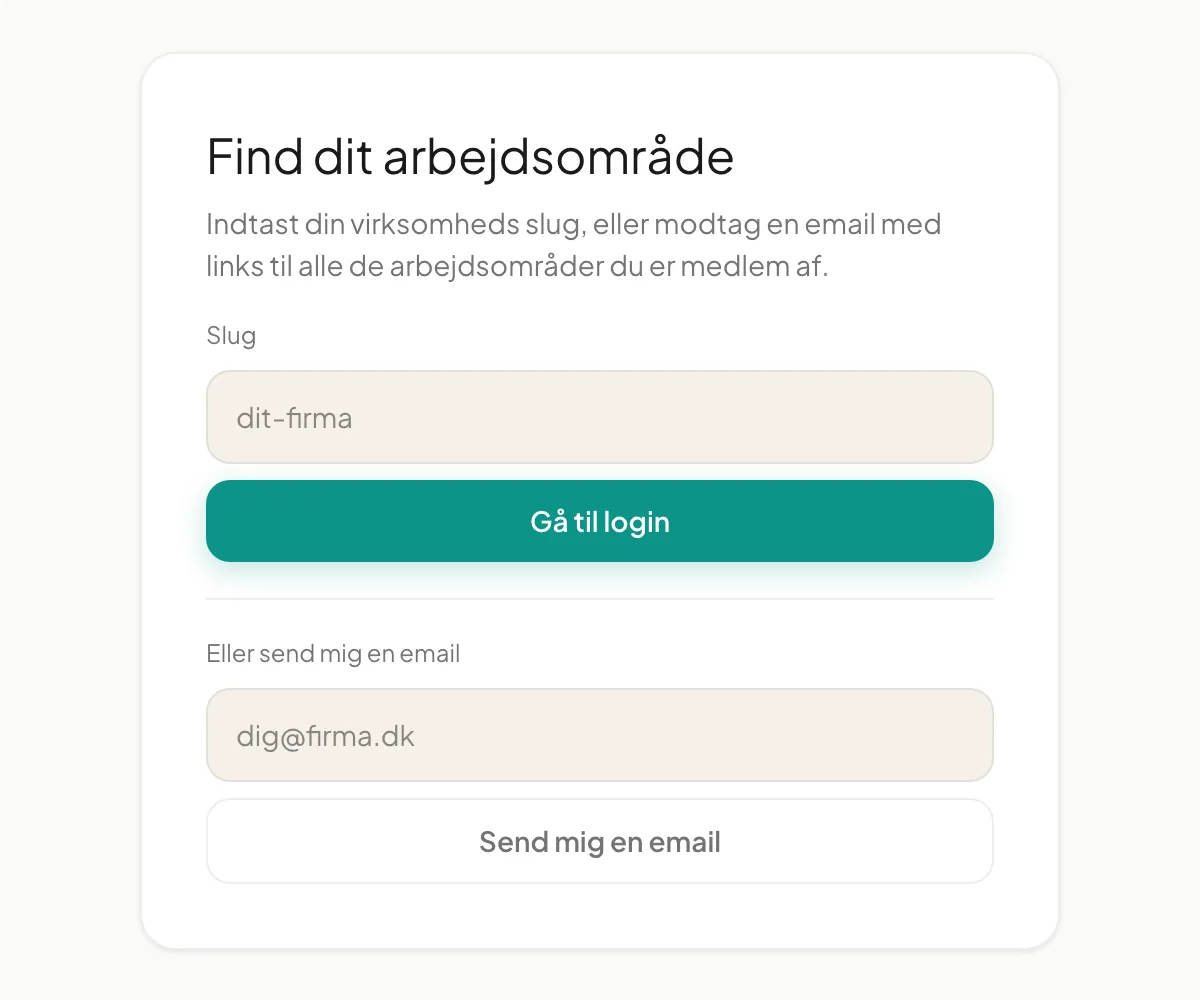 The page is currently shown in Danish only.
Tip: Your manager can also give you the direct link
app.heystaff.dk/bistro-nordhavn/login. Bookmark it or add it to your phone’s home screen.
Create your account from an invitation
Section titled “Create your account from an invitation”When a manager invites you under Employees, you receive an email with a personal link.
- Open the link in the email. The page Welcome to heyStaff shows who invited you and your email.
- Enter what we should call you under What should we call you?
- Choose a password under Choose a password. It must be at least 10 characters.
- Repeat it under Confirm password.
- Click Create account and start onboarding.
- You are sent to the sign-in page. Sign in with your email and the new password.
Note: The invitation page is currently shown in Danish only.
Problems with the link
Section titled “Problems with the link”| Message | What it means | What to do |
|---|---|---|
| The link does not exist or is invalid | The link was copied incorrectly | Use the whole link from the email |
| The link has expired | Invitations expire after 14 days | Ask your manager to send a new one |
| The invitation has already been used | The account has been created | Go to the sign-in page and sign in |
Important: The email goes to the address your manager entered. If it is wrong, the manager must create the invitation again with the correct address.