
Attach instructions to a task
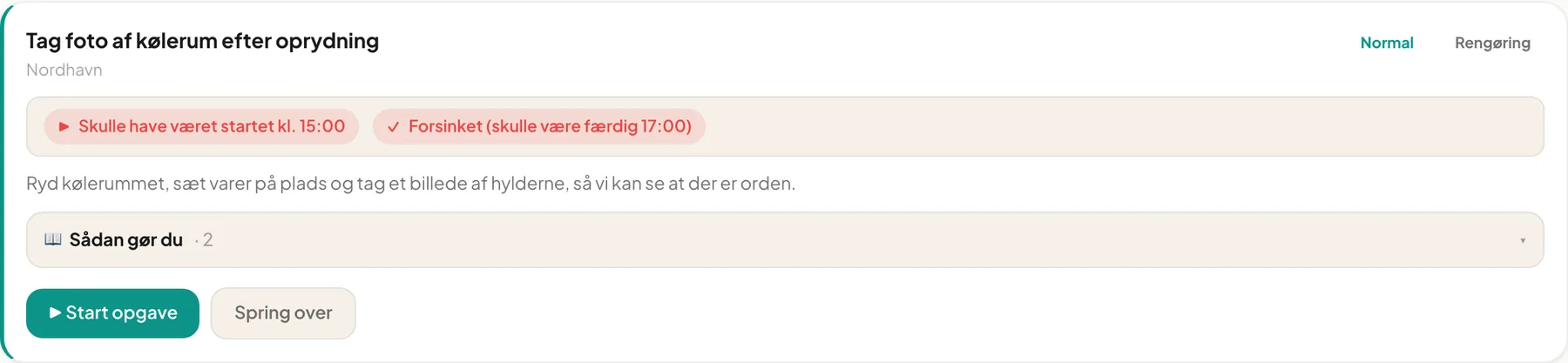
With the How to do this section a manager can put guidance directly on the task. Staff see the material on the task card when they do the task. It is especially useful for new employees.
What can I attach?
Section titled “What can I attach?”- Images (for example a picture of a nicely laid table)
- PDF manuals
- Video and audio
- Links, for example to a YouTube video or a manufacturer’s cleaning guide
Files are visible to everyone the task is assigned to.
Add a file
Section titled “Add a file”Note: Instructions are added on the edit page. Save the definition first if it is new.
- Open the definition from Tasks → Manage definitions.
- Scroll down to How to do this.
- Press + Add file and choose one or more files.
- The file appears in the list with Processing… while images and video are optimised. You can leave the page meanwhile.
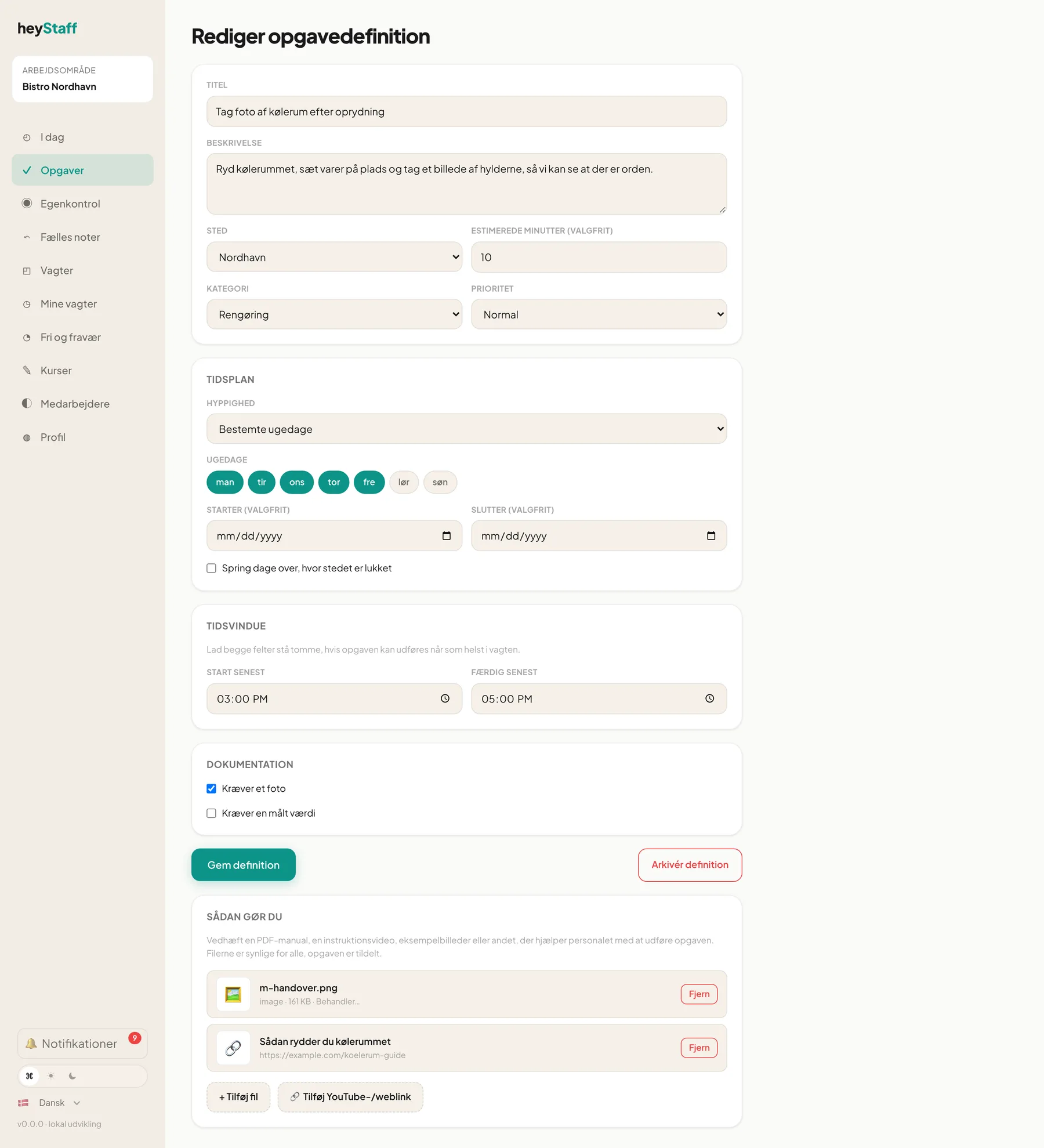
Add a link
Section titled “Add a link”- Press Add YouTube / web link.
- Paste the address under Link URL.
- Optionally write a Display label (optional), for example Manufacturer cleaning guide.
- Press Add link.
Remove material
Section titled “Remove material”Press Remove next to the file and confirm. Staff will no longer see it on the task. Tasks that are already completed are not affected.
How staff see it
Section titled “How staff see it”The task card has a How to do this box with a count. It can be unfolded and folded.
Tip: Keep videos short and choose pictures that show the finished result. Then the new employee knows what “done” looks like.
Questions
Section titled “Questions”The file keeps saying “Processing…”. Images and videos are optimised in the background. Refresh the page after a moment.
How large can a file be? Up to 100 MB per file.