
Onboarding template
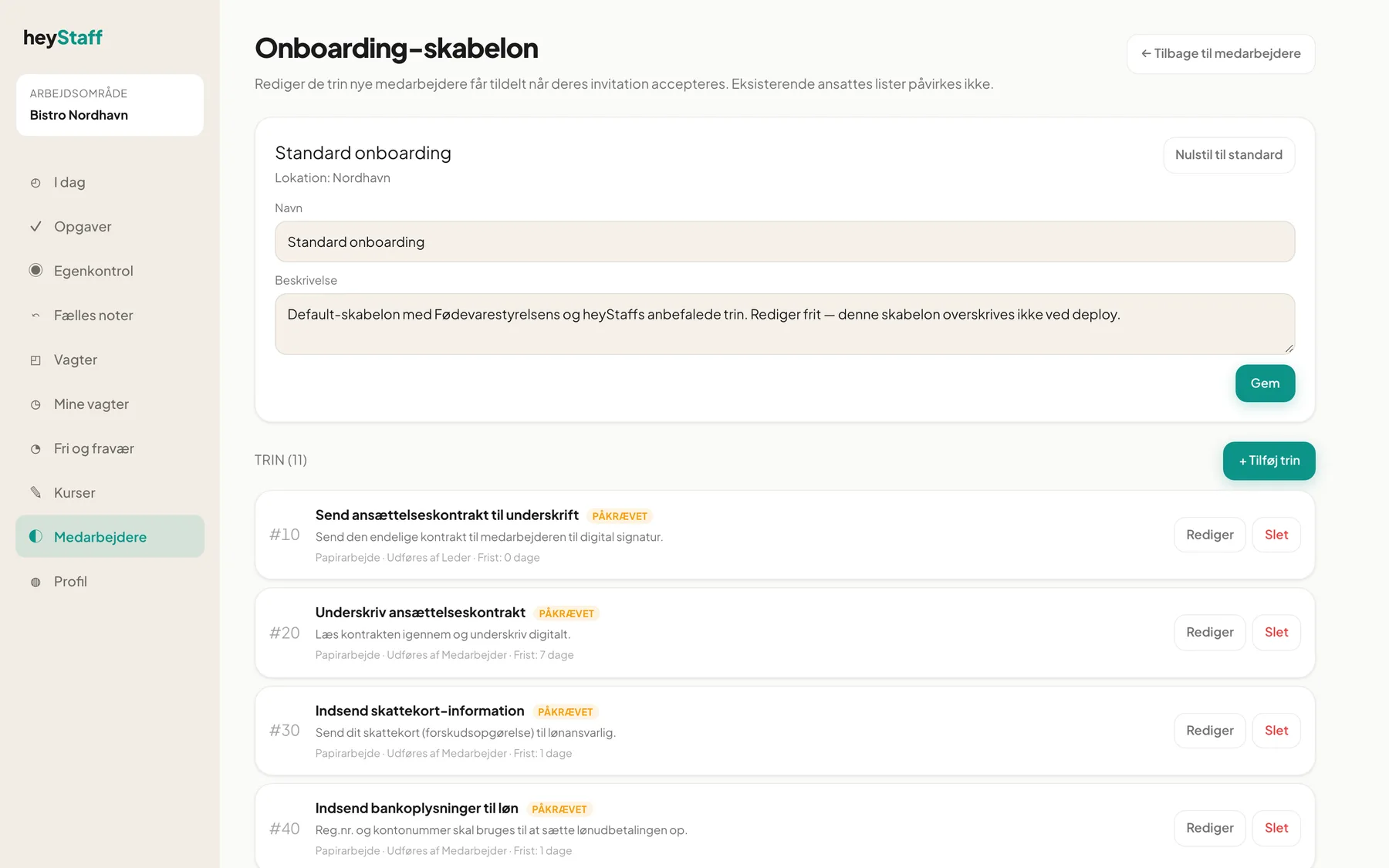
The onboarding template is your checklist for new colleagues: contract, tax card, hygiene certificate, tour and so on. When an employee accepts their invitation, the template’s steps are copied to them as tasks. Only managers can edit the template.
Open it via Medarbejdere and the button Onboarding-skabelon.
Important: Changes only apply to new employees. Tasks for people who are already under way are not affected.
How the template is laid out
Section titled “How the template is laid out”At the top you see the template’s Navn (Name) and Beskrivelse (Description), which you can edit and Gem (Save). Below is the heading Trin (Steps) with a count, e.g. Trin (11). The default template Standard onboarding includes, among others:
- Send ansættelseskontrakt til underskrift (send employment contract for signature)
- Indsend skattekort-information (submit tax card information)
- Indsend bankoplysninger til løn (submit bank details for pay)
- Indsend kopi af ID/pas (submit copy of ID/passport)
- Indsend hygiejnebevis (submit hygiene certificate)
- Rundvisning på arbejdspladsen (tour of the workplace)
- Planlæg første vagt (schedule first shift)
- 30-dages opfølgning (30-day follow-up)
If you have several locations each with its own template, choose a template with the buttons above the editor.
Add a step
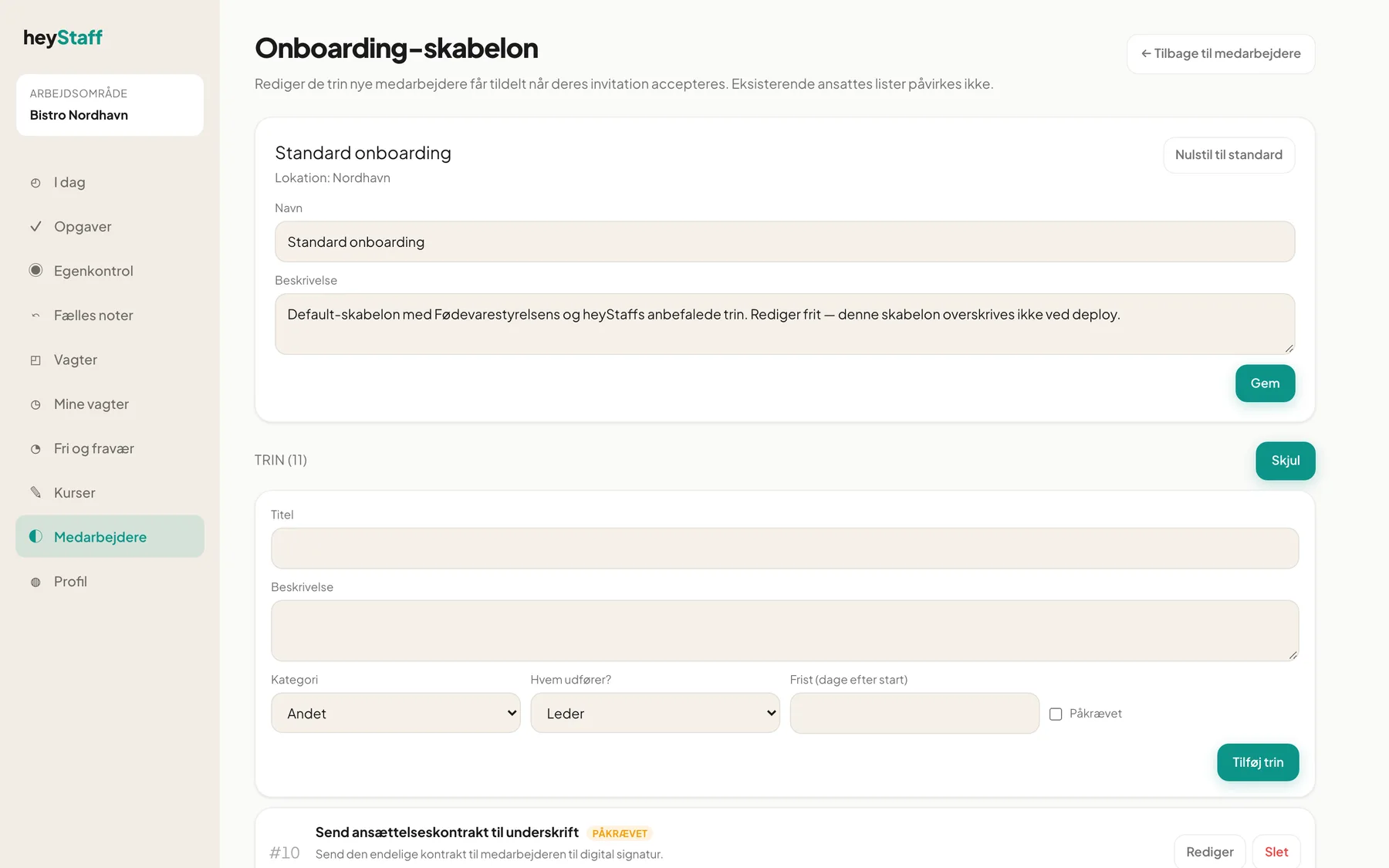
Section titled “Add a step”- Click + Tilføj trin (Add step).
- Write a Titel (Title) and optionally a Beskrivelse.
- Choose Kategori (Category): Papirarbejde (paperwork), Udstyr (equipment), Træning (training), Introduktion, Dokumentation or Andet (other).
- Choose Hvem udfører? (Who does it?): Medarbejder (employee), Leder (manager), HR or System.
- Optionally set Frist (dage efter start) (Deadline, days after start).
- Tick Påkrævet (Required) if the step must be done before the employee can be marked active.
- Click Tilføj trin.
Edit, sort and delete
Section titled “Edit, sort and delete”Each step shows a number, title, the Påkrævet badge if set, category, responsible party and deadline. Click Rediger (Edit) to change anything. Here you can also change Sortering (Sort order), a number that decides the order (lowest first). Click Slet and Bekræft to remove a step.
Reset to default
Section titled “Reset to default”Nulstil til standard (Reset to default) restores the original template. You must confirm with Bekræft nulstilling. Your own steps and changes disappear.
Tip: Use Påkrævet sparingly. All required steps must be done before the employee can be activated, see An employee’s employment.
Who gets the deadline date? The deadline counts from the day the employee accepts the invitation and is set as the due date on the task.
Who marks tasks as done? Today the manager ticks tasks on the employee’s page, see An employee’s employment. The field Hvem udfører? shows who the task is intended for.