Create a task definition
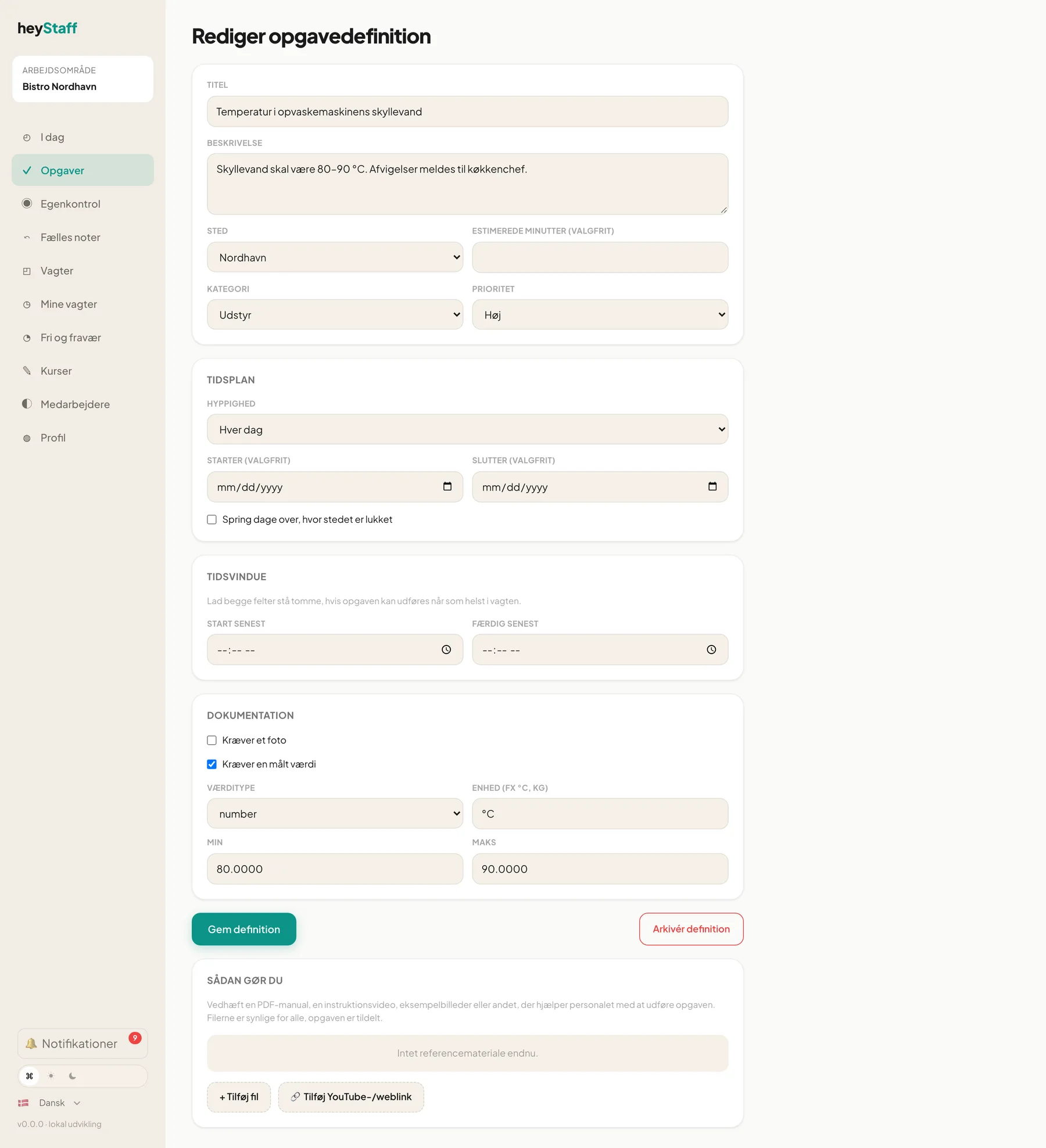
Here you create a new recurring task. Only managers can do this. The example is Tag foto af kølerum efter oprydning (photograph the cold room after tidying) at Bistro Nordhavn: weekdays between 15:00 and 17:00, with a photo required.
1. Basics
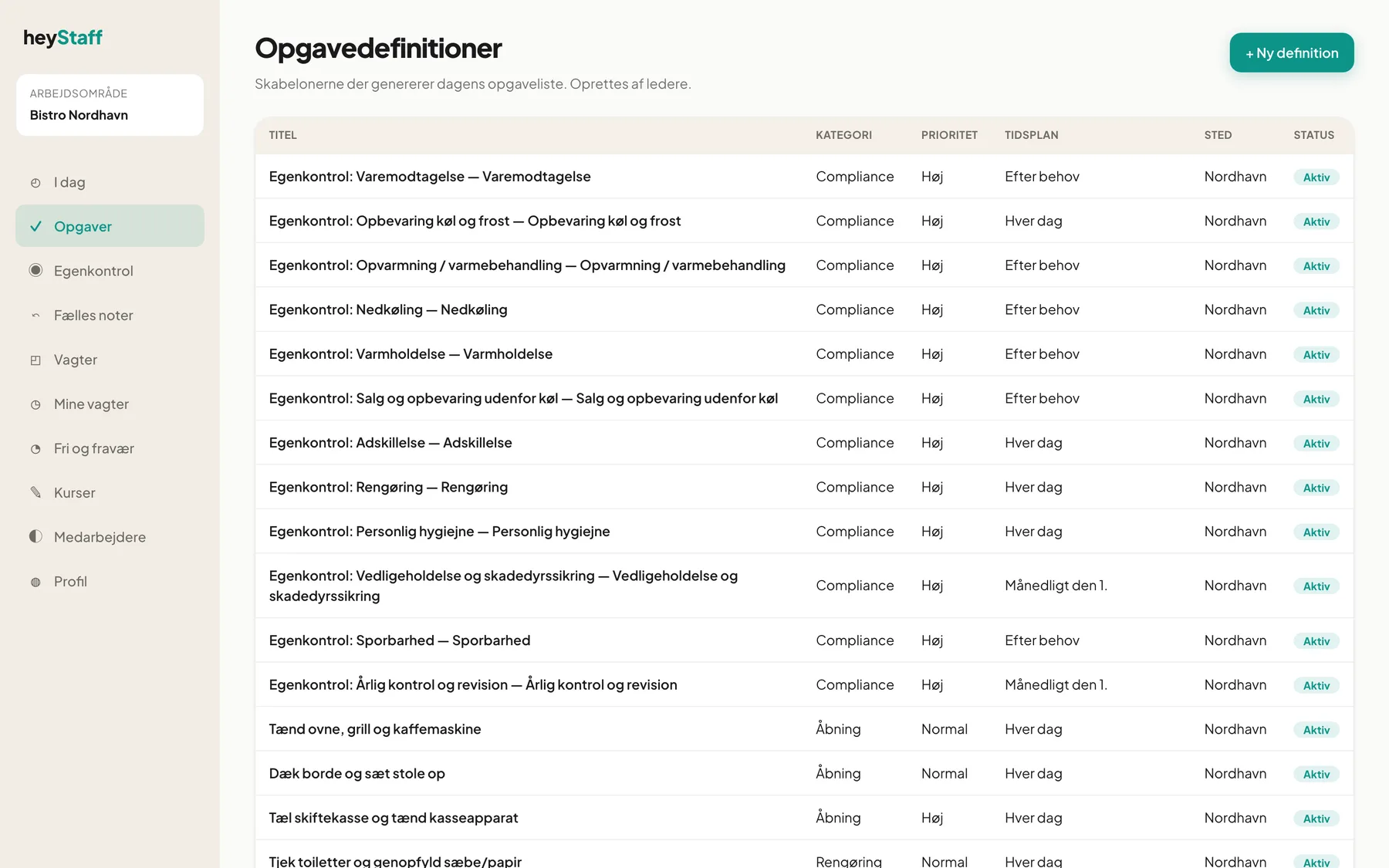
Section titled “1. Basics”- Go to Tasks → Manage definitions.
- Press + New definition.
- Fill in:
- Title: what employees see on the card.
- Description: a short explanation of what to do.
- Location: the location the task applies to.
- Estimated minutes (optional).
- Category: Opening, Closing, Cleaning, Equipment, Delivery, Food prep, Compliance or Other.
- Priority: Low, Normal, High, Critical. Highest priority is shown first.
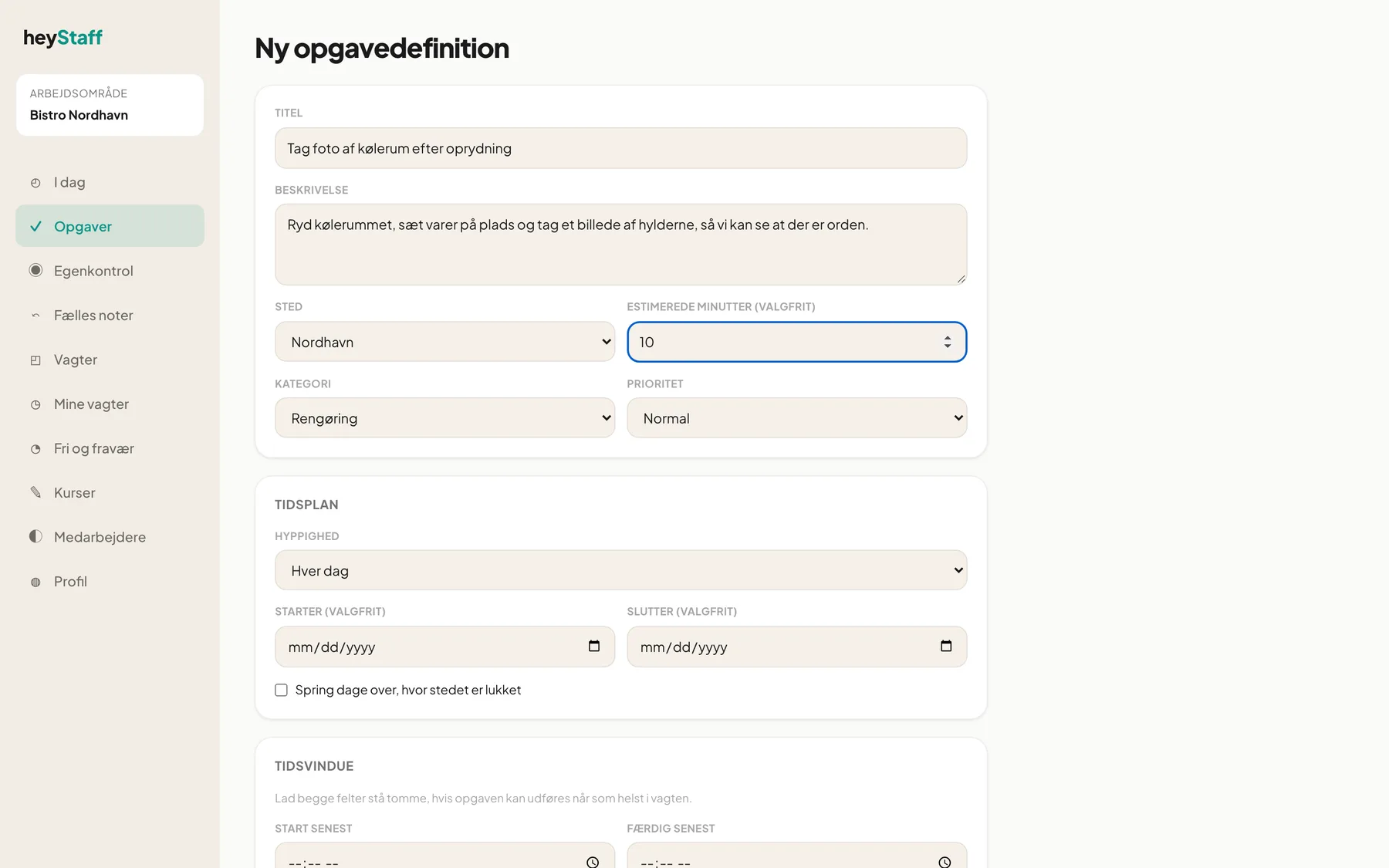
2. Schedule
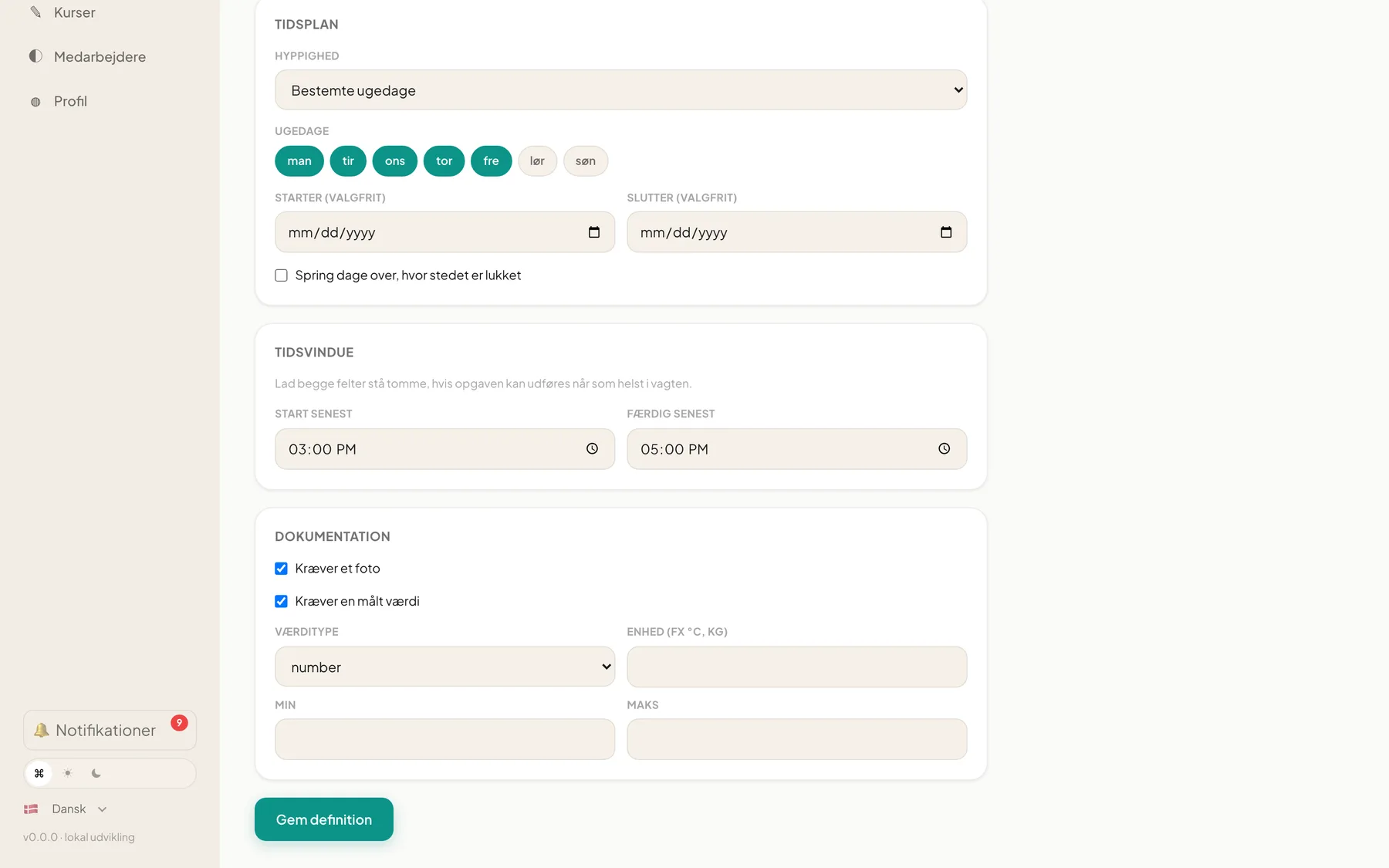
Section titled “2. Schedule”Under Schedule → Frequency, choose when the task should be created:
| Choice | Use |
|---|---|
| Every day | Opening, closing, daily cleaning |
| Specific weekdays | Pick weekdays as buttons (mon–sun). Monday–Friday is preselected. |
| Day of month | For example the 15th |
| Nth weekday of month | For example the first Monday |
| Every N days | With an Anchor date |
| Each shift | One task per shift. Write Shift types separated by commas. |
| On-demand only | Created manually, for example from a self-check registration |
You can also fill in Starts on (optional) and Ends on (optional), and tick Skip days the location is closed so the task isn’t created on public holidays and closed days.
3. Time window
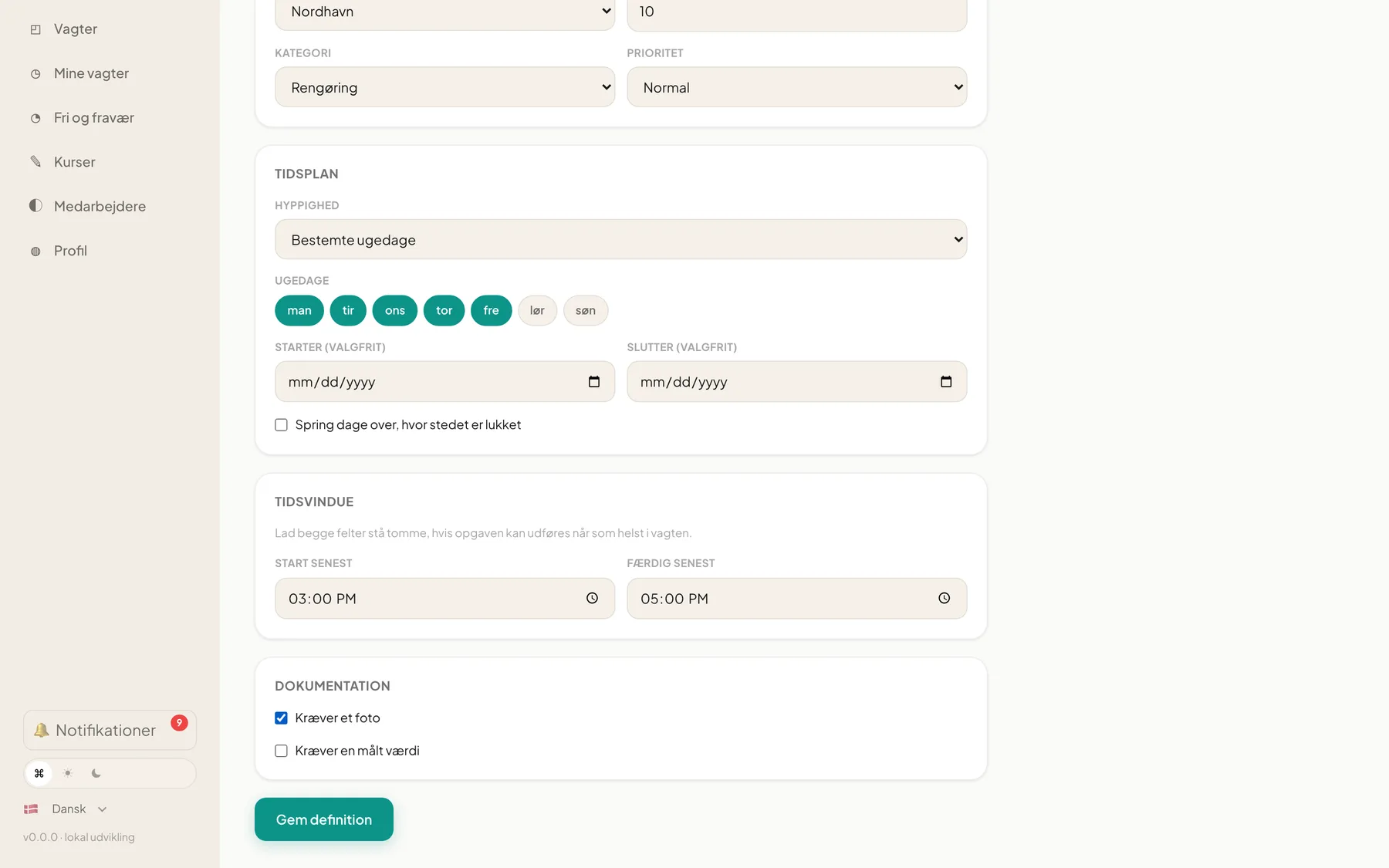
Section titled “3. Time window”Under Time window you set Start no later than and Finish no later than. Leave both empty if the task can be done any time during the shift. Employees see the deadline on the card, and the task turns red and Overdue when the time has passed.
4. Documentation
Section titled “4. Documentation”Under Documentation you set requirements:
- Requires a photo: the employee must attach at least one picture.
- Requires a measured value: shows more fields.
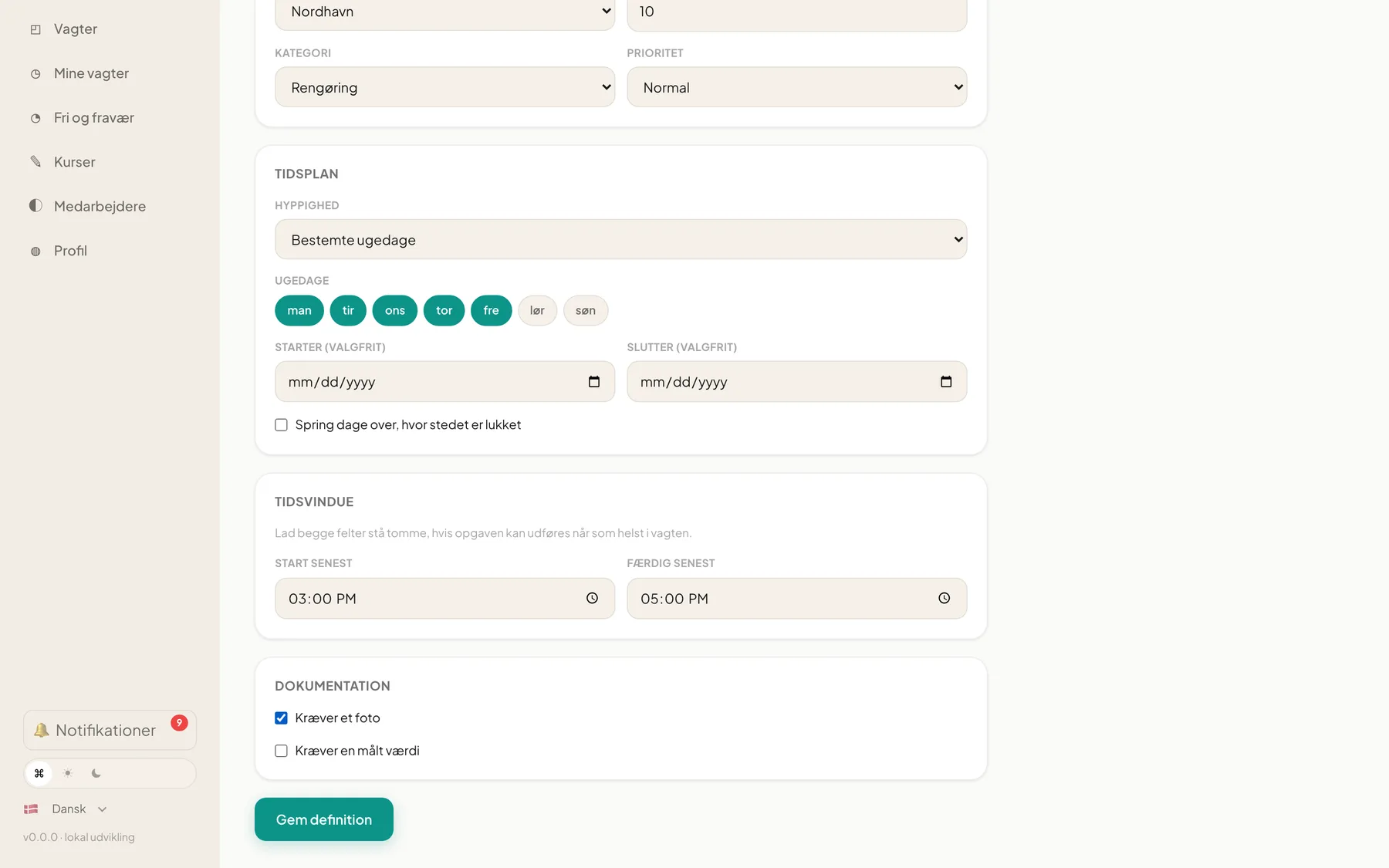
If you choose measured value, fill in Value type (number, text or choice), Unit (for example °C or kg) and, for numbers, Min and Max. If you use choice, write Choices with one per line. If a value falls outside Min/Max the employee gets a warning and it is registered as a deviation.
5. Save
Section titled “5. Save”Press Save definition. You are taken to the edit page, where you can attach instructions. Tasks are created immediately for the next 7 days, and today’s task appears on the employees’ list.
Tip: Use a clear, imperative title such as “Count the till”, so employees understand the task at a glance.
Edit later
Section titled “Edit later”Open the definition from the list. The same form is shown with Save definition and Archive definition.