
Using heyStaff on mobile
heyStaff works in your phone’s browser – there is nothing to install. Open your restaurant’s address (for example app.heystaff.dk) and sign in as described in Signing in and invitations. The page adapts to the screen width automatically.
Tip: Add the page to your phone’s home screen (the Share menu in Safari, or the menu in Chrome) so it opens like an app.
The bottom menu
Section titled “The bottom menu”On a phone the sidebar is replaced by a fixed row of buttons at the bottom:
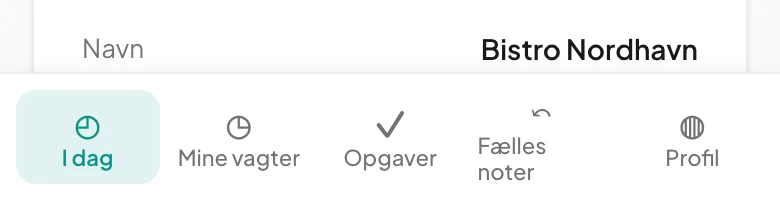 Staff: Today, My shifts, Tasks, Handover, Profile (Danish labels shown).
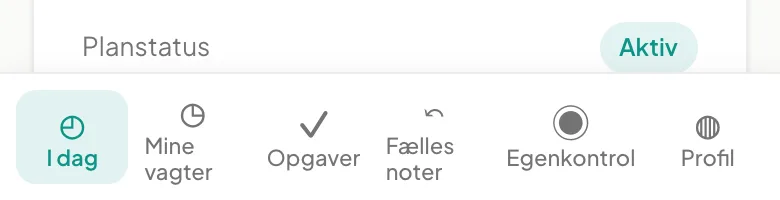 Manager: the same as staff plus HACCP (Egenkontrol).
Manager pages such as the Shift planner and Employees are designed for computers and are not in the bottom menu.
Your day on the phone
Section titled “Your day on the phone”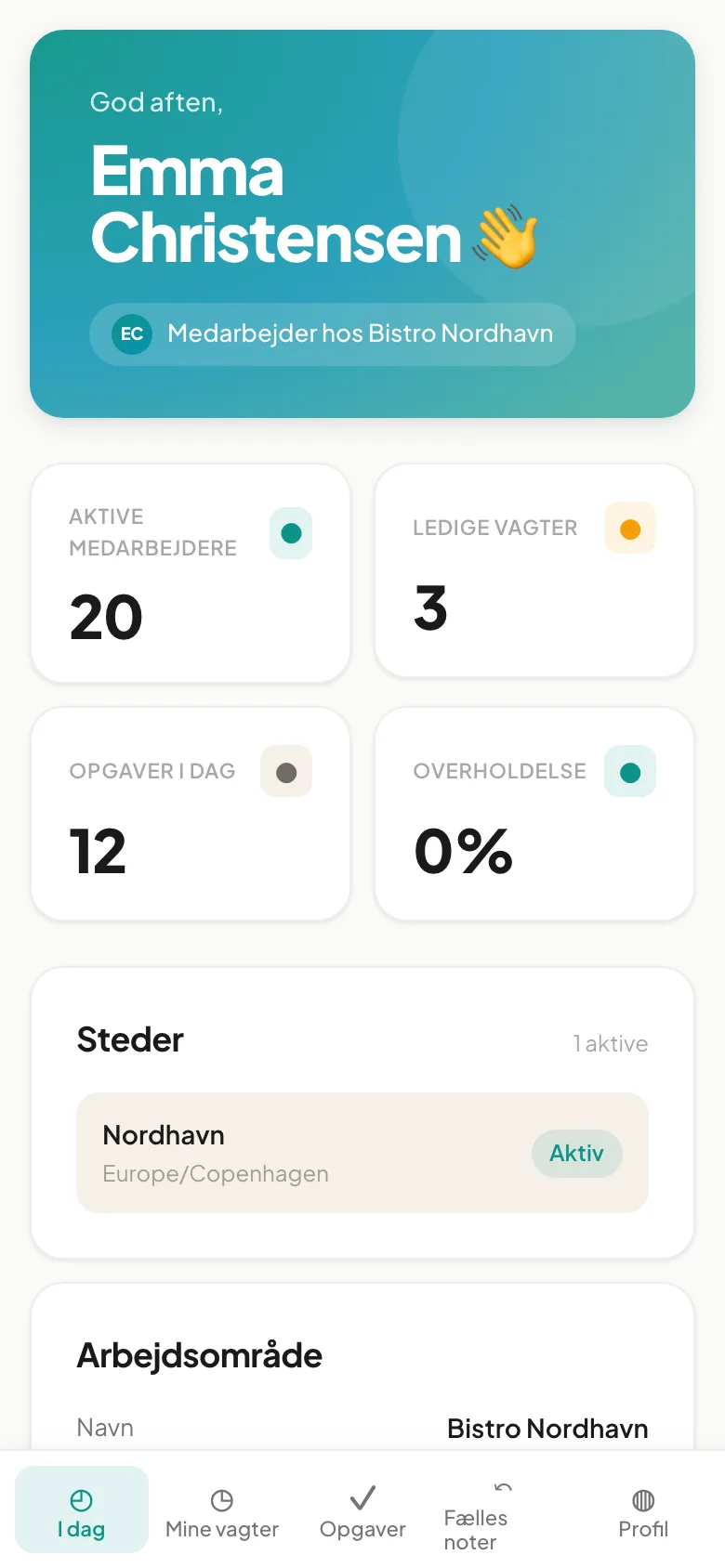
- Today – greeting and key numbers. The cards sit two by two.
- My shifts – your upcoming shifts with date, time and station. You also find the button to Time off here.
- Tasks – today’s tasks. Tap a task to check it off or add a photo or measurement.
- Handover – read and write messages for the next shift.
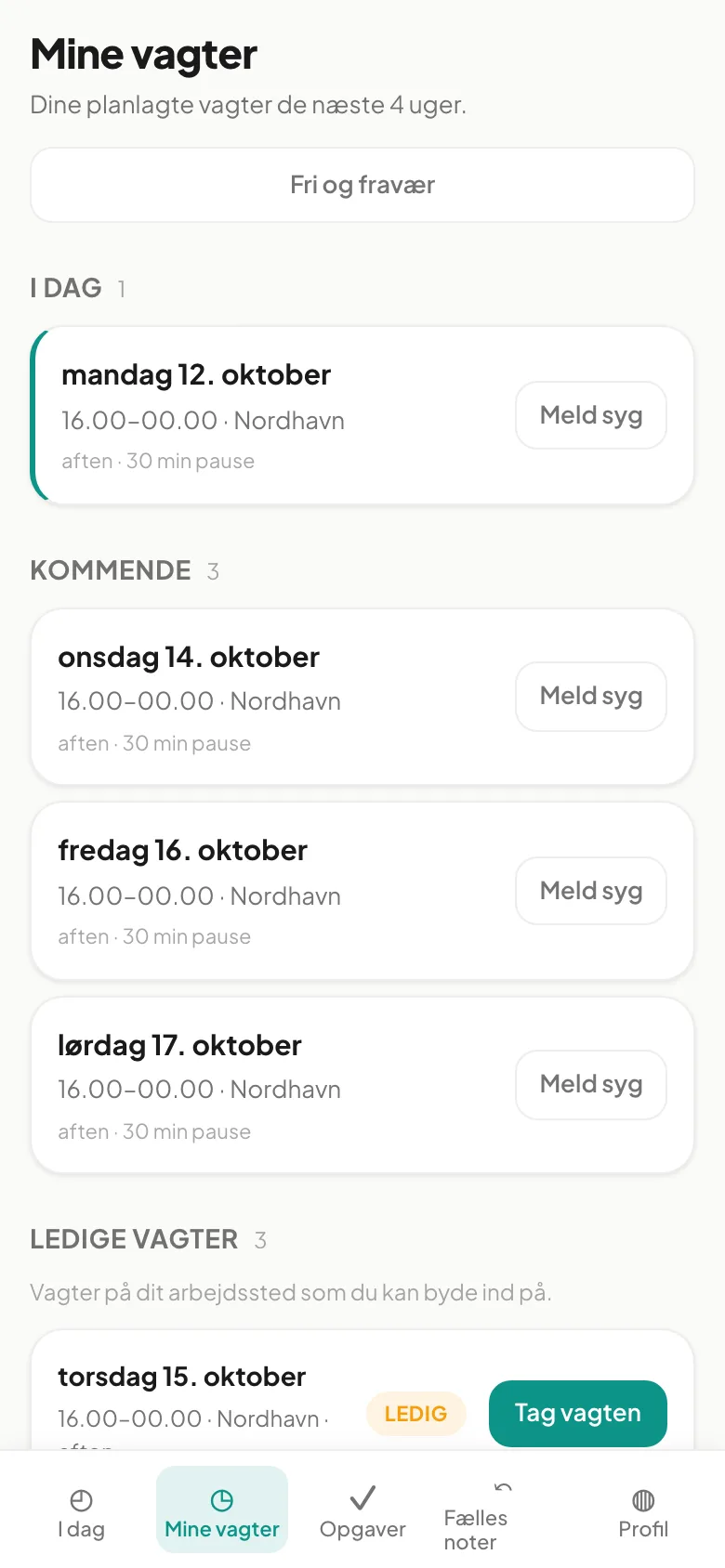 My shifts on the phone.
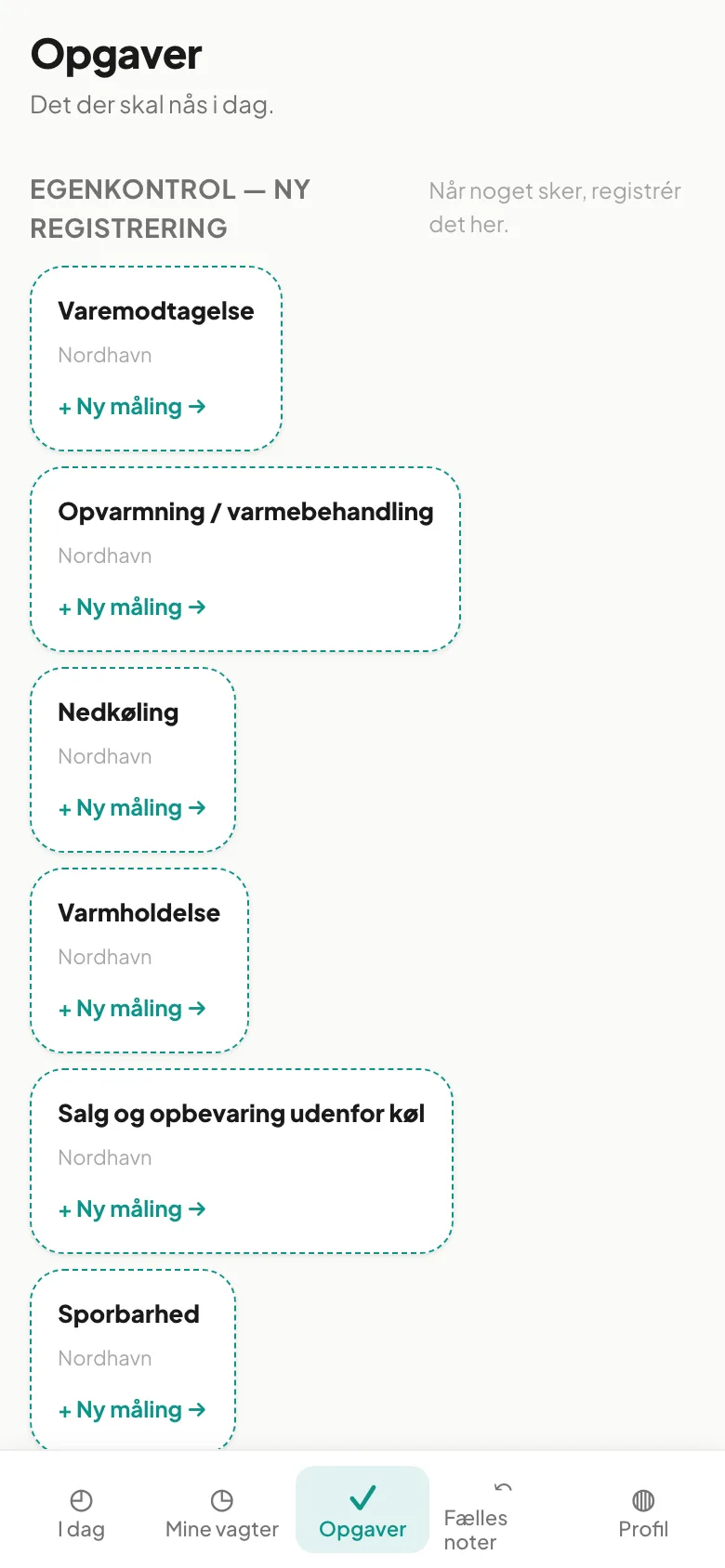 Tasks on the phone.
Profile on mobile
Section titled “Profile on mobile”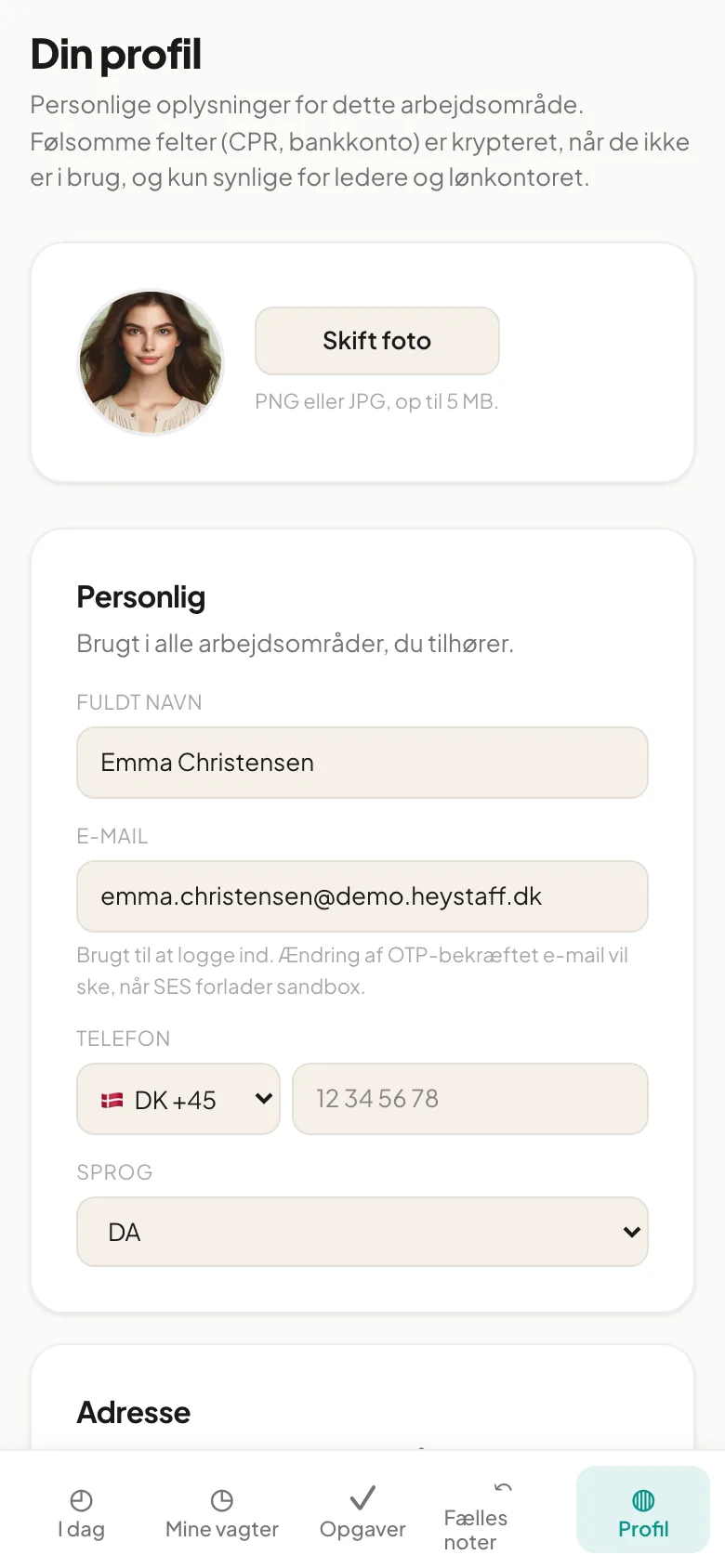
Under Profile you can change your photo, language and details. See Your profile.
What is different from a computer?
Section titled “What is different from a computer?”- Theme: On mobile the look follows your phone’s setting (light or dark). The theme buttons are in the sidebar on a computer.
- Language: Change it under Profile → Language.
- Notifications: The bell is in the computer sidebar. On a phone the notification list is not shown in the bottom menu.
- Learning: Not in the bottom menu. Open it via the address
/learningafter your app address.
Questions and answers
Section titled “Questions and answers”The page looks wrong or outdated. Pull down to reload, or close the tab and open it again.
I keep getting signed out. Sign in again. If you use private browsing, your login is not remembered between visits.