
Introduction to heyStaff
heyStaff is the operations tool for restaurants, cafés and bars. It brings today’s tasks, the shift schedule, self-checks (HACCP), shared notes and training together in one place – on the phone for staff and in the browser for management. Everyone sees the same system, but only what is relevant to their role.
The examples in this guide come from the fictional restaurant Bistro Nordhavn with 20 employees.
Modules at a glance
Section titled “Modules at a glance”| Module | What it is used for | Who works in it |
|---|---|---|
| Today | Daily overview: numbers, locations and your workspace | Everyone |
| Tasks | Daily task lists, check-offs, photos and measurements | Everyone |
| HACCP | Temperature logs, control points and deviations (Egenkontrol) | Managers |
| Handover | Notes from one shift to the next | Everyone |
| Shift planner | Weekly scheduling and shift templates | Managers |
| My shifts | Your own upcoming shifts | Everyone |
| Time off | Request time off, approve and see absence | Everyone |
| Learning | Training and short quizzes | Everyone |
| Employees | Invite and manage staff | Managers |
| Profile | Your details, language and theme | Everyone |
Important: Which modules you can use depends on your subscription. If a module is missing, the app shows a message that it is locked. Contact your administrator or the heyStaff team.
How the app is laid out
Section titled “How the app is laid out”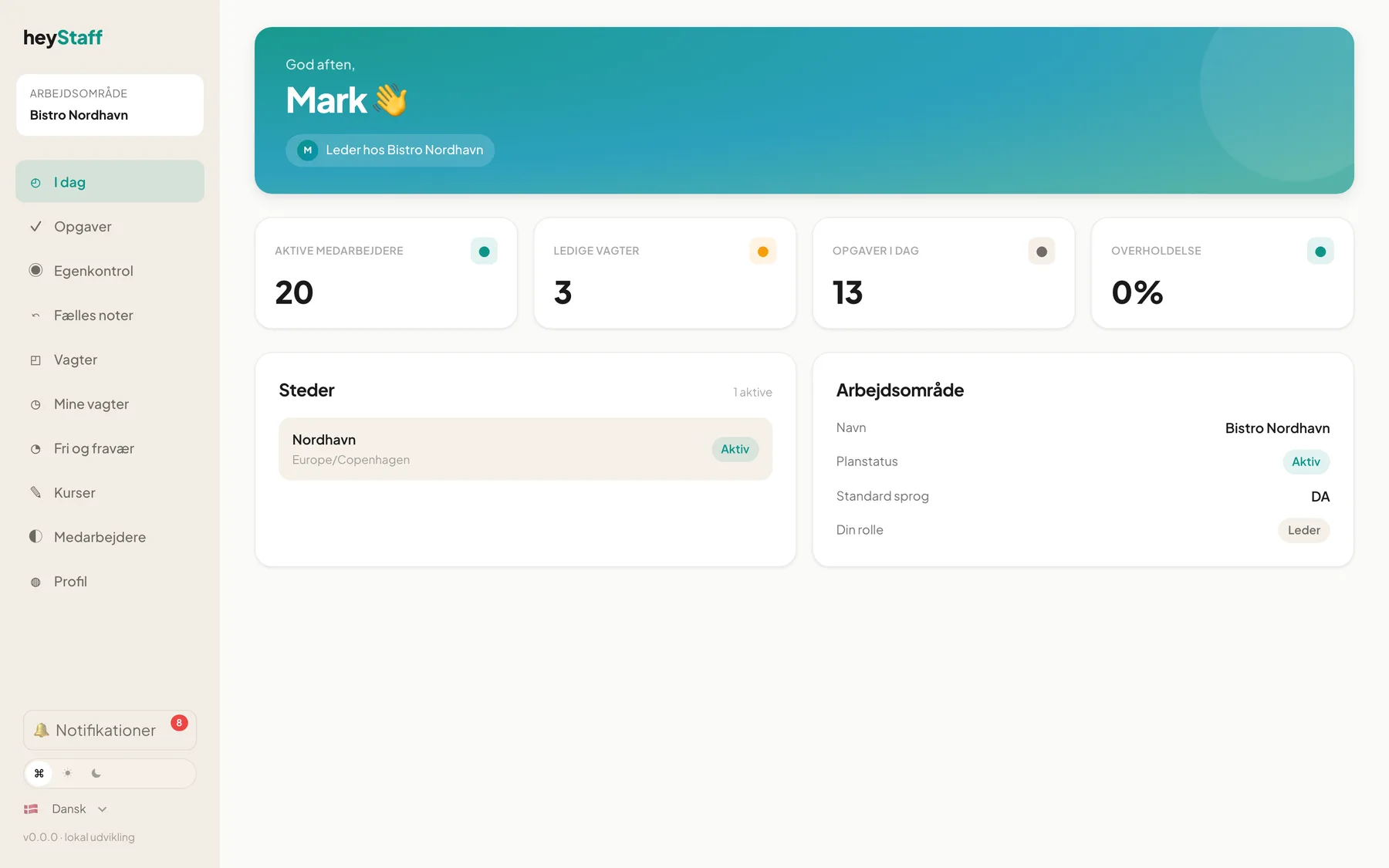 Manager view on a computer: sidebar on the left, content on the right.
- On a computer the menu is a sidebar on the left. At the top is your workspace (for example Bistro Nordhavn); at the bottom are notifications, theme and language.
- On a phone the menu is a row of buttons at the bottom of the screen. See Using heyStaff on mobile.
Note: The Danish interface calls the handover module Fælles noter and the HACCP module Egenkontrol. English interface labels are used in this guide.
What to do first
Section titled “What to do first”- Sign in with your email and password – or create your account from your manager’s invitation.
- Open Today for the overview and check your profile.
- Open Tasks to see today’s list and My shifts to see when you work.
Tip: If you are a manager, also read Roles and permissions so you know what your staff can see and do.