
Photos, measured values and instructions
Some tasks require documentation before they can be completed. A manager sets this up in the task definition. Here is how it works for you as an employee.
Photo required
Section titled “Photo required”If the card shows Photo required in yellow, you must add at least one picture before you can press Complete.
- Press Start task.
- Press Add photo. On a phone the camera opens directly; on a computer you pick an image file.
- Wait until the picture appears as a small thumbnail. You can add up to 5 photos per task.
- Press Complete.
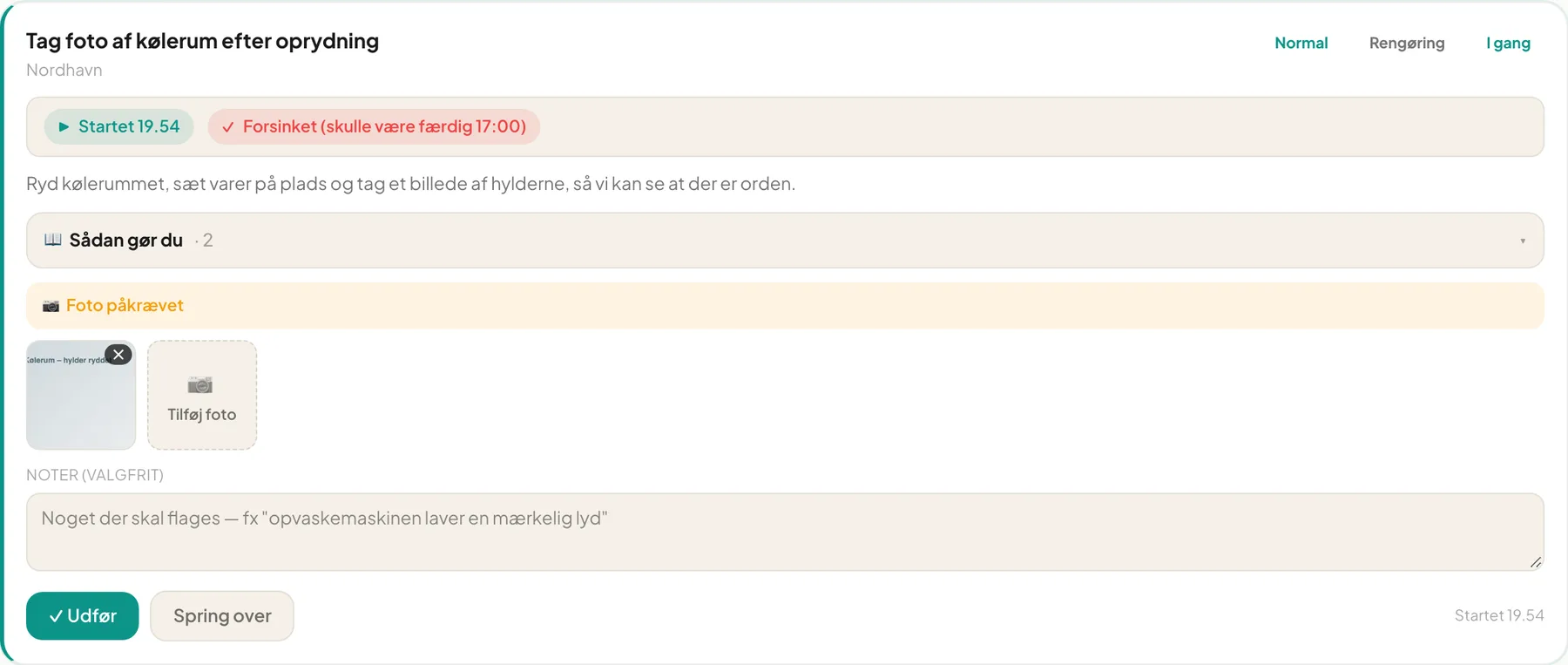 One photo is added. There is room for more.
Pictures are optimised automatically in the background, so you don’t need to wait. If a picture lacks a thumbnail for a moment, it is still being processed.
To remove a photo, press the cross in the corner and confirm Remove. The picture is deleted permanently. Only image files up to 20 MB are accepted.
Measured value
Section titled “Measured value”If the task requires a value, a Value field appears with the unit in brackets, for example Value (°C).
- Start the task.
- Enter the number. Both comma and full stop work, so 85,5 and 85.5 are the same.
- If the value is text or a choice, type the text or pick from the list.
- Press Complete.
If the number is outside the limits you get a red message immediately:
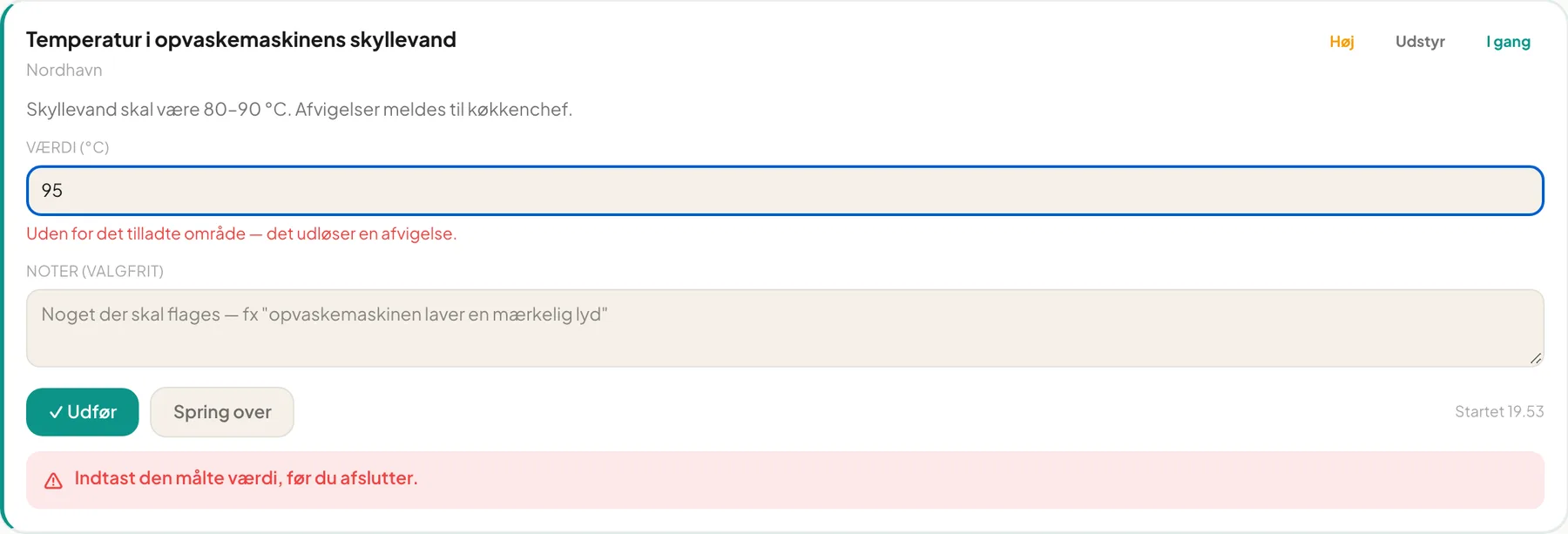
Outside the allowed range — this will raise a deviation. You can still finish the task, but the deviation is registered so the manager can follow up. Please write a note about what is wrong.
Tip: The limits are often in the description, for example “Rinse water must be 80–90 °C. Report deviations to the head chef.”
How to do this
Section titled “How to do this”If the manager has attached instructions, you see a collapsible box How to do this with a count of files. Press it to unfold.
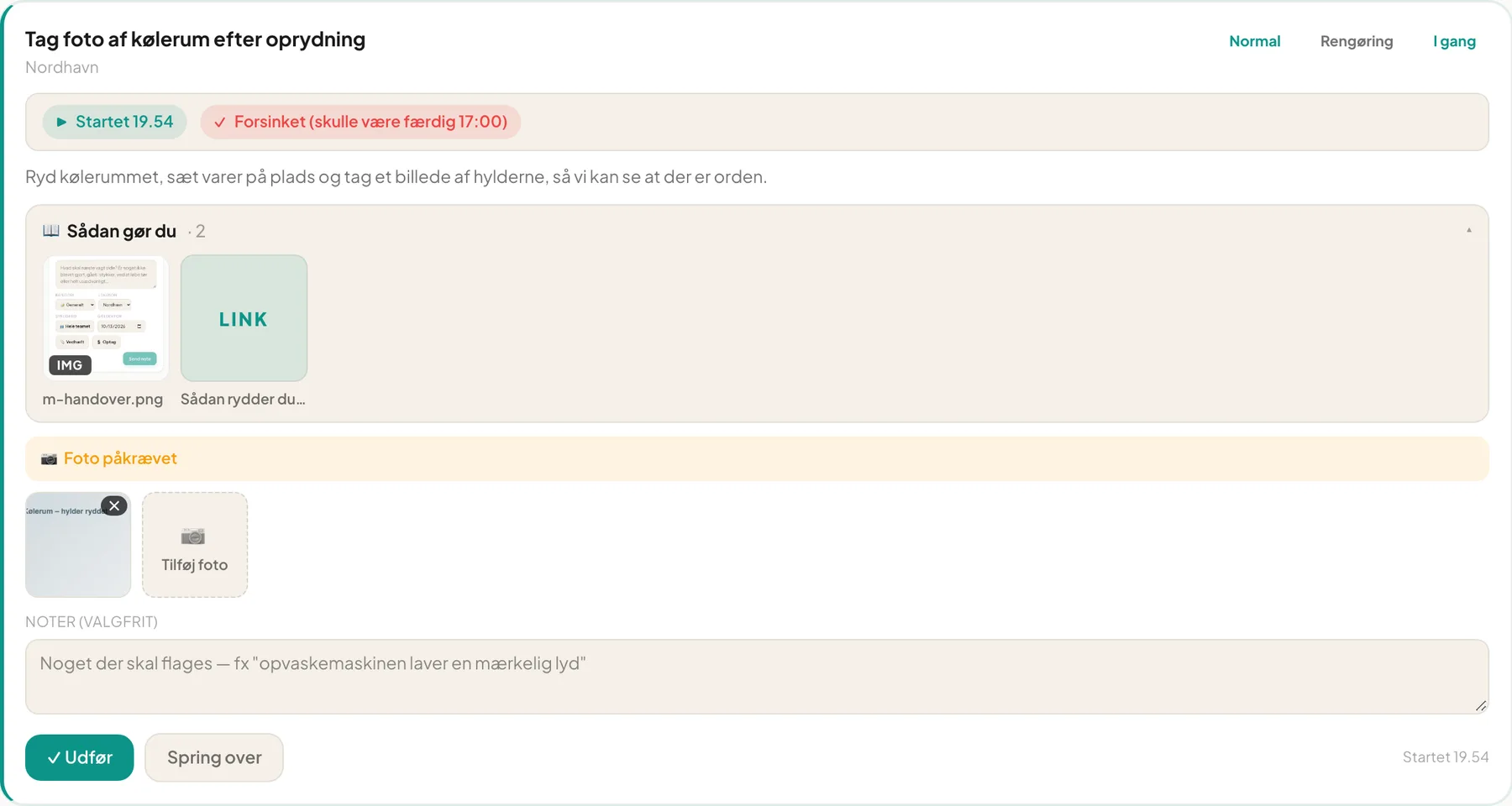
It can contain images, PDFs, videos, audio and links (for example to a YouTube video). Press an item to open it in a viewer: images, video, audio, PDFs and YouTube videos play directly on the page. Ordinary links open in a new tab.
Questions
Section titled “Questions”The camera doesn’t open. Check that the browser is allowed to use the camera, or pick a file from the gallery.
My picture is rejected. Only images under 20 MB are accepted. Take a new one or make it smaller.
I can’t see Add photo. The task doesn’t require a photo, or you haven’t pressed Start task yet. The photo field only appears once the task is in progress.