
Task definitions overview
A task definition is a template that generates tasks again and again. For example, the definition Tænd ovne, grill og kaffemaskine creates a task every day. Only managers can see and edit definitions. Employees are redirected back to Tasks.
Open the list
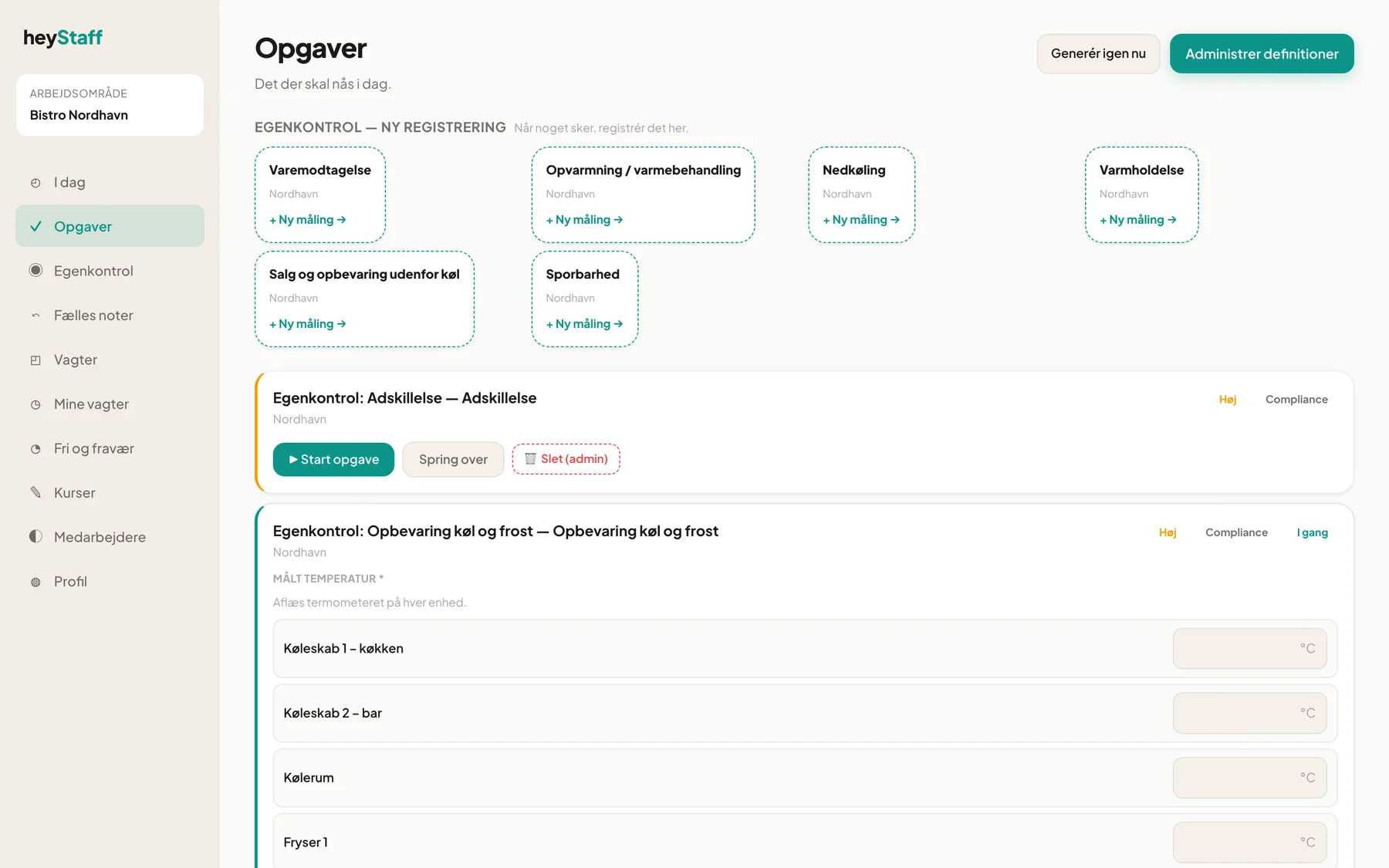
Section titled “Open the list”- Go to Tasks.
- Press Manage definitions at the top right.
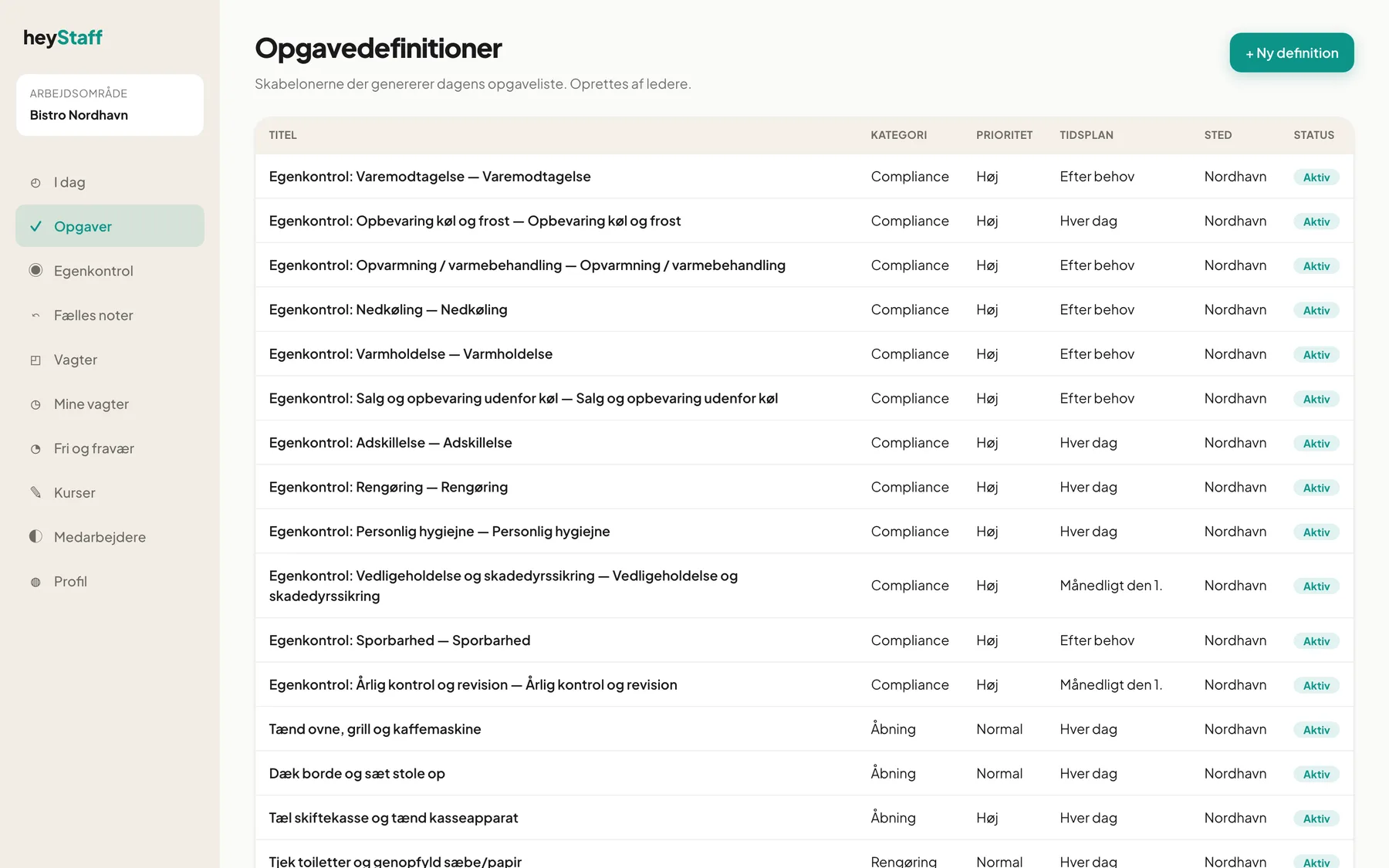
The Task definitions page lists the templates in a table:
| Column | Content |
|---|---|
| Title | Name. Press to edit. |
| Category | For example Opening, Cleaning, Compliance |
| Priority | Low, Normal, High, Critical |
| Schedule | For example Every day, Weekly: tue, fri, Monthly on day 15, On demand |
| Location | The location |
| Status | Active or Archived |
Archived definitions are shown dimmed so history is preserved.
Note: The Egenkontrol: … definitions come from the company’s self-check plan. The schedule On demand means the task is only created when an employee presses + Ny måling.
Activate and archive
Section titled “Activate and archive”This is not a switch. A definition is Active until you archive it.
- Open the definition by pressing the title.
- Press Archive definition (red button at the bottom).
- Confirm. Pending instances will be removed; completed history is kept.
Archiving stops new tasks, and the pending tasks disappear from the lists. What has already been completed stays.
Important: There is no delete for definitions, only archiving. That way you never lose the documentation of what was done.
When you save changes, future pending tasks in the next 7 days are removed and created again from the new definition. Completed and skipped tasks are untouched.
Why can’t I see the menu? You aren’t a manager. Ask a manager to change your role.
A title appears twice, for example “Egenkontrol: Adskillelse — Adskillelse”. That is the name that comes from the self-check plan. You can correct the title in the definition.