
Tasks overview
The Tasks page is the team’s checklist for today. It shows everything that needs doing: opening, cleaning, deliveries, closing and self-checks. Every employee can open it, and managers get a few extra buttons at the top.
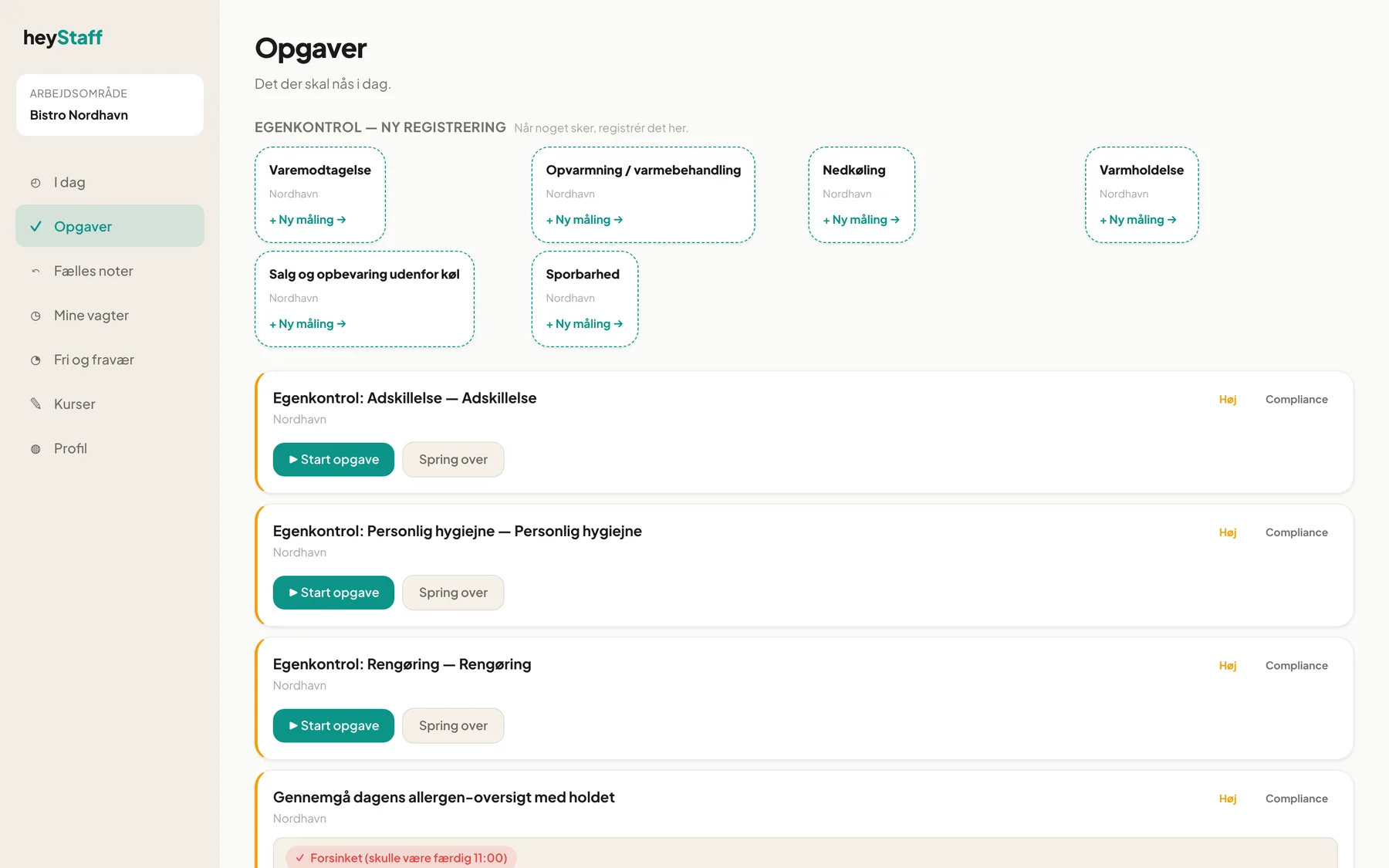 Today’s list, most important tasks first.
What do I see?
Section titled “What do I see?”Under the Tasks heading (“What needs to get done today.”) are the task cards. Each card shows:
- Title and location (for example Nordhavn).
- Priority: Low, Normal, High or Critical. The colour of the left edge follows the priority.
- Category: Opening, Closing, Cleaning, Equipment, Delivery, Food prep, Compliance or Other.
- Deadline line, if the task has a time window: Start by 07:30, Finish by 23:00, or in red Overdue (was due 11:00).
- Description and a collapsible How to do this with images, PDFs, videos and links.
Finished tasks move down to Done today (n) so you can see what the team has already handled.
Status
Section titled “Status”| Status | What it means |
|---|---|
| Pending | The task is ready but nobody has started it (the Start task button is shown). |
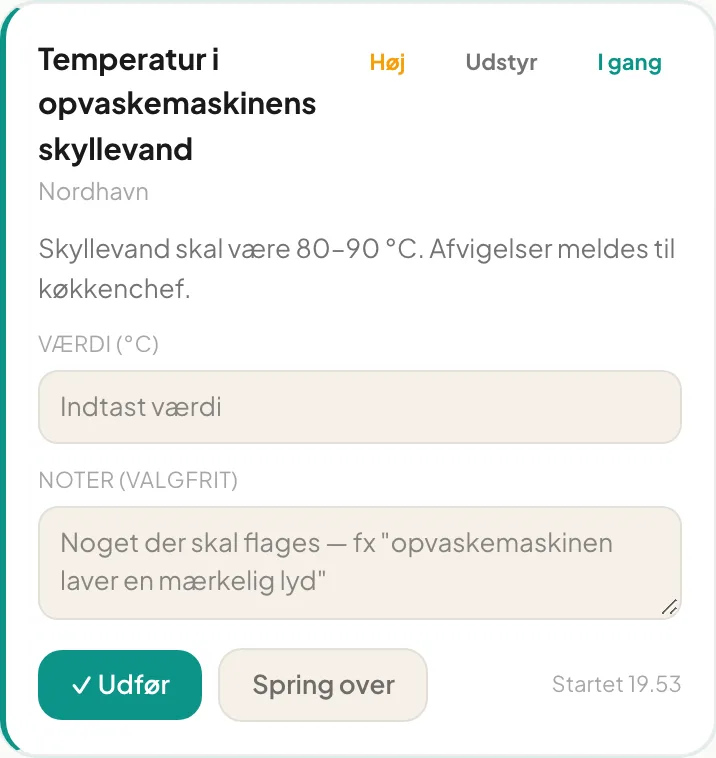
| In progress | Someone pressed Start task. The card gets a green edge and fields for value, photo and notes. |
| Overdue | The deadline has passed. The task can still be completed. |
| Completed / Skipped | The task is finished. The name of the person who did it is shown on the card. |
Which tasks are mine?
Section titled “Which tasks are mine?”As an employee you see the tasks assigned to you and the tasks open to everyone. Most tasks are open to everyone. When you press Start task you take it over, so a colleague doesn’t do the same job twice.
Tip: If you see “No tasks pending right now”, today’s list is empty. Tasks are created automatically from the task definitions, so new ones show up when they are scheduled.
Self-checks – new registration
Section titled “Self-checks – new registration”At the top there may be a row of dashed boxes under Egenkontrol — ny registrering (self-check, new registration), for example Varemodtagelse or Nedkøling. These are measurements that don’t follow a fixed time. Press + Ny måling when something happens, such as receiving goods or cooling a pot. See the self-check area for details. Time-critical registrations show a countdown banner at the top of the page.
On mobile
Section titled “On mobile”Tasks work in the phone’s browser the same way as on a computer. Cards use the full width, and you find the page in the bottom menu under Tasks.
Important: The page needs an internet connection. There is no offline mode, so a task is only saved once you have coverage.
I don’t see a task I usually have. It may only be scheduled on certain weekdays, or a manager has archived it. Ask your manager.
The page says Tasks isn’t active. The module is not enabled for your workspace. Ask the owner or a manager to enable it.