
Deviations
A deviation is a measurement or check that did not meet the limit. Having deviations is normal. What matters is that you can show what you did about them. Managers resolve deviations under Self-checks → View all deviations.
How a deviation arises
Section titled “How a deviation arises”When an employee saves a registration, the number is compared with the control point’s critical limits. If it is outside, a deviation is created automatically with:
- Severity from the limit: Warning, Deviation or Critical.
- The measured value and the limit, for example “Freezer 2: -17.2°C (over max -18°C)”.
- The corrective action that belongs to the limit.
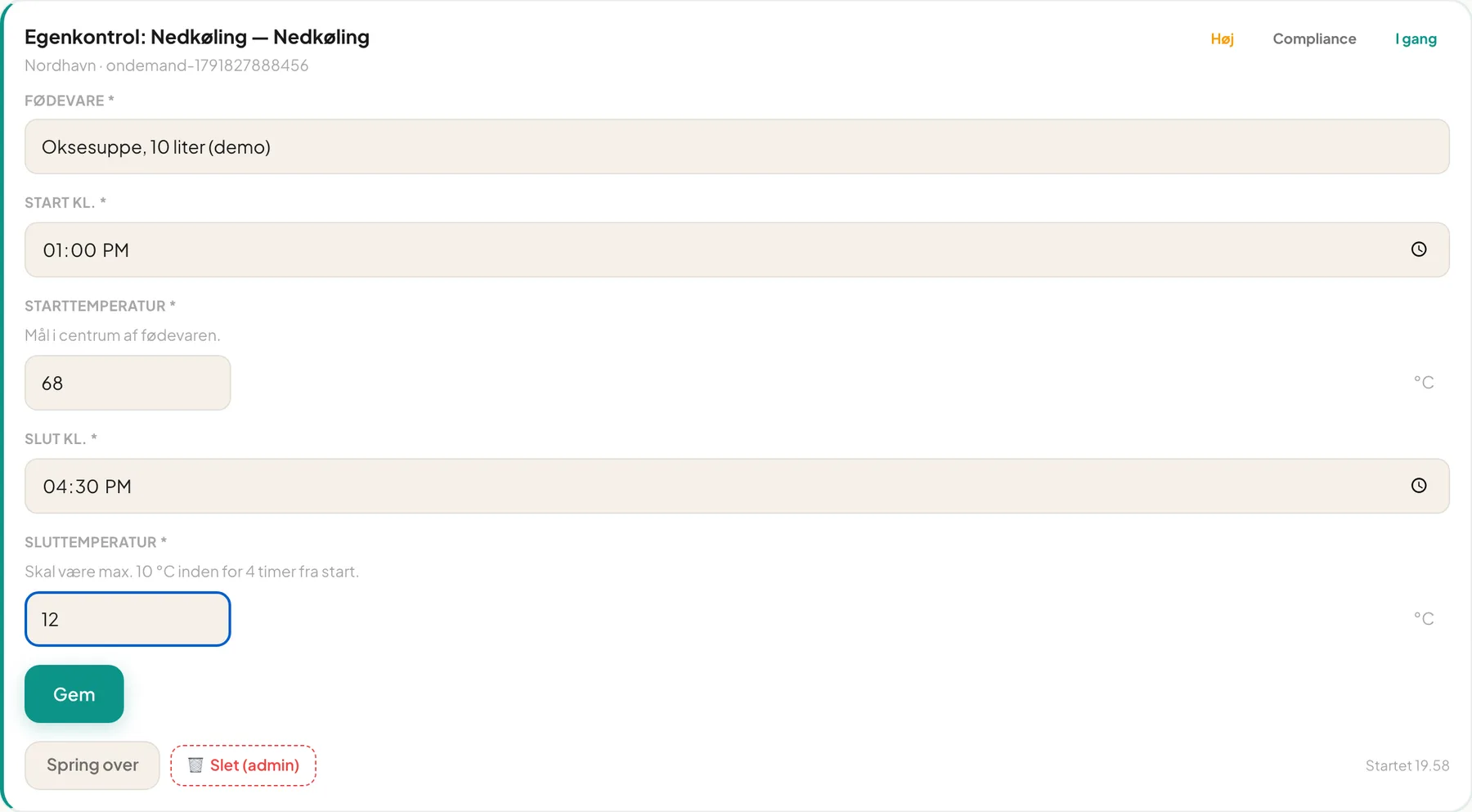
The employee does not need to do anything extra. See an example here, where a cooling is still too warm after 3.5 hours:
The deviation log
Section titled “The deviation log”The log shows all registered deviations. At the top you choose the period: Last 7 days, Last 30 days, Last 90 days or All.
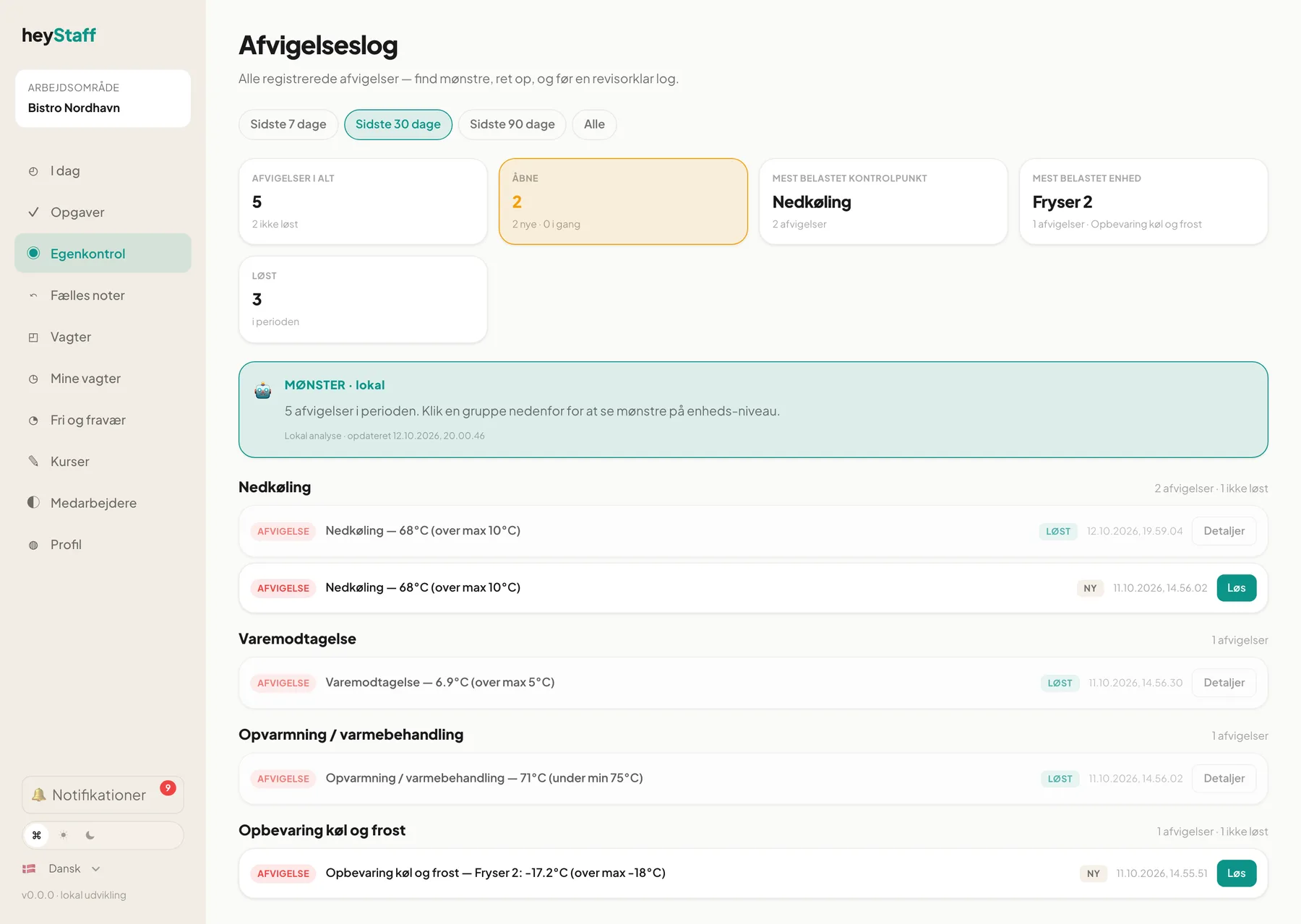
- Summary cards: Total deviations, Open, Most affected control point, Most affected unit and Resolved.
- Patterns · local: a short local analysis when there are several deviations.
- Groups per control point, with status New, In progress or Resolved.
Resolve a deviation
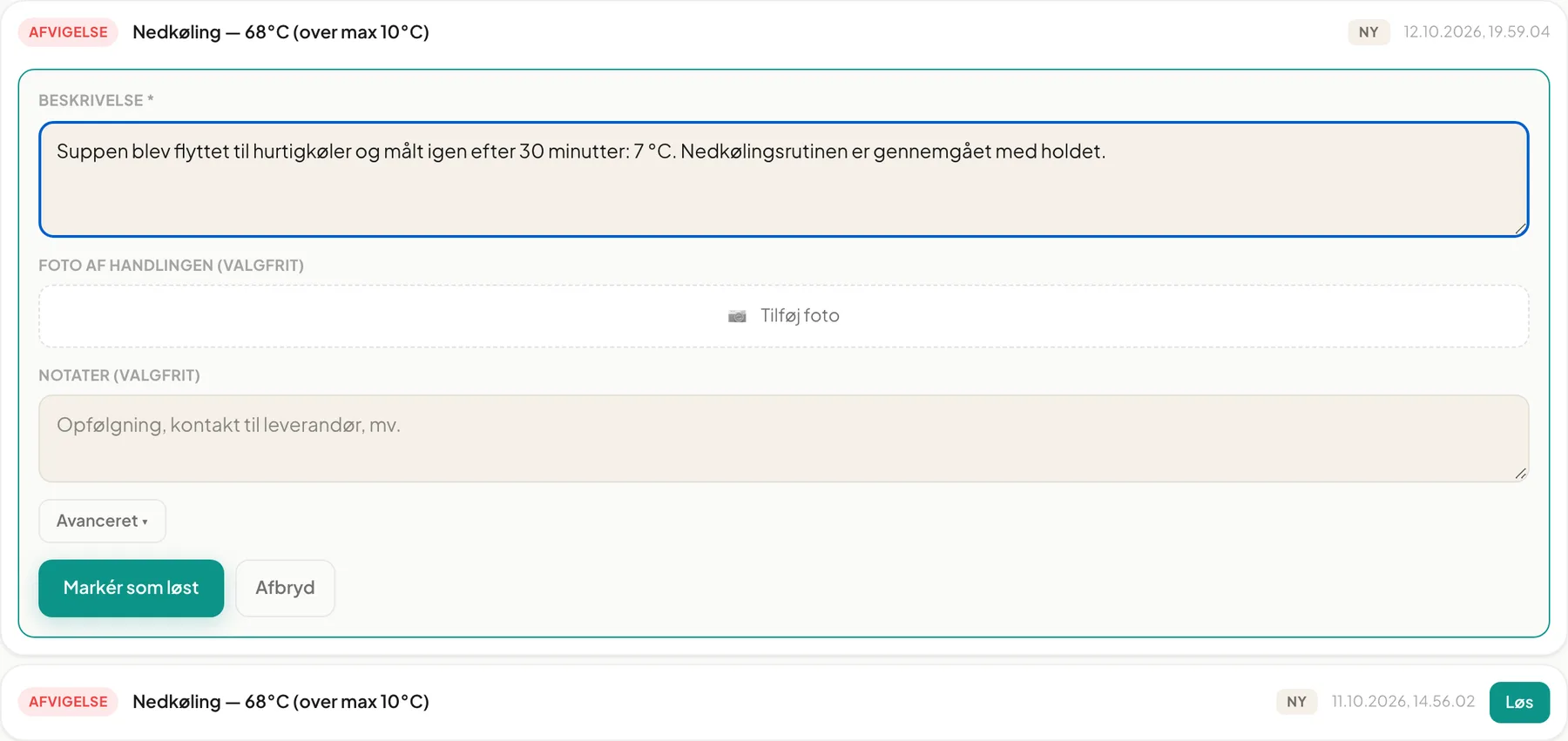
Section titled “Resolve a deviation”- Click Resolve next to the deviation (shown as Løs in the Danish interface).
- Optionally choose What was done? from the suggested actions.
- In Description describe what you did to fix the problem. The field is mandatory.
- Optionally add a Photo of the action and Notes.
- Open Advanced to give a Cause, for example “faulty thermometer”. It helps the annual review.
- Click Mark as resolved.
Critical control points
Section titled “Critical control points”If the deviation belongs to a CCP, a yellow box appears with the text “The resolution must be confirmed by a manager”. Tick I confirm the resolution. Without the tick the button is called Register action, and the deviation stays In progress until someone confirms it. The confirmation should come from someone other than the person who took the action.
See the history
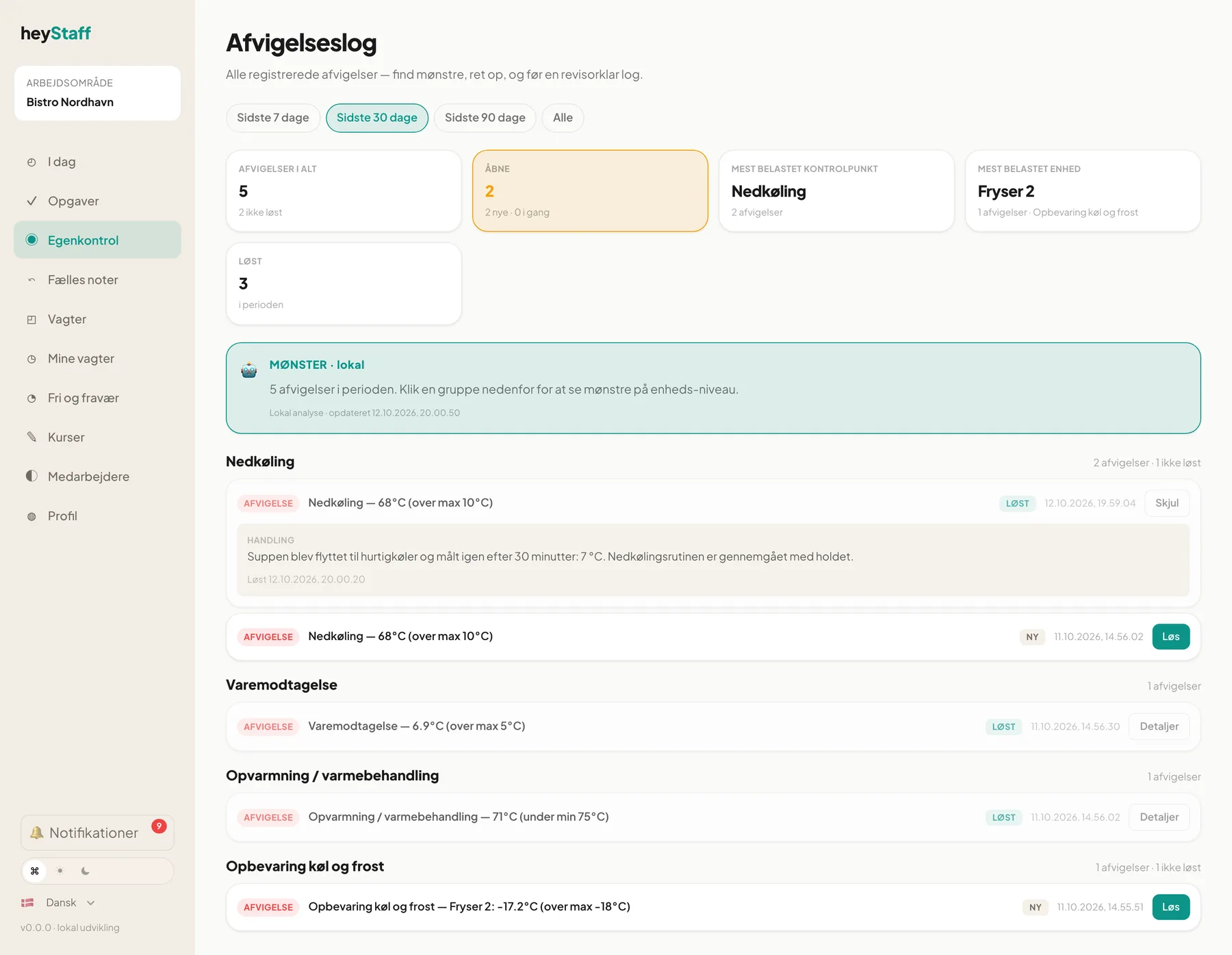
Section titled “See the history”A resolved deviation has a Details button. It shows the Action and the time of resolution.
Tip: Write the action as if an inspector were going to read it: what was done, with what result, and what do we change going forward?
Important: There is no button to reopen a resolved deviation in the log. Finish writing the action before you mark it as resolved.
Frequently asked questions
Section titled “Frequently asked questions”Does the manager get a notification? The deviation appears in the log and on the front page under Open deviations. Check the log daily.